

Understanding Terminologies
- Intake Form
An intake form is a structured document to collect relevant patient information before a procedure. It includes questions about medical history, lifestyle, and specific health conditions to ensure safe and personalized treatment.
- Procedures
Procedures are aesthetic treatments performed to enhance or improve a person’s appearance. Since these procedures are elective, obtaining informed consent protects both the patient and the provider by ensuring clear communication, managing expectations, and fulfilling legal and ethical obligations. This helps prevent misunderstandings and potential legal issues.
Fill the Intake Form for a Procedure Through Procedure View Screen
-
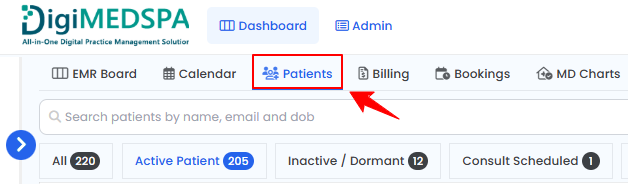
The user can fill the intake form for a procedure through the patient profile. From the EMR Board Tabs, select “Patients.’’
-
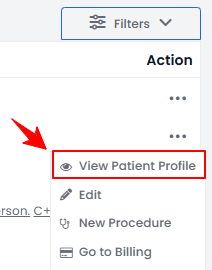
From the patient list, click on three dots under the action column and select "View Patient Profile" for the specific patient, or simply click anywhere on the patient’s data.
-
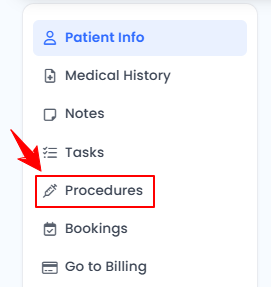
On the Patient Information Screen, users can access a comprehensive summary of all patient details. To view the procedures, simply click "Procedures" from the side panel.
-
Here, you will find all procedures for the patient. Click “View Procedure” next to the desired procedure to access its details.NoteThe Procedure View Screen can also be accessed through the Bookings List Screen and the EMR Board. For detailed navigation, refer to our “Create a New Procedure” article.
-
On the Procedure View Screen, click “Add Intake Form” in the Intake Forms section to add an intake form to the procedure.
 NoteAny intake forms already assigned to the booked service will appear in the Intake Forms section.
 -
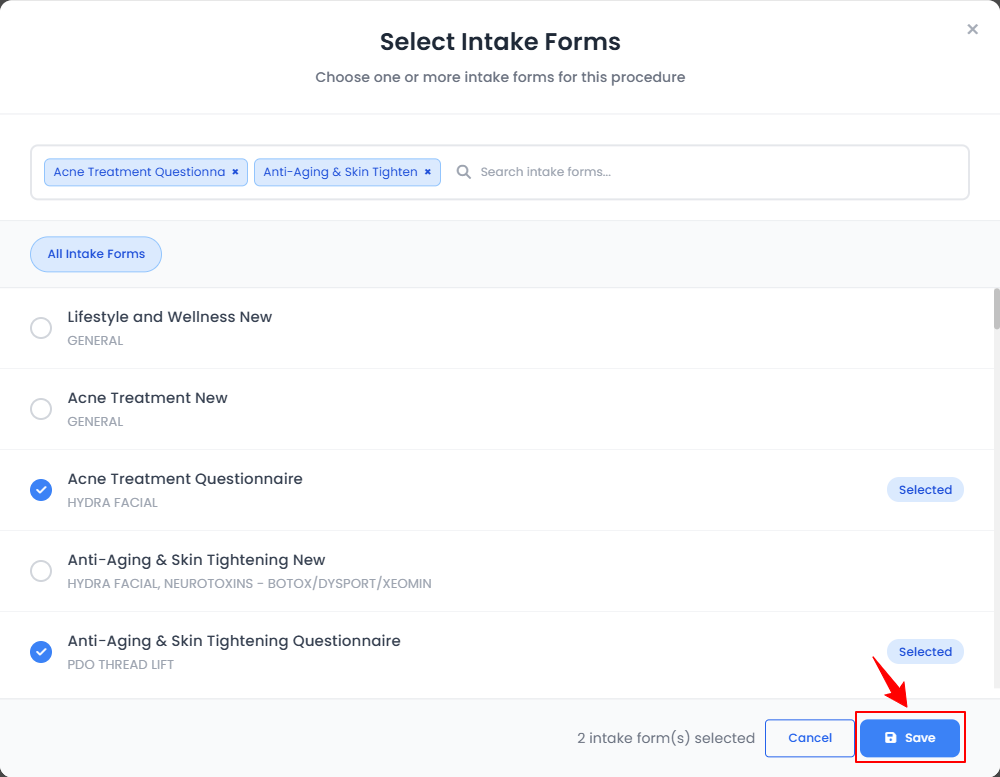
Select the desired intake forms and click “Save.”
-
The intake form will be added. Click “Fill Intake Form” to open the form, complete all fields, and then click “Submit.”
The intake forms have been added to the procedure successfully!
You’re all set
That’s every step of “Fill the Intake Forms for a Procedure”. Up next: Sign the Consent Forms for a Procedure.