

Understanding Terminologies
- Additional Images
Additional images are extra photos or visuals uploaded to supplement a procedure or record. They provide more detail, clarity, or context, helping to better illustrate the procedure, results, or related information.
- Procedure
A procedure is a professionally administered health or cosmetic treatment performed under medical supervision to improve wellness, skin health, or physical appearance.
Add Additional Images to a Procedure
-
The user can add additional images to a procedure through the patient profile by accessing the Patients List Screen. From the EMR Board Tabs, select “Patients.’’
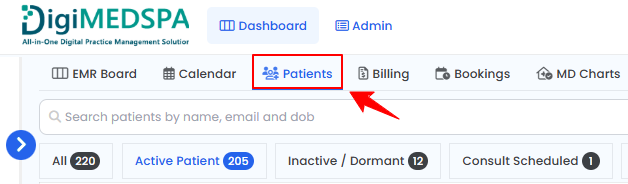
-
From the patient list, click on three dots under the action column and select "View Patient Profile" for the specific patient, or simply click anywhere on the patient’s data.
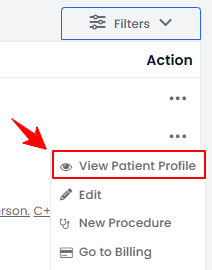
-
On the Patient Information Screen, users can access a comprehensive summary of all patient details. To add additional images, simply click "Procedures" from the side panel.
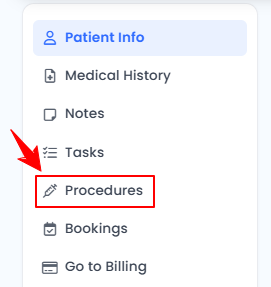
-
Here, you will find all procedures for the patient. Click “View Procedure” next to the desired procedure to access its details.NoteThe Procedure View Screen can also be accessed through the Bookings List Screen and the EMR Board. For detailed navigation, refer to our “Create a New Procedure” article.
-
On the Procedure View Screen, navigate to the Procedure Images/Videos section and click “Upload Images” or “Upload After Images” to proceed.
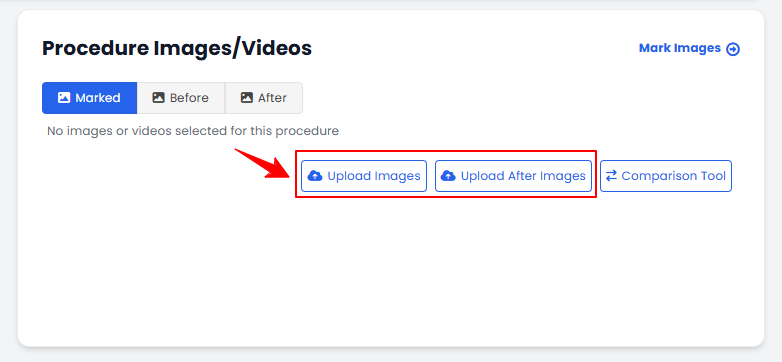 NoteFor full instructions on uploading procedure images, refer to the article “How to Upload Procedure Images?”
 -
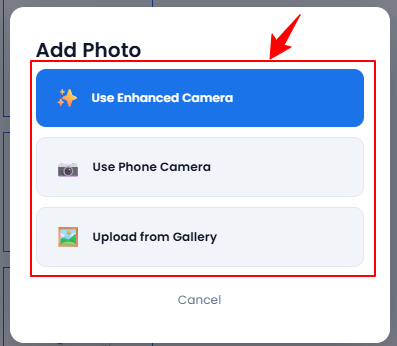
Click the “+” icon to add photos. A pop-up will appear, allowing you to choose how you want to upload the images. Select “Use Enhanced Camera,” “Use Phone Camera,” or “Upload from Gallery.”
-
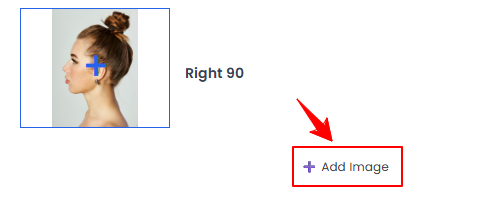
Upload images from different angles. To upload additional images, click the “+ Add Image” button at the bottom of the screen.
-
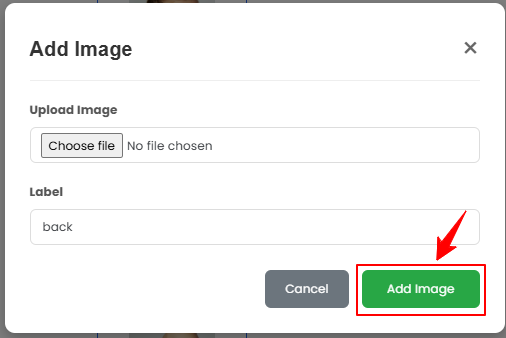
A pop-up window will open where you can upload your image and enter a label. Once finished, click “Add Image” to save it.
-
Select the desired images, and click “Save” to proceed to the Marking Screen.
The additional images have been added to the procedure successfully!
You’re all set
That’s every step of “How to Add Additional Images to a Procedure?”. Up next: How to Cancel a Procedure and Get a Refund?.