

Understanding Terminologies
- Procedure
A procedure is a specific medical or cosmetic process or treatment performed on a patient, following a set of established steps and protocols to achieve a desired outcome.
- Traceability Information
Traceability information refers to the detailed documentation of all relevant data associated with a procedure, such as products used, quantities, batch numbers, and other critical details, allowing the procedure to be tracked, verified, and referenced for safety, compliance, and follow-up purposes.
Add Traceability Information Through Procedure View Screen
-
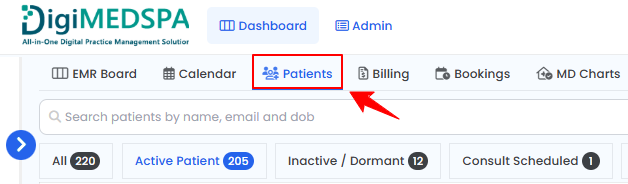
The user can add traceability information through Procedure View Screen. From the EMR Board tabs, click on “Patients.”
-
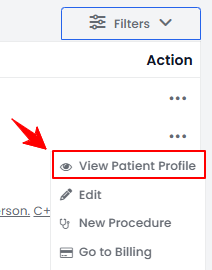
From the patient list, click on three dots under the action column and select "View Patient Profile" for the specific patient, or simply click anywhere on the patient’s data.
-
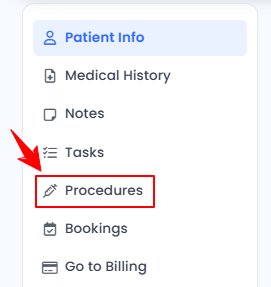
On the Patient Information Screen, users can access a comprehensive summary of all patient details. To view the procedures, simply click on the ‘’Procedures’’ from the side panel.
-
Here, you will find all procedures for the patient. Click “View Procedure” next to the desired procedure to access its details.NoteThe Procedure View Screen can also be accessed through the Bookings List Screen and the EMR Board. For detailed navigation, refer to our “Create a New Procedure” article.
-
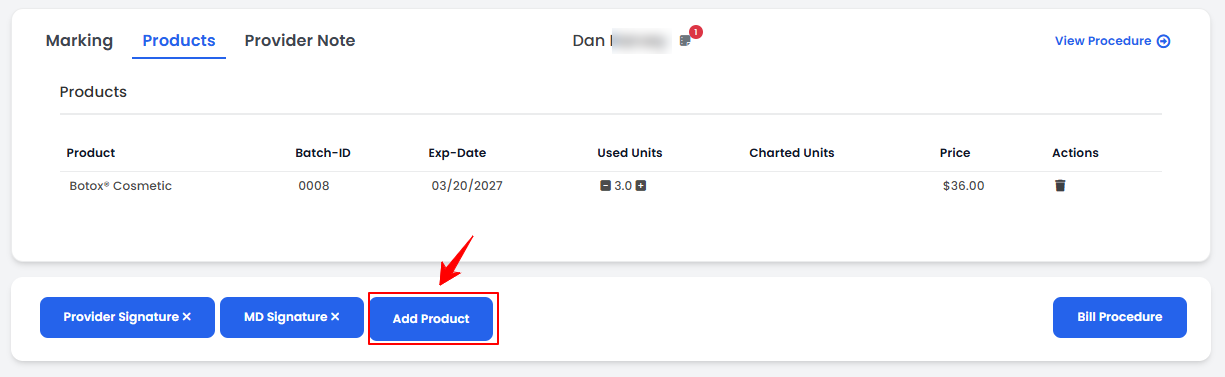
On the Procedure View Screen, navigate to the Procedure Products section and click “Add Product.”

-
Here, you can view all the added products along with their Batch ID, Expiry Date, Used Units, Charted Units, and Price. If no products have been added then click the “Add Product” button.
-
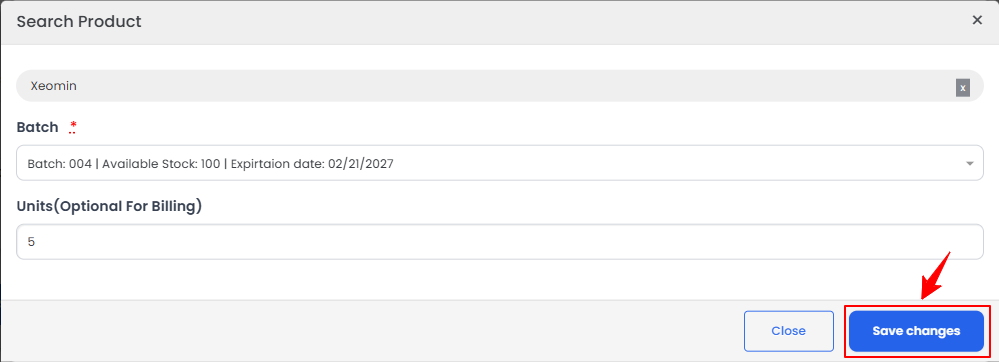
Search for the product you want to add, select the appropriate batch, enter the number of units, and then click “Save Changes.”
-
Adjust the Used Units using the plus (+) and minus (–) controls.

-
To remove a product, click the delete icon under the actions column. Once all changes are complete, click “Bill Procedure.”
The traceability information has been added to the procedure successfully!
You’re all set
That’s every step of “Add Traceability Information to a Procedure”. Up next: How to Add Additional Images to a Procedure?.