

Understanding Terminologies
- Booking
A booking refers to reserving a specific time slot for aesthetic and wellness procedures such as facials, chemical peels, injectables, or laser therapies. It typically involves selecting a time slot, specifying the type of service required, and confirming the booking details.
Part 1 of 4
Edit a Booking from the EMR Board
-
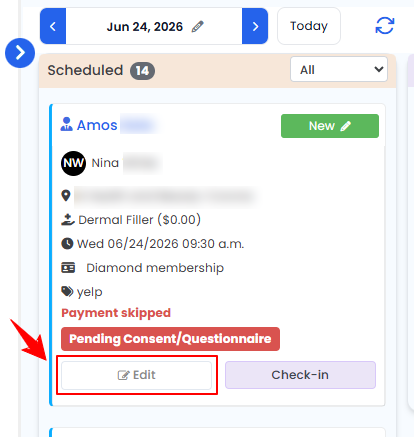
On the EMR Board, navigate to the “Scheduled” section, select the booking you want to edit, and click the “Edit” button.
-
Edit the booking details by making the desired changes and click on ‘’Update Booking.’’
The booking has been successfully edited!
Part 2 of 4
Edit a Booking from the Bookings List Screen
-
The user can edit a booking through the Bookings List Screen accessible from two entry points.
-
From the EMR Board Tabs, select “Bookings.”

-
From the Left Navigation on the EMR Board, click on the “EMR Admin” dropdown and select “Bookings.” Alternatively, you can type “Bookings” into the search bar in the Left Navigation.
-
-
From the bookings list, click on three dots under the action column and select "Edit" for the specific booking.
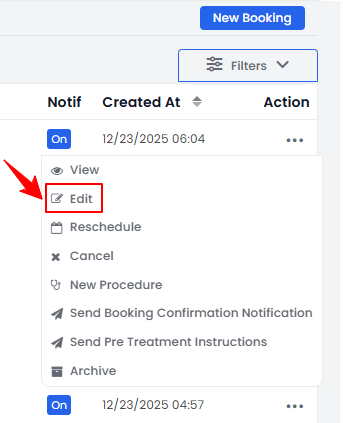 NoteEditing a booking lets you modify details such as services, notes, date, and time, whereas rescheduling a booking specifically adjusts the appointment’s date and/or time while keeping other details unchanged.
 -
Edit the booking details by making the desired changes and click on ‘’Update Booking.’’
The booking has been successfully edited!
Part 3 of 4
Edit a Booking from the Patient Profile
-
The user can edit a booking through the patient profile accessible from two entry points.
-
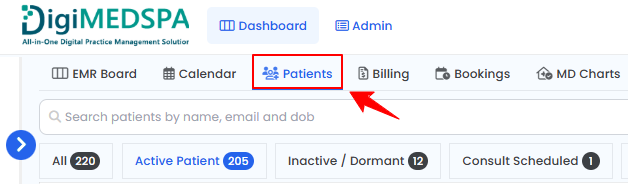
From the EMR Board Tabs, click on ‘’Patients.’’
-
From the Left Navigation on the EMR Board, click on the “EMR Admin” dropdown and select “Patients.” Alternatively, you can type “Patients” into the search bar in the Left Navigation.
-
-
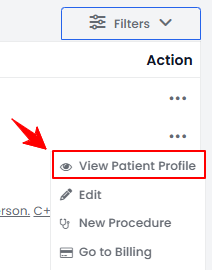
To view a specific patient from the list, click the three dots under the action column and select "View Patient Profile," or simply click anywhere on the patient’s data.
-
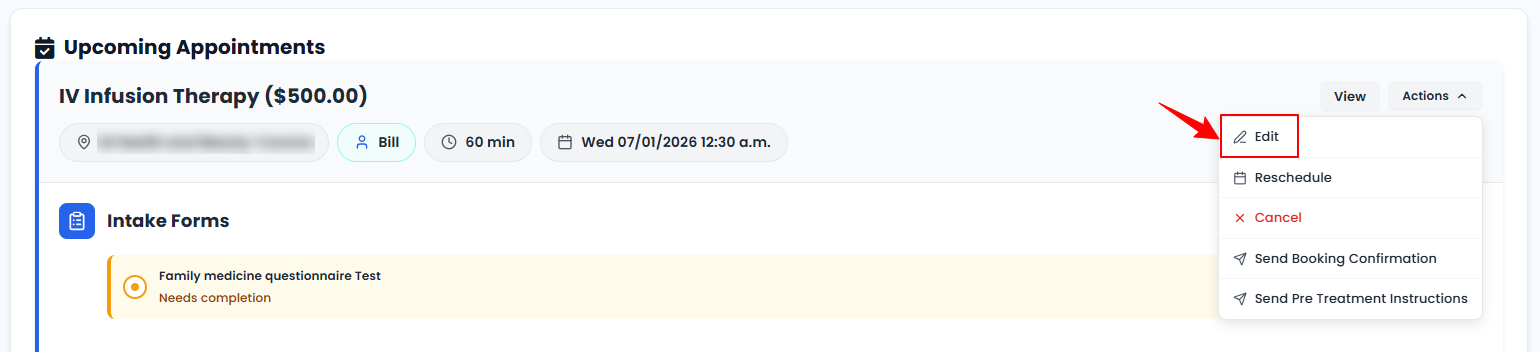
On the Patient Information Screen, users can view a comprehensive overview of the patient’s information. To modify an upcoming appointment, hover over the “Actions” menu and click “Edit.”
-
Another way to edit a booking is via the Bookings tab in the patient profile. On the Patient Information screen, click the “Bookings” tab to view all the patient’s appointments.

-
Click on three dots under the action column and select "Edit" for the specific booking.
-
Edit the booking details by making the desired changes and click on ‘’Update Booking.’’
The booking has been successfully edited!
Part 4 of 4
Edit a Booking from the View Booking Screen
-
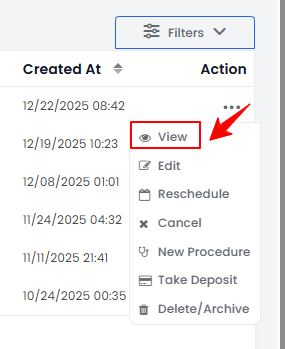
To view a specific booking from the list, click the three dots under the action column and select "View," or simply click anywhere on the booking’s data.
-
On the View Booking Screen, hover over the “Actions” menu on the right side of the screen and click “Edit Booking.”
-
Edit the booking details, make the desired changes and click on ‘’Update Booking.’’
The booking has been successfully edited!
You’re all set
That’s every step of “Edit a Booking”. Up next: How to Create and Book a Virtual Service.