

Understanding Terminologies
- Booking Confirmation Notification
Booking confirmation notification is an automated message sent to a patient after they successfully schedule an appointment or service. It confirms the booking details, such as date, time, location, and service, ensuring the patient knows their appointment has been successfully reserved.
Part 1 of 2
Send Booking Confirmation Notification Through the Bookings List Screen
-
The user can send booking confirmation notification through the Bookings List Screen. From the EMR Board Tabs, select “Bookings.”

-
From the bookings list, click on three dots under the action column and select "Send Booking Confirmation Notification" for the specific booking.
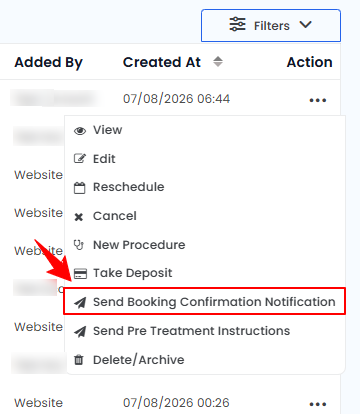 NoteBooking confirmation notifications are only sent for new bookings. They cannot be sent for bookings where the patient has already confirmed and checked in.
 -
The patient will receive a booking confirmation notification via email and SMS containing all the booking details. To confirm the booking, the patient must click the “Click Here” link provided in the email or SMS.
The booking confirmation notification has been successfully sent through the Bookings List Screen!
Part 2 of 2
Send Booking Confirmation Notification Through the Patient Profile
-
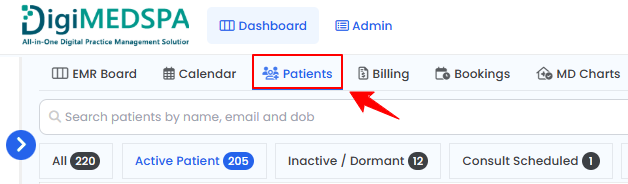
The user can send booking confirmation notification through the patient profile. From the EMR Board Tabs, click on ‘’Patients.’’
-
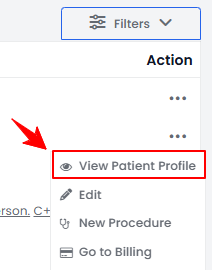
To view a specific patient from the list, click the three dots under the action column and select "View Patient Profile," or simply click anywhere on the patient’s data.
-
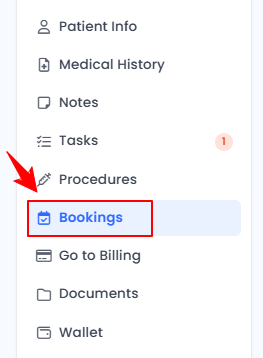
On the Patient Information Screen, users can view a comprehensive overview of the patient’s information. To view the bookings, simply click "Bookings" from the side panel.
-
Click on three dots under the action column and select "Send Booking Confirmation Notification" for the specific booking.
-
The patient will receive a booking confirmation notification via email and SMS containing all the booking details. To confirm the booking, the patient must click the “Click Here” link provided in the email or SMS.
The booking confirmation notification has been successfully sent through the patient profile!
You’re all set
That’s every step of “Send Booking Confirmation Notification”. Up next: How to Join Meeting for a Virtual Service?.