

Understanding Terminologies
- Virtual Service
A virtual service is a service offered remotely using digital technology, allowing patients and providers to interact, consult, or receive treatments online without being physically present in the same location.
Part 1 of 2
Create a Virtual Service
-
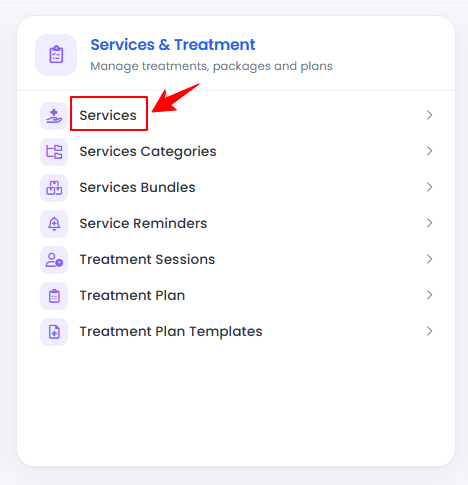
The user can add a virtual service by accessing the Services List Screen. From the “Admin” dashboard, click on “Services” under “Services & Treatment,” or search services in the top search bar.
-
To add a new virtual service, click "New Service" in the top right corner of the screen.
-
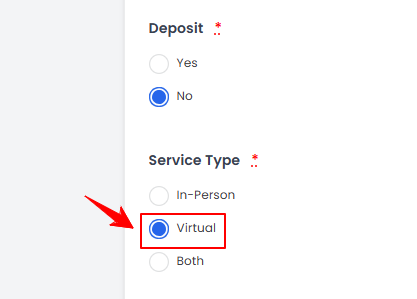
Fill in the required information and set the Service Type to “Virtual.”
-
Complete Steps 2 and 3 of creating the service, then click “Submit” to finalize and create the virtual service.NoteFor detailed instructions on creating a service, see the “Add / View / Edit a Service” user guide.
The virtual service has been created successfully!
Part 2 of 2
Book a Virtual Service
-
The user can book a virtual service by creating a new booking. From the EMR Board, click on ‘’New Booking” in the top right corner of the screen.

-
Select the patient and location, then choose a virtual service from the Services dropdown menu.
-
Fill in the remaining details and click “Create Booking.”NoteFor detailed instructions on creating a new booking, read the “Book an Appointment Through New Booking” user guide.
The virtual service has been booked successfully!
You’re all set
That’s every step of “How to Create and Book a Virtual Service”. Up next: How to Send Pre / Post-Treatment Instructions for a Booking.