

Understanding Terminologies
- EMR Board
The EMR Board is a centralized dashboard in the DigiMEDSPA Portal that offers direct access to key Med SPA operations such as provider schedules, appointment statuses, and upcoming bookings. It also allows users to track and update patient statuses—such as New, Confirmed, Checked In, Waitlist, No-show, or Cancelled.
- Calendar View
The calendar view within the EMR Board visually presents provider schedules, availability, and upcoming bookings in a user-friendly calendar format. It enables users to review appointments and schedules for specific days, and efficiently manage provider availability.
- Provider Schedules
Provider schedules are structured timetables that indicate when providers are available to perform procedures, consultations, or treatments and display time slots where the provider is already booked. These schedules facilitate effective booking management and seamless workflow maintenance.
Using Calendar View to Check Providers' Schedule
-
Upon logging into the DigiMEDSPA Portal, the user is directed to the EMR Board, which is the default landing screen displaying all bookings scheduled for the current date.
-
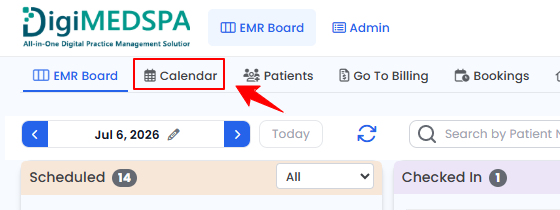
From the EMR Board Tabs, click “Calendar” to switch to a calendar format.
-
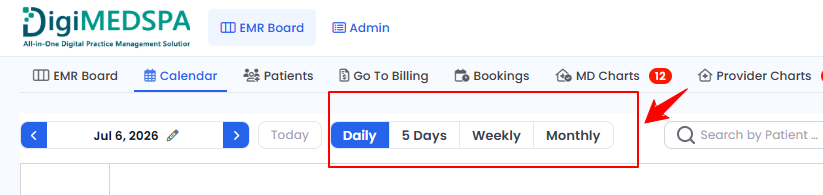
Click “Daily,” “5 Days,” “Weekly,” or “Monthly” to switch between the corresponding calendar views to display bookings for the selected time period.
-
All providers listed in the portal will be displayed. Hover over their name and their booking percentage (the portion of their schedule occupied by confirmed appointments for the day) will be displayed. You can also view their appointments in a calendar format, with the duration of each appointment clearly shown.
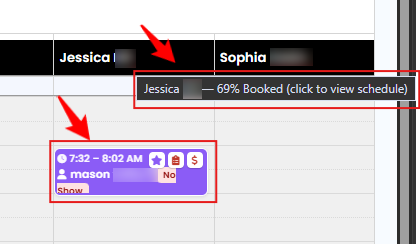 NoteTo view the details of an appointment, including the patient name, location, and service, deposit, and paperwork hover over the appointment's duration on the calendar. Bookings can also be rescheduled by clicking and dragging the booking to the desired time slot. For detailed instructions, refer to “Reschedule a Booking” article.
 -
To view a provider’s weekly schedule, click the provider’s name. The provider’s weekly schedule and unavailabilities will be displayed, along with their booking percentage. From here you can click “Profile” to view the provider’s details or “Edit Schedule” to update the provider’s schedule.
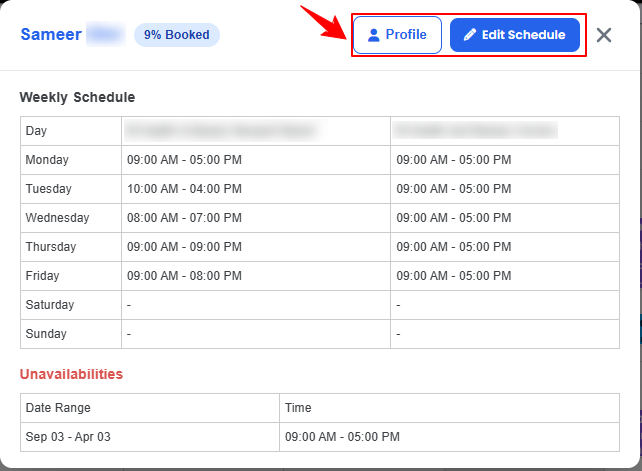 NoteFor detailed instructions on updating a provider’s schedule, refer to the “Manage Provider Schedule” article.
 -
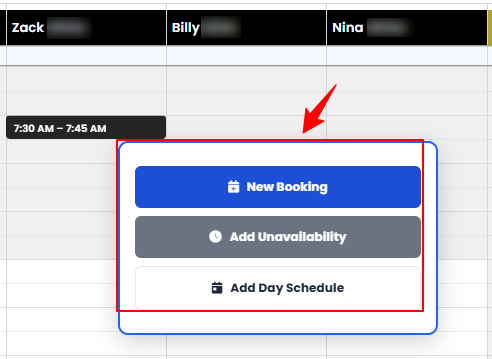
Click any available time slot on the provider’s calendar to create a new booking, mark the provider as unavailable, or add a day schedule.
You’re all set
That’s every step of “Use the Calendar View on the EMR Board to View Provider Schedules and Availability”. Up next: Change the Duration of a Booking.