

Understanding Terminologies
- Pre-Treatment Instructions
Pre-Treatment Instructions are guidelines or steps provided to a patient before their appointment to ensure they are properly prepared for the treatment.
- Post-Treatment Instructions
Post-Treatment Instructions are guidelines or steps given to a patient after their appointment to help with recovery, maintain results, and prevent complications.
- Booking
A booking is a scheduled appointment for a patient in the DigiMEDSPA portal, which includes treatment details, date, time, and assigned provider.
Send Pre / Post-Treatment Instructions for a Booking
-
To send pre / post-treatment instructions to a patient, navigate to the Bookings List Screen. From the EMR Board Tabs, select “Bookings.”

-
To send pre-treatment instructions, navigate to the Bookings List Screen, click the three dots next to the booking, and select “Send Pre-Treatment Instructions” from the Actions menu.
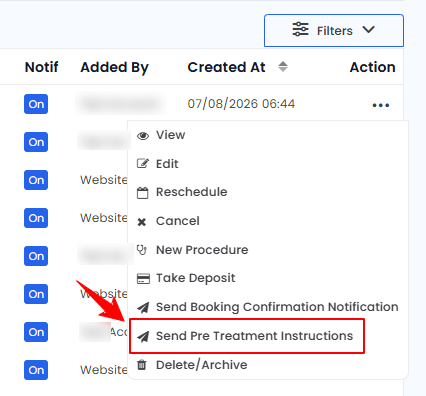 NotePre-treatment instructions can be sent at any stage of the booking, including Check-In, Procedure, Billing, or Checkout.
 -
To send post-treatment instructions, navigate to the Bookings List Screen, click the three dots next to the booking, and select “Send Post-Treatment Instructions” from the Actions menu.
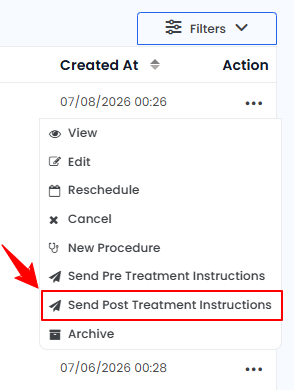 NoteThe “Send Post-Treatment Instructions” option is available for bookings that are in the Billing or Checkout phase and have already occurred.
 -
A confirmation message will appear at the lower-left corner of the Bookings List Screen, indicating that the instructions have been sent to the patient.NotePlease note that the instructions are sent via the email saved in the patient’s profile and only to the patient associated with that booking.
You have successfully sent pre- or post-treatment instructions for the booking to the patient!
You’re all set
That’s every step of “How to Send Pre / Post-Treatment Instructions for a Booking”. Up next: Send Booking Confirmation Notification.