

Understanding Terminologies
- Credit Card
A credit card is a payment card issued by a financial institution that allows the cardholder to borrow funds up to a predetermined limit to make purchases, pay bills, or withdraw cash, with the obligation to repay the amount and any applicable interest.
Part 1 of 4
Add a Patient’s Credit Card
-
The user can add a patient’s credit card by accessing the Patient Credit Cards from two entry points.
-
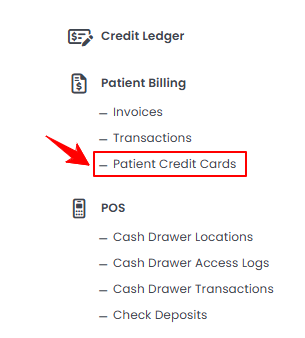
From the EMR Admin, click on ‘’Patient Credit Cards’’ under ‘’Patient Billing.’’
-
From the Left Navigation, open the “EMR Admin” dropdown menu, select “Patient Billing”, and then choose “Patient Credit Cards” from the subsequent dropdown menu. Alternatively, you can type “Patient Credit Cards” into the search bar in the Left Navigation.
-
-
To create a new patient credit card, click on the “New Credit Card‘’ button in the top right corner of the screen.
-
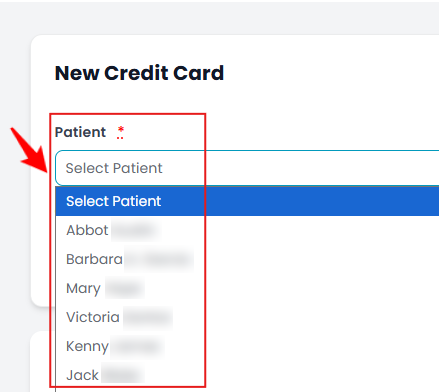
Select the patient from the dropdown menu.
-
Enter the Card Details including, Card Number, Expiry Month, Expiry Year, and CVC. Once all details are entered, click "Create Credit Card" to save the patient's credit card information.NoteA ‘’Card Number’’ is a unique 16-digit number assigned to a credit or debit card for processing transactions. ‘’Expiry Month & Expiry Year’’ is the month and year when a credit or debit card expires, after which it is no longer valid for transactions. ‘’CVC (Card Verification Code)’’ is a 3-digit or 4-digit security code on the card used for verification in online and card-not-present transactions.The patient’s credit card has been added successfully!
Part 2 of 4
View a Patient’s Credit Card
-
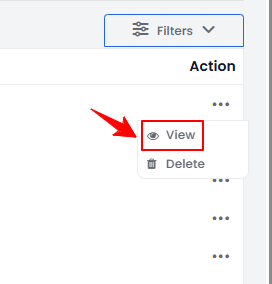
To view a specific patient’s credit card from the list, click the three dots under the action column and select "View," or simply click anywhere on the credit card’s data.
-
The Patient Credit Card View Screen will display the complete patient credit card details.
Part 3 of 4
Delete a Patient’s Credit Card
-
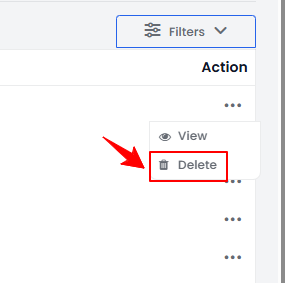
To delete a specific patient’s credit card from the list, click the three dots under the action column and select "Delete."
-
A confirmation pop-up will appear; click “OK” to permanently delete the credit card.
The patient’s credit card has been deleted successfully!
Part 4 of 4
Manage Patient’s Credit Card Through Patient Profile
-
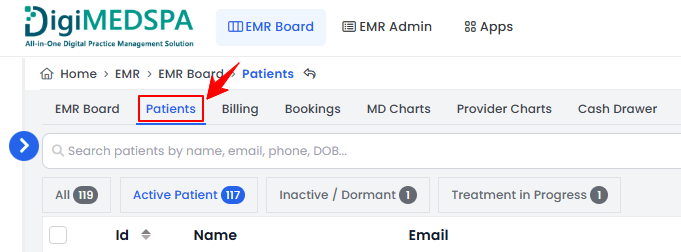
The user can manage a patient's credit card through the patient profile by accessing the Patients List Screen from two entry points.
-
From the EMR Board Tabs, select “Patients.’’
-
From the Left Navigation, click on the “EMR Board” dropdown menu and select “Patients.” Alternatively, you can type “Patients” into the search bar in the Left Navigation.
-
-
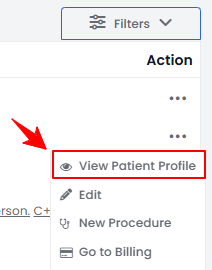
To view a specific patient from the list, click the three dots under the action column and select "View Patient Profile," or simply click anywhere on the patient’s data.
-
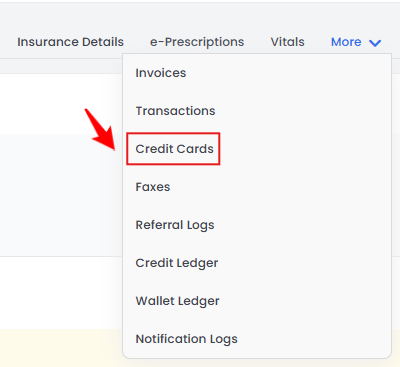
On the Patient Information Screen, the user will find a detailed overview of the patient’s information. To view the patient’s credit cards, hover over the ‘’More’’ tab and select ‘’Credit Cards’’ from the dropdown menu.
-
A list of the patient's saved credit cards will be displayed.NoteFollow the same steps outlined in this user guide to add a new credit card, or to view and delete the patient’s existing credit cards.
You’re all set
That’s every step of “Manage Patient’s Credit Cards”. Up next: How to Use Split Payment to Combine Multiple Payment Methods.