

Understanding Terminologies
- Redeem
Redeem refers to using or applying stored value, such as prepaid services, gift cards, discounts, or package benefits, to pay for a product or service.
- Patient Wallet
A patient wallet is a digital feature in the EMR system that allows patients to store funds, manage prepaid services, apply credits, and make seamless payments for medical treatments within the Med SPA facility.
Part 1 of 2
Redeem Items from the Patient Wallet
-
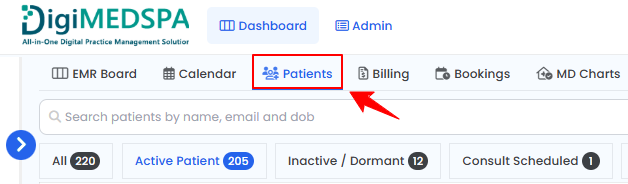
The user can redeem items from the patient wallet by accessing the Patients List Screen. From the EMR Board Tabs, select “Patients.’’
-
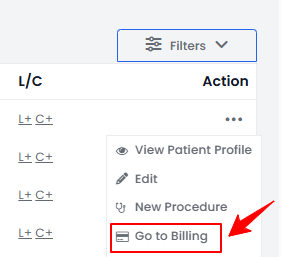
To access a patient’s wallet, click the three dots in the Action column for that patient and select "Go to Billing."
 NoteThere are multiple ways to access the patient wallet. For more information, refer to the article "Go to Patient's Billing."
If a patient or walk-in customer wishes to purchase over-the-counter (OTC) products, such as skincare items or wellness supplements that do not require a prescription, click the “Continue to Billing” button located in the Over The Counter section. -
You will see a list of bookings associated with the patient. Click the “Collect Payment” button next to the booking for which the patient wishes to make a payment.

-
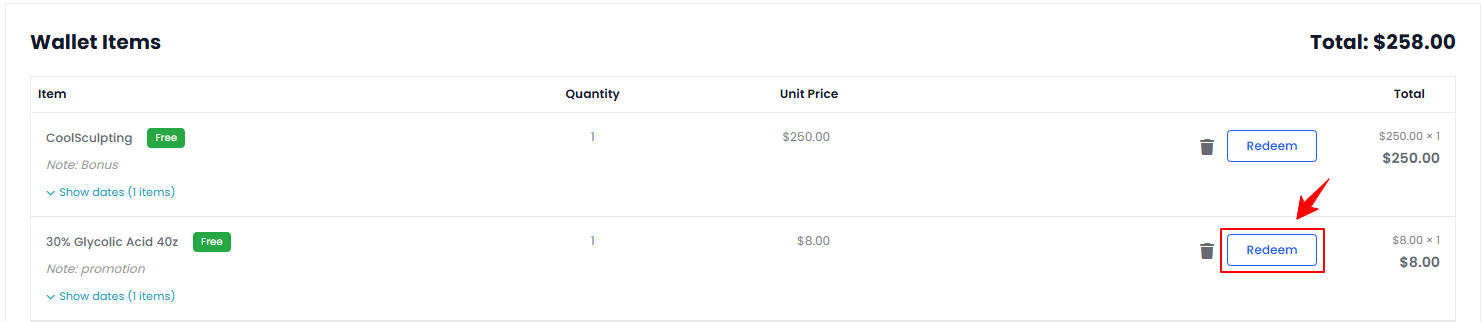
To redeem an item, navigate to the Wallet Items section and click on the ‘’Redeem’’ button next to the item you want to redeem.
-
The redeemed item will appear in the Current Sale section. Review the redeemed items, then click the "Pay Now" button to complete the payment.
Part 2 of 2
Redeem Dollar Credit from the Patient Wallet
-
To redeem dollar credit, navigate to the Wallet section and click the ‘’Redeem’’ button next to the Dollar Credit.
 NoteThe patient’s wallet can also be accessed from the side panel on the Patient Information Screen. ‘’Dollar Credit’’ refers to a monetary value awarded to an account, often as part of a loyalty or rewards program, that can be used for future transactions, discounts, or purchases within a specified system. Dollar credits are recorded in reward ledgers, which track the amount credited, previous balance, and updated balance after each transaction. This ensures transparency and accuracy in patient rewards programs.
 -
Enter the Redeem Amount and click ‘’Submit’’ to redeem the dollar credit from the wallet.
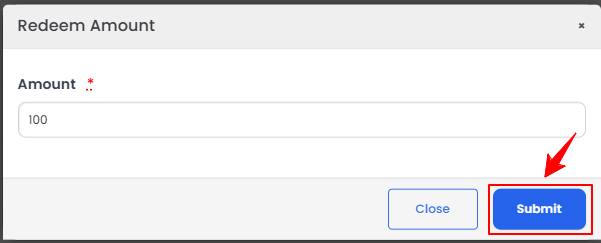 Note''Amount'' is the monetary value of the dollar credit added or deducted in a transaction. For complete instructions on adding dollar credit, refer to “How to Add Dollar Credit in the Patient Wallet?’’ user guide.The dollar credit has been successfully redeemed!
You’re all set
That’s every step of “How to Redeem Items from the Patient Wallet?”. Up next: Manage Patient’s Credit Cards.