

Understanding Terminologies
- Invoice
An invoice is a formal document provided to a patient that lists the medical services or products received, along with their costs, applicable taxes, deposit amounts (if any), payment terms, and the total amount due.
- Resending an Invoice
Resending an invoice means delivering this document to the patient again—typically via email—so they have a record of charges, payments, and any outstanding balance.
Part 1 of 2
Resend Invoice to a Patient
-
The user can access the Invoices List Screen from two entry points:
-
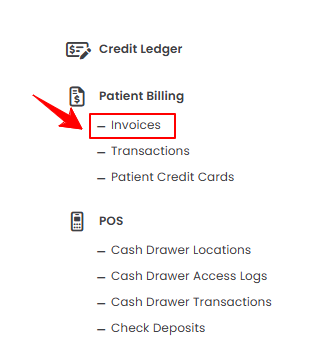
From the EMR Admin, click on “Invoices” under “Patient Billing.”
-
From the Left Navigation, open the “EMR Admin” dropdown menu, select “Patient Billing,” and then choose “Invoices” from the subsequent dropdown menu. Alternatively, you can type “Invoices” into the search bar in the Left Navigation.
-
-
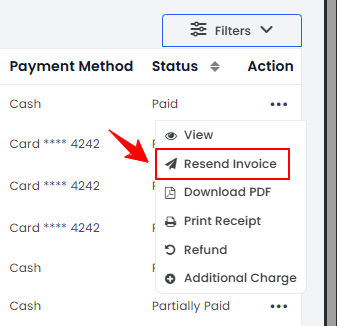
A list of all invoices will be displayed. From this list, click the three dots in the Action column next to the invoice you want to resend, and select “Resend Invoice.”
-
A confirmation pop-up will appear at the bottom-left corner of the screen, indicating that the invoice has been successfully resent to the patient.NoteThe invoice is emailed to the patient on the email address saved in their profile.
The invoice has been successfully resent to the patient!
Part 2 of 2
Resend Invoice to a Patient through a Patient’s Profile
-
A patient’s invoice can be accessed and resent through the Patients List Screen accessible via two entry points.
-
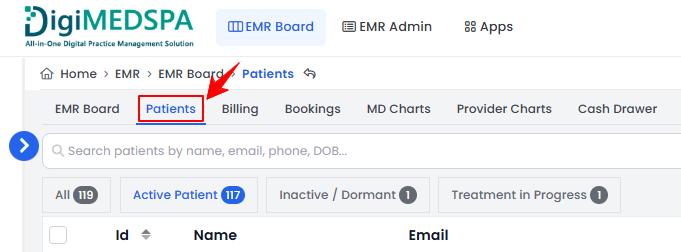
From the EMR Board Tabs, select “Patients.’’
-
From the Left Navigation, click on the “EMR Board” dropdown menu and select “Patients.” Alternatively, you can type “Patients” into the search bar in the Left Navigation.
-
-
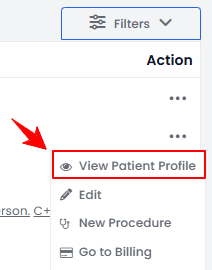
From the patient list, click on three dots under the action column and select "View Patient Profile" for the specific patient.
-
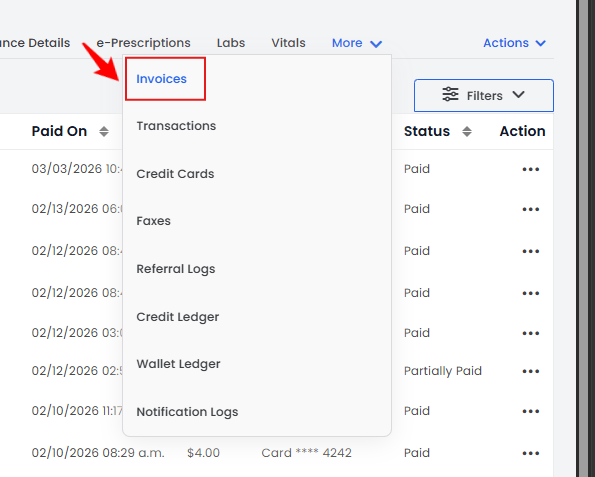
Users can view detailed patient information on the patient profile. Hover over "More" and click on "Invoices.”
-
A list of invoices will be displayed, showing the patient’s payment history. From this list, click the three dots in the Action column and select “Resend Invoice” for the specific invoice.
-
A confirmation pop-up will appear at the bottom-left corner of the screen, indicating that the invoice has been successfully resent to the patient.
The invoice has been successfully resent to the patient!
You’re all set
That’s every step of “How to Resend Invoice to a Patient”. Up next: How to Export All Invoices?.