

Understanding Terminologies
- Price
Price is the amount charged for a specific service or product..
- Quantity
Quantity is the number of units or sessions of a service or product being purchased.
- Billing
Billing is the process of calculating the total cost and collecting payment for products or services.
Part 1 of 2
Edit Service Price and Quantity During Billing
-
The user can access the Billing Screen via two entry points:
-
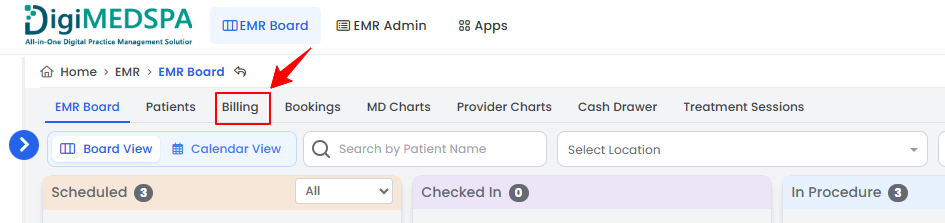
From the EMR Board Tabs, select “Billing.”
-
From the Left Navigation, click on the “EMR Board” dropdown menu and select “Billing.” Alternatively, you can type “Billing” into the search bar in the Left Navigation.
-
-
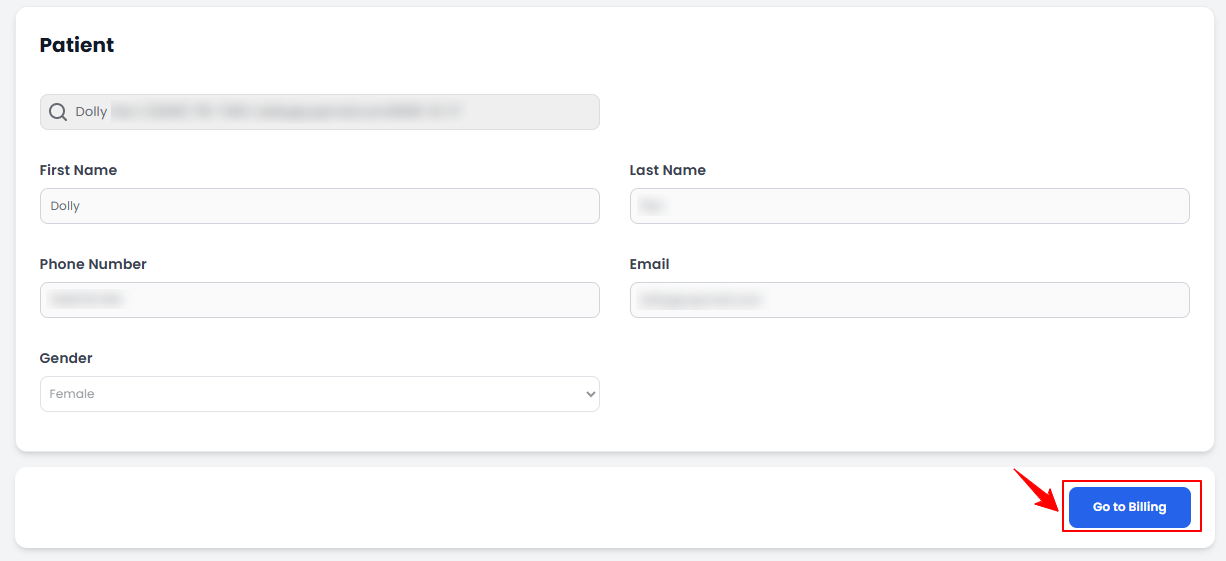
Use the search bar to find the patient. Their details, including First and Last Name, Phone Number, Email, and Gender, will auto-fill. Click “Go to Billing” to view their billing information.
-
If the patient has bookings at multiple clinic locations, a list of those locations will be displayed. Click the “Go to Billing” button next to the location where the patient wishes to make the payment.NoteThe list of locations will not be displayed if the patient has bookings at only one location.
-
You will see a list of bookings associated with the patient. Click the “Go to Billing” button next to the booking for which the patient wishes to make a payment.
 NoteIf a patient or walk-in customer wishes to purchase over-the-counter (OTC) products—such as skincare items or wellness supplements that do not require a prescription—click the “Go to Billing” button located in the Over The Counter section. The remaining steps for completing the billing are the same as those used for services and procedures, explained in this user guide.
 -
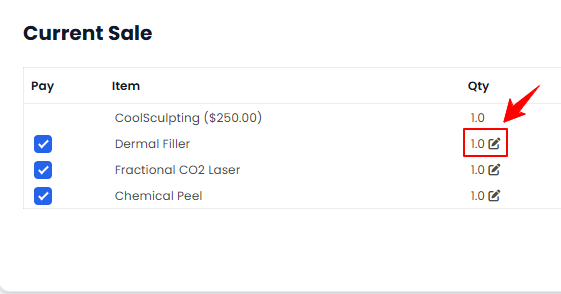
A list of all items associated with that booking, along with the pending amount, will be displayed. To update the Quantity of a service, click the “Edit” icon next to the service you want to modify.
-
Enter the service quantity and click “Update” to save.
-
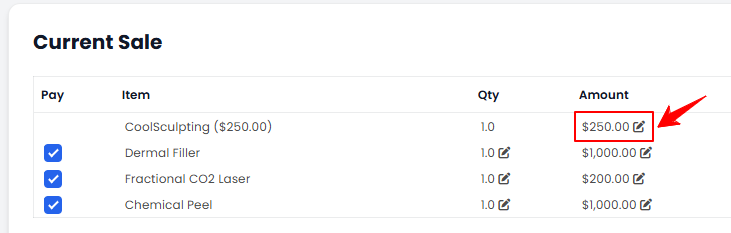
To change a service’s price, click the “Edit” icon in the “Amount” column next to the service you want to modify.
-
Enter the service amount and click “Update” to save.
Service price and quantity have been successfully updated. You can now click the “Pay Now” button to complete the transaction.
Part 2 of 2
Edit Product Price and Quantity During Billing
-
On the Billing Screen, click the “Edit” icon next to the product to change its quantity.
-
Enter the product quantity and click “Update” to save.
-
On the Billing Screen, click the “Edit” icon in the “Amount” column next to the product to modify its price.
-
Enter the product amount and click “Update” to save.
Product price and quantity have been successfully updated. You can now click the “Pay Now” button to complete the transaction.
You’re all set
That’s every step of “How to Edit Service or Product Prices and Quantities During Billing?”. Up next: How to Check out without Billing?.