

Understanding Terminologies
- Invoice
An invoice is a formal document provided to a patient that lists the medical services or products received, along with their costs, applicable taxes, deposit amounts (if any), payment terms, and the total amount due.
- Downloading an Invoice
Downloading an invoice means saving a patient’s invoice as a PDF to your computer, which preserves its formatting, ensures it remains unaltered, and allows it to be used for records, accounting, or sharing with the patient.
Part 1 of 2
Download Invoice to Your Device
-
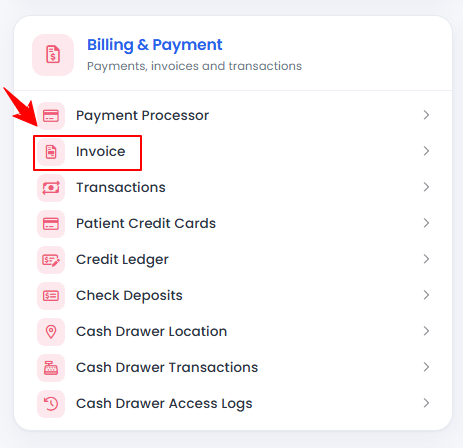
The user can download an invoice by accessing the Invoices List Screen. From the “Admin” dashboard, click on “Invoice” under “Billing & Payment,” or search invoice in the top search bar.
-
A list of all invoices will be displayed. From this list, click the three dots in the Action column next to the invoice you want to download, and select “Download PDF.”
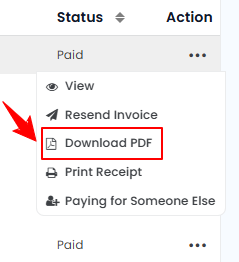 NoteSingle invoices can be downloaded only as PDF files and are not available in any other format for downloading.
Your downloaded invoice will open on your computer and is saved successfully!
Part 2 of 2
Download Invoice to Your Device through the Patient Profile
-
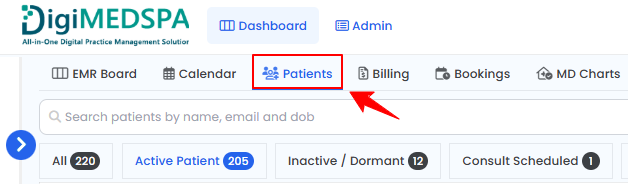
A patient’s invoice can be accessed and downloaded through the Patients List Screen. From the EMR Board Tabs, select “Patients.’’
-
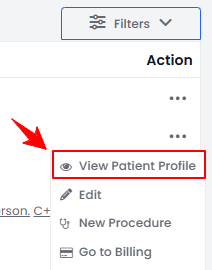
From the patient list, click on three dots under the action column and select "View Patient Profile" for the specific patient.
-
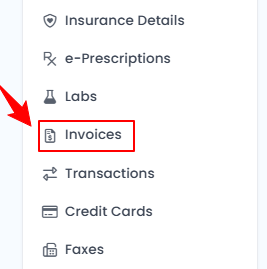
On the Patient Information Screen, users can access a comprehensive summary of all patient details. To view the invoices, simply click "Invoices" from the side panel.
-
A list of invoices will be displayed, showing the patient’s payment history. From this list, click the three dots in the Action column and select “Download PDF” for the specific invoice.
Your downloaded invoice will open on your computer and is saved successfully!
You’re all set
That’s every step of “How to Download Invoice”. Up next: How to Check Deposit Payment Status for New Bookings?.