

Understanding Terminologies
- Deposit Payment Status
Indicates whether the required deposit for a booking has been paid or is still pending. Deposit requirements are defined when setting up services, and the applicable deposit is automatically applied based on the service selected for the booking.
- New Bookings Created
Refers to recently scheduled appointments in the DigiMEDSPA portal that may include a required deposit. The deposit amount is determined by the service added to the booking.
Part 1 of 2
How to View Unpaid Deposit Status on the EMR Board
-
Click “EMR Board” on the Top Navigation Bar. The default landing screen will display all bookings scheduled for the current date.
-
Bookings with unpaid deposits will be marked as “Payment Skipped” on the EMR Board.
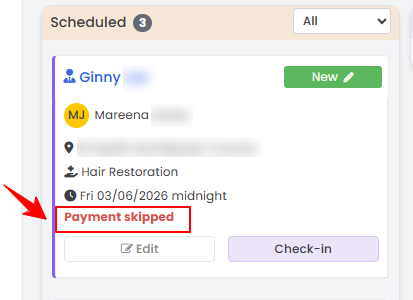 NoteBookings with paid deposits will not display any payment status. If no payment status is shown, it means the deposit has been paid.
Part 2 of 2
Verify Paid Deposit Amount via Invoice
-
A patient's booking deposit can be reviewed through the Patients List Screen, accessible via two entry points.
-
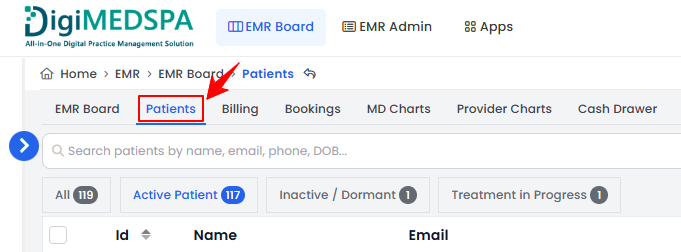
From the EMR Board Tabs, select “Patients.’’
-
From the Left Navigation, click on the “EMR Board” dropdown menu and select “Patients.” Alternatively, you can type “Patients” into the search bar in the Left Navigation.
-
-
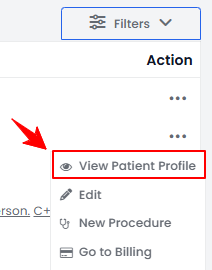
From the patient list, click on three dots under the action column and select "View Patient Profile" for the specific patient.
-
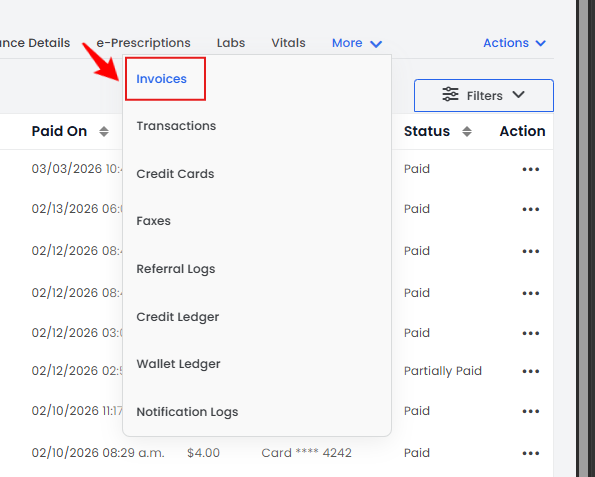
Users can view detailed patient information on the patient profile. Hover over "More" and click the "Invoices" tab.
 NoteAn “Invoice” is a formal document provided to a patient that lists the medical services or products received, along with their costs, applicable taxes, payment terms, deposit amounts, and the total amount due.
 -
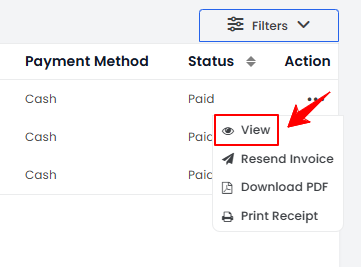
A list of invoices will be displayed, showing the patient’s payment history, including invoice numbers and payment statuses. From this list, click on the three dots under the action column and select “View,” or simply click anywhere on the invoice’s data for the specific invoice you want to view.
 NoteYou can view the patient’s payment history, but it cannot be edited to ensure accuracy and maintain financial record integrity.
 -
The invoice details will be displayed, including the paid amount, pending amount, and the payment method used.
You’re all set
That’s every step of “How to Check Deposit Payment Status for New Bookings?”. Up next: How to Resend Invoice to a Patient.