

Understanding Terminologies
- Cancellations
Cancellations are memberships that have been ended, either by the member or the organization during a specific period, resulting in the member no longer having an active status.
View Cancellation Reports
-
The user can view membership cancellation reports by accessing the “Membership Reports” through Reports from two entry points.
-
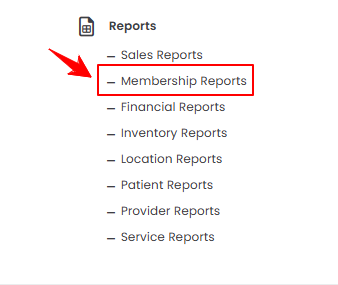
From the EMR Admin, click on “Membership Reports” under “Reports.”
-
From the Left Navigation, open the “EMR Admin” dropdown, select “Reports,” and then choose “Membership Reports” from the subsequent dropdown menu. Alternatively, you can type “Membership Reports” into the search bar in the Left Navigation.
-
-
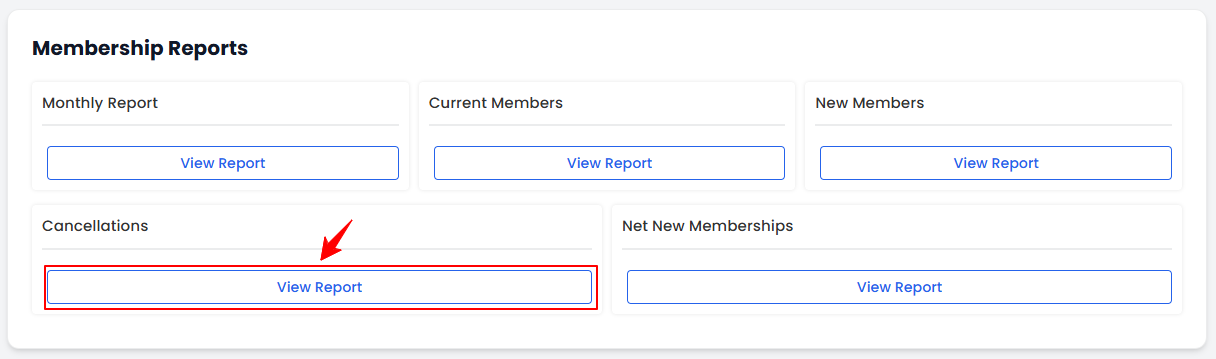
On the Membership Reports Screen, you will find sections for Monthly Report, Current Members, New Members, Cancellations, and Net New Memberships, providing a clear overview of membership activity. To access the detailed report of cancellations, simply click on “View Report” under the Cancellations section.
-
To view reports of membership cancellations, select the Start Date, End Date, and Location from the dropdown menu, and then click “Apply Filters” to filter the data for the specific time period.

-
At the top of the screen, key metrics for the selected period are displayed, including Total Cancellations, Pending Cancellations, Fully Cancelled, and Lost Monthly Revenue. The report also shows Cancellations by Membership Type with their count and lost revenue, and Cancellations by Location with their count.
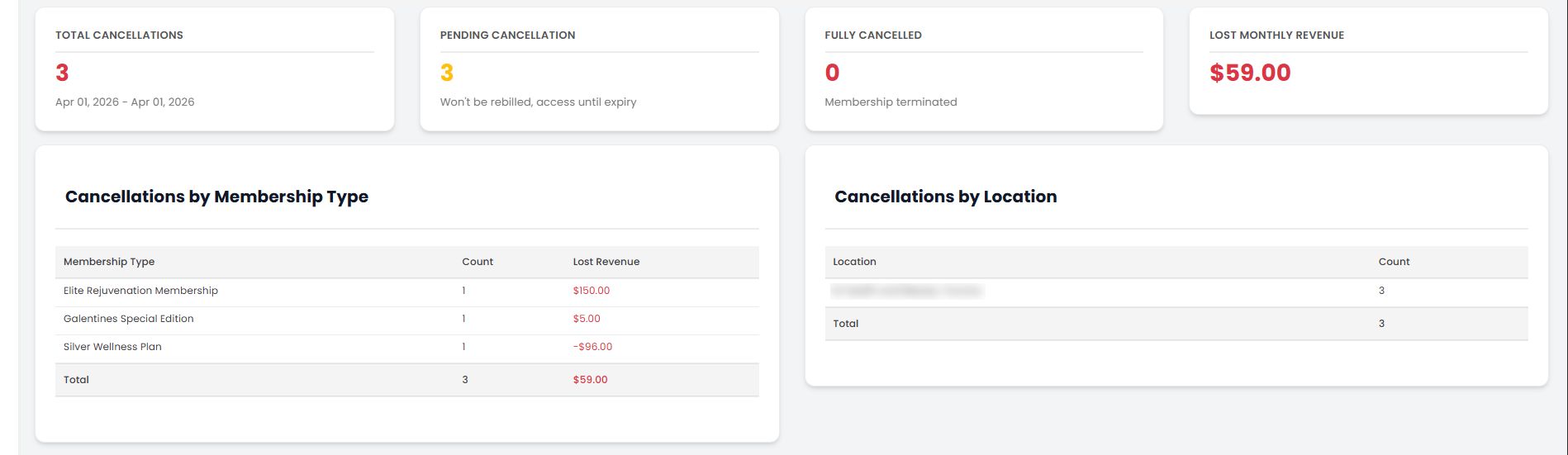 Note“Total Cancellations” refers to the total number of memberships that have been cancelled during the selected period, including both pending and fully completed cancellations. “Pending Cancellations” are memberships for which a cancellation request has been submitted but has not yet been fully processed or finalized. “Fully Cancelled” refers to memberships that have been completely terminated and are no longer active. “Lost Monthly Revenue” is the total revenue lost during the period as a result of membership cancellations.
 -
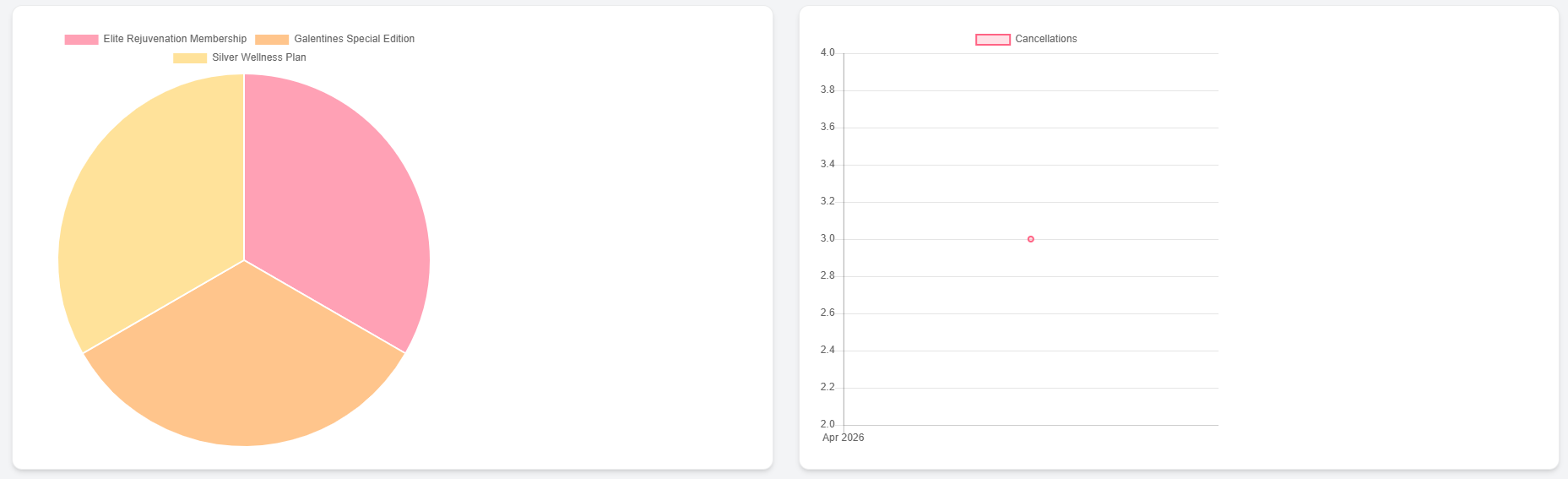
Review the graphs of Cancellations by Membership Type and Cancellations by Location.
-
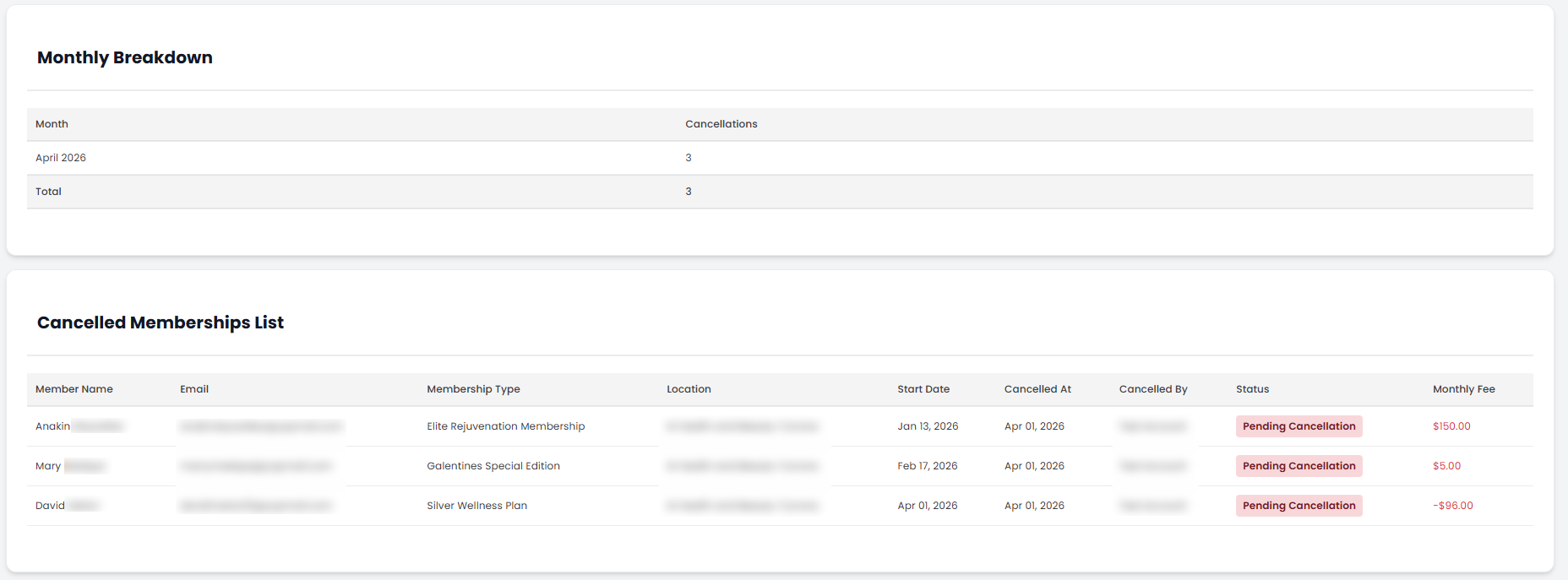
Below the graphs, you will find the Monthly Breakdown of Cancellations and a detailed List of Cancelled Memberships, showing each member’s Name, Email, Membership Type, Location, Start Date, Cancellation Date, Cancelled By, and Status.
You’re all set
That’s every step of “View Membership Cancellation Reports”. Up next: View Net New Membership Reports.