

Understanding Terminologies
- Monthly Membership Report
A monthly membership report is a summary document that provides an overview of all membership-related activities within a specific month. It typically includes details such as active members, new sign-ups, renewals, cancellations, and total revenue generated from memberships.
Review Monthly Membership Report
-
The user can review monthly membership reports by accessing the “Membership Reports” through Reports from two entry points.
-
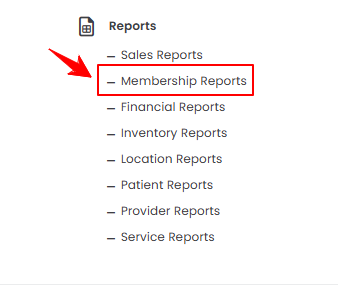
From the EMR Admin, click on “Membership Reports” under “Reports.”
-
From the Left Navigation, open the “EMR Admin” dropdown, select “Reports,” and then choose “Membership Reports” from the subsequent dropdown menu. Alternatively, you can type “Membership Reports” into the search bar in the Left Navigation.
-
-
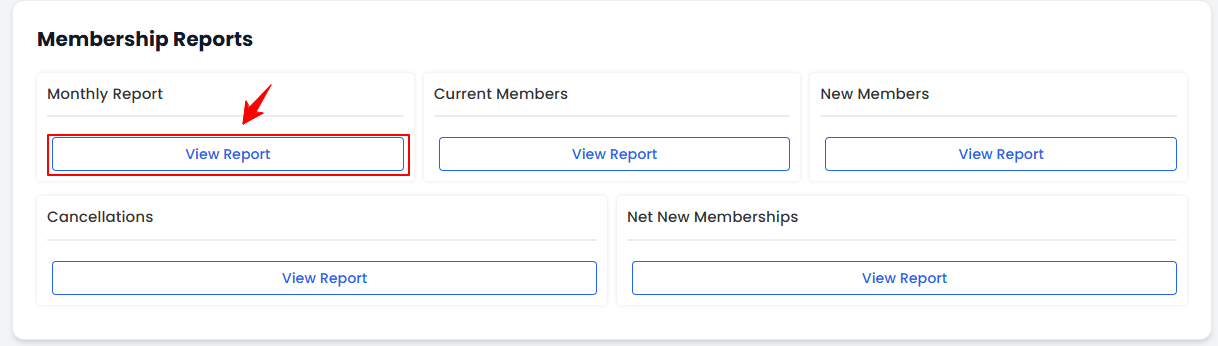
On the Membership Reports Screen, you will find sections for Monthly Report, Current Members, New Members, Cancellations, and Net New Memberships, providing a clear overview of membership activity. To access the detailed monthly membership report, simply click on “View Report” under the Monthly Report section.
-
To view monthly membership reports, set the Start and End Dates, select the Location, and then click “Apply Filters” to filter the data for the specified period.

-
At the top of the screen, key metrics for the selected period are displayed, including Total Active Members, New Enrollments, Cancellations, Net Growth, Paid this Period, Unpaid (Outstanding), and Collection Rate.
 Note“Total Active Members” is the total number of members who currently have active, valid memberships during the selected period. “New Enrollments” is the number of members who joined or signed up for membership during the selected period. “Cancellations” are the number of members who ended or canceled their memberships during the selected period. “Net Growth” is the overall change in membership numbers for the period, calculated as new enrollments minus cancellations. “Paid This Period” is the total amount of membership fees successfully collected during the selected period. “Outstanding (Unpaid)” is the total amount of membership fees that are due but not yet paid. “Collection Rate” is the percentage of membership fees successfully collected out of the total billed amount, showing how effective payment collection was.
 -
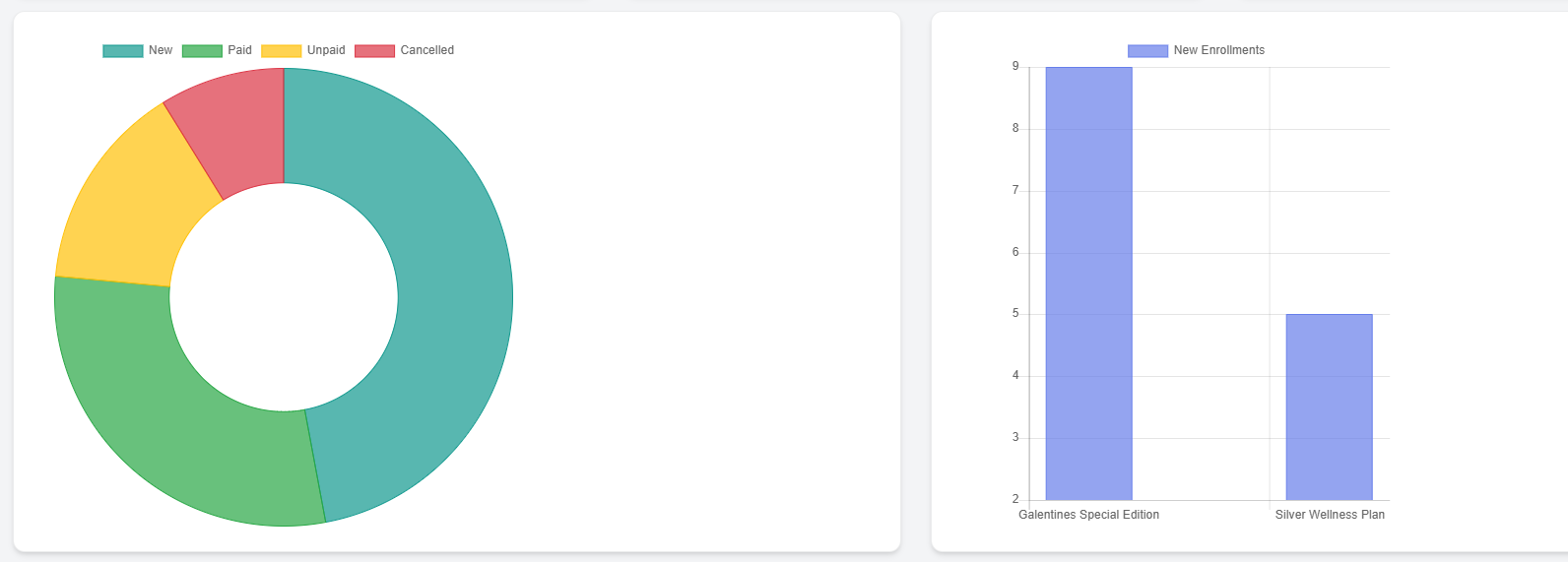
Review the pie chart to see a visual breakdown of new, paid, unpaid, and cancelled memberships for the month. Use the bar graph to view the number of new enrollments by membership type.
-
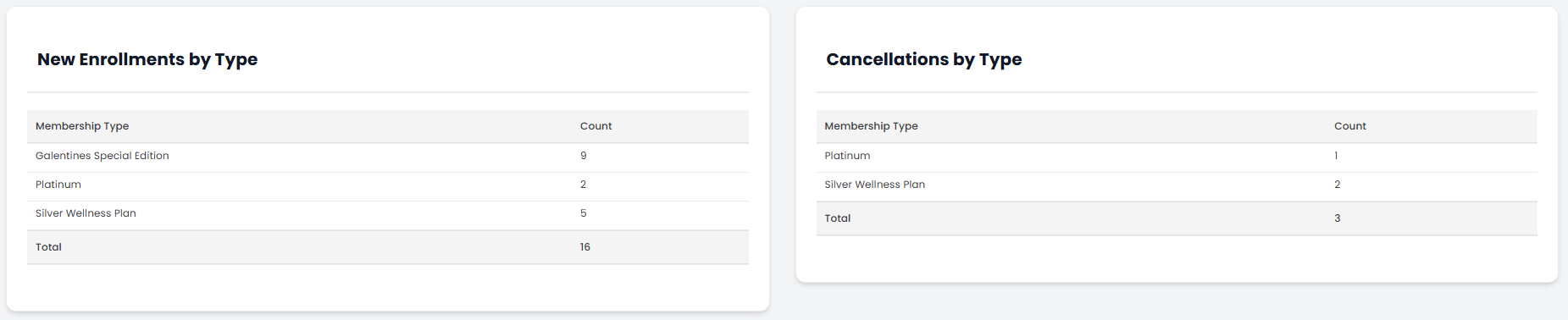
Below the graphs, you’ll find a detailed breakdown of New Enrollments by Type and Cancellations by Type.
-
Review the Cancellation Status Breakdown to see each cancellation’s Description, Count, and Revenue from the Last Month.

-
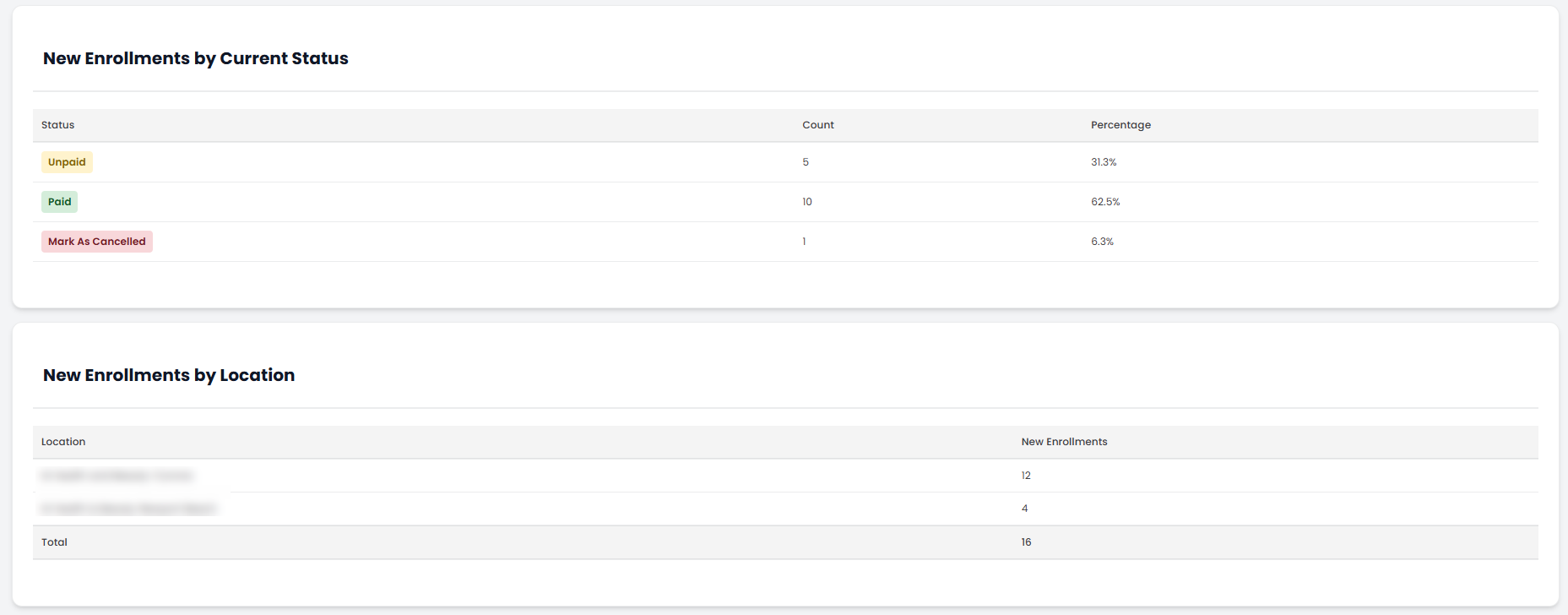
Review the tables for New Enrollments by Current Status and Location to see the status count and percentage as well as the number of enrollments at each location.
-
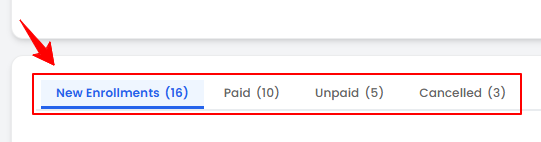
Use the Scopes Bar to filter and view memberships by New Enrollments, Paid, Unpaid, or Cancelled status.
You’re all set
That’s every step of “How to Review Monthly Membership Report?”. Up next: Review Membership Reports of Current Members.