

Understanding Terminologies
- Inventory Utilization
Inventory utilization refers to the measurement of how effectively a clinic uses its inventory over a specific period. It tracks the movement and consumption of products, highlighting which items are being sold, which remain unused, and how efficiently stock is managed. Proper inventory utilization helps optimize stock levels, reduce waste, prevent stockouts, and improve overall operational efficiency.
Review Inventory Utilization
-
The user can review inventory utilization by accessing the “Inventory Reports” through Reports from two entry points.
-
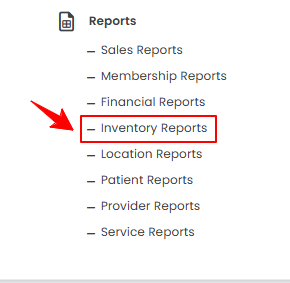
From the EMR Admin, click on “Inventory Reports” under “Reports.”
-
From the Left Navigation, open the “EMR Admin” dropdown, select “Reports,” and then choose “Inventory Reports” from the subsequent dropdown menu. Alternatively, you can type “Inventory Reports” into the search bar in the Left Navigation.
-
-
The Revenue by Type & Category tab opens by default. To view inventory utilization report, click the “Inventory Utilization” tab.

-
To view inventory utilization, set the Start and End Dates, select the Location, Product Type and Category from the dropdown menus, and then click “Apply” to filter the data for the specified period.

-
At the top of the screen, key metrics for the selected period are displayed, including Total Active Products, Low Stock Alerts, Total Stock Value, and Items Expiring Soon.
 Note“Total Active Products” is the total number of products currently available and tracked in your inventory. “Low Stock Alerts” are notifications for products that have reached or fallen below a predefined minimum stock level, signaling the need to reorder. “Total Stock Value” is the total value of current inventory, based on supplier cost per unit for each batch. “Items Expiring Soon” are products in inventory that are approaching their expiration date and may need to be sold, used, or removed soon to prevent loss.
 -
Review a detailed breakdown of Current Stock by Product, showing each product’s category, type, current stock level, stock value, alert threshold, and status.
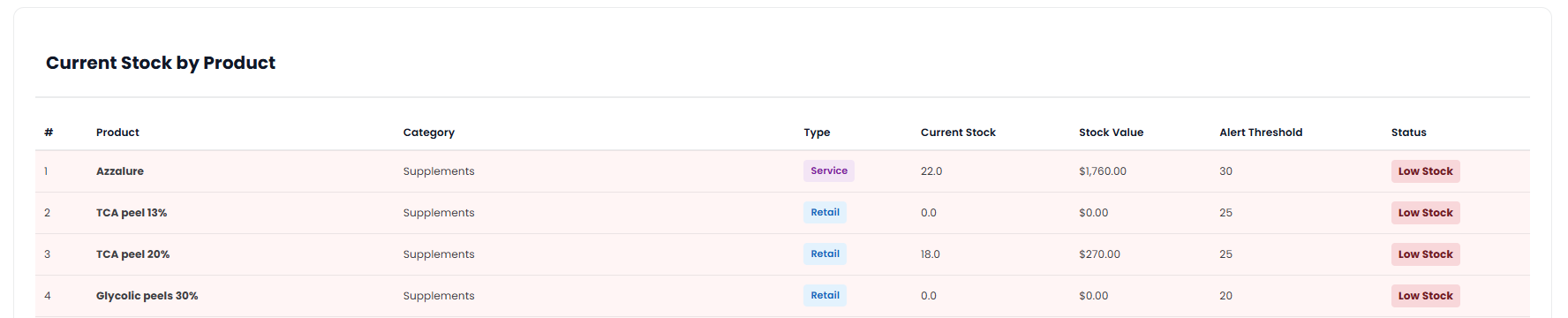 Note“Category” is the classification of a product based on its type or purpose (e.g., skincare, injectables, devices). “Type” indicates whether the product is a service or a retail item within its category. “Current Stock” is the quantity of a product currently available in inventory. “Stock Value” is the total monetary value of the current stock, calculated as the quantity on hand multiplied by the unit cost. “Alert Threshold” is the minimum stock level set for a product that triggers a low stock warning or alert. “Status” is the current condition or state of the product in inventory, such as “In Stock,” “Low Stock,” or “Out of Stock.”
 -
Review the list of Low Stock Products, including each product’s category, type, current stock, alert threshold, and shortfall amount.
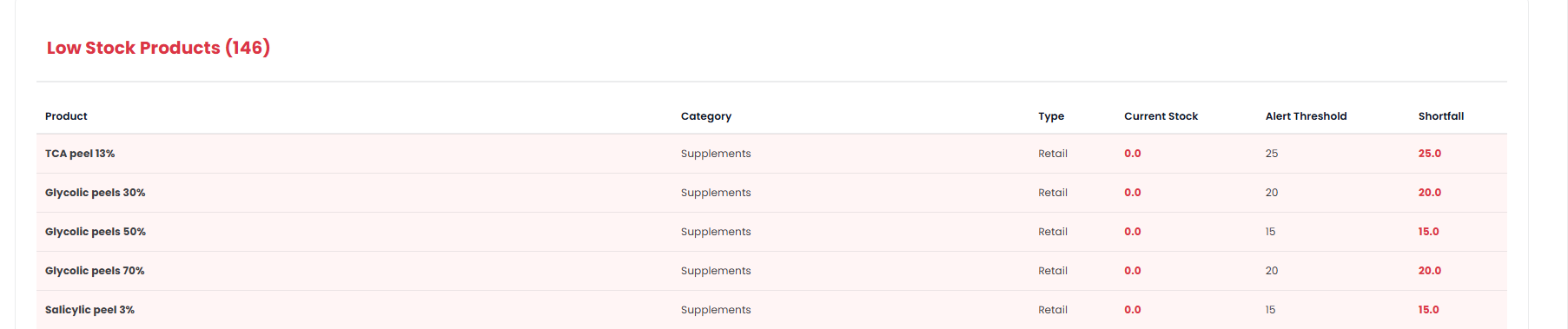 Note“Shortfall” is the difference between the current stock and the alert threshold, indicating how many units are needed to reach the minimum required inventory level.
 -
Review Expiring Batches with details for each batch, including Batch ID, Product, Location, Current Stock, Expiration Date, and Days Remaining until the product expires.

You’re all set
That’s every step of “Review Inventory Utilization Report”.