

Understanding Terminologies
- Service Sales Report
A service sales report provides a detailed overview of revenue generated from each service offered by a clinic. It helps track which treatments or services are most popular, how often they are performed, and how much income they generate over a specific period. This report is useful for identifying high-performing services, adjusting pricing strategies, and optimizing service offerings.
- Provider Sales Report
A provider sales report focuses on the performance of individual providers (such as practitioners or staff members). It shows the total sales generated by each provider, the services they performed, and their overall contribution to revenue. This report helps evaluate staff productivity, compare performance, and support decisions related to incentives, scheduling, and training.
Review Service and Provider Sales Report
-
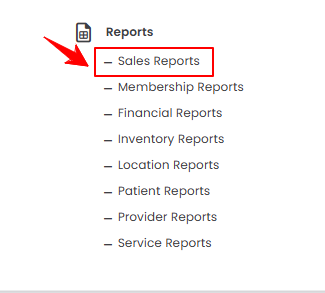
The user can review service and provider sales reports by accessing the “Sales Reports” through Reports from two entry points.
-
From the EMR Admin, click on “Sales Reports” under “Reports.”
-
From the Left Navigation, open the “EMR Admin” dropdown, select “Reports,” and then choose “Sales Reports” from the subsequent dropdown menu. Alternatively, you can type “Sales Reports” into the search bar in the Left Navigation.
-
-
The Revenue Overview tab opens by default. To view the service and provider sales report, click on the “Service & Provider Sales Report” tab.

-
To view service and provider sales reports, set the Start and End Dates, select the Location, and then click “Apply” to filter the data for the specified period.

-
At the top of the screen, key metrics for the selected period are displayed, including Total Service Revenue, Top Service, Total Provider Revenue, and Top Provider.
 Note“Total Service Revenue” is the total income generated from all services provided within a selected time period. It reflects the overall earnings from treatments or procedures offered by the clinic. “Top Service” is the service that generates the highest revenue or is performed the most frequently during a specific period. It helps identify the most in-demand or profitable service. “Total Provider Revenue” is the total income generated by specific providers combined over a selected time frame. It shows the overall contribution of staff toward the clinic’s revenue. “Top Provider” is the provider who generates the highest revenue or performs the most services within a given period. It highlights the best-performing team member based on sales or productivity.
 -
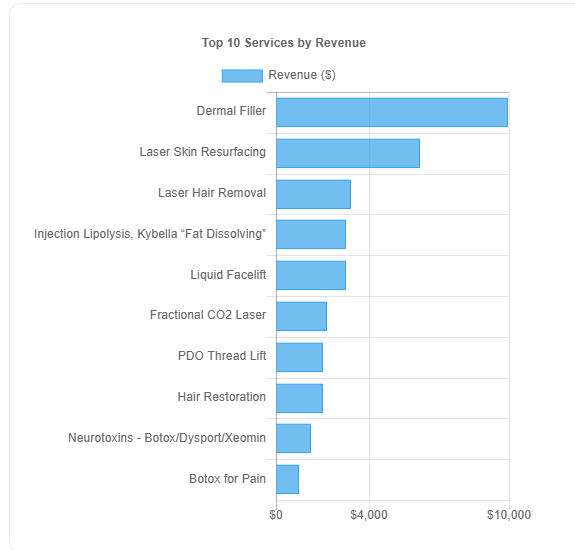
Review the bar graph displaying the Top 10 Services by Revenue, where services are listed along the Y-axis and their corresponding revenue values are shown on the X-axis.
-
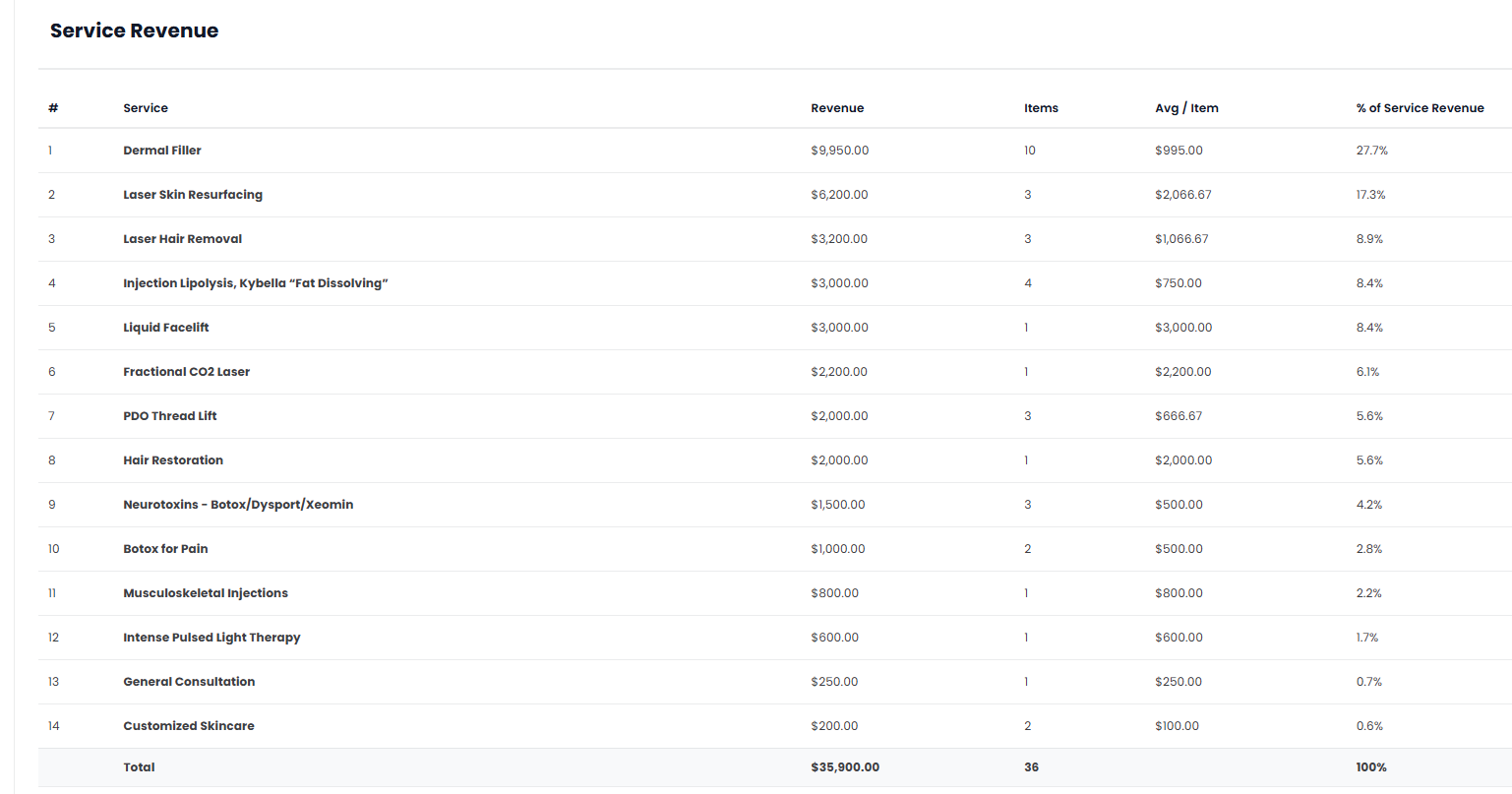
Below the bar graphs, you’ll find a detailed breakdown of Service Revenue, including the revenue amount, number of items sold, average per item and percentage of service revenue.
You’re all set
That’s every step of “Review Service and Provider Sales Report”. Up next: Compare Sales Across Locations.