

Understanding Terminologies
- MD Charts
MD Charts are clinical procedure records that require review, approval, or sign-off by a Medical Doctor (MD). In the DigiMEDSPA portal, MD Charts help track procedures performed by providers, showing whether they have been sent to an MD for review, signed by an MD, or are still unaudited, ensuring clinical compliance and proper documentation.
How to Review MD Charts
-
The user can access the MD Charts from two entry points:
-
From the EMR Board Tabs, click on “MD Charts.”

-
From the Left Navigation, click on the “EMR Board” dropdown and select “MD Charts.” Alternatively, you can type “MD Charts” into the search bar in the Left Navigation.
-
-
A list of procedures sent to an MD for approval will be displayed. Use the top scope bar to switch between “Send to MD,” “Signed by MD,” and “Unaudited Charts” to view procedures by their review status.
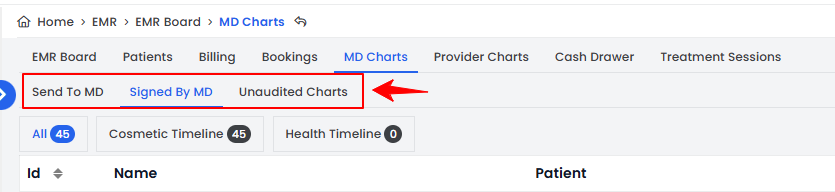 Note“Sent to MD” are the procedures that have been submitted to a Medical Doctor for review and approval but have not yet been signed. “Signed by MD” are the procedures that have been reviewed and officially approved by a Medical Doctor, while “Unaudited Charts” are the procedures that have not yet been reviewed or sent to a Medical Doctor for auditing or approval. Moreover, if the provider performing the procedure is not an MD, a Medical Doctor’s signature is required to complete and finalize the procedure.
 -
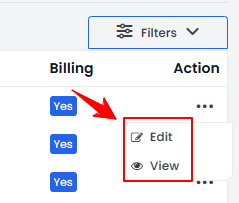
In the MD Charts list, each procedure displays details such as Procedure Name, Patient Name, and Provider Name. To view or edit a specific procedure, click the three dots next to it and select “View” or “Edit.”
-
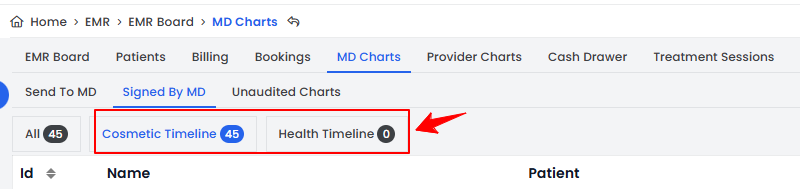
Click the “Cosmetic Timeline” or “Health Timeline” tabs to view a list of only cosmetic procedures or only health procedures, for easier tracking and review.
 You have successfully reviewed the MD Charts!
You’re all set
That’s every step of “Review MD Charts”. Up next: Review Provider Charts.