

Understanding Terminologies
- Provider Commission
Provider commission is the percentage or fixed amount of revenue paid to a medical or aesthetic provider for the treatments or services they perform. It is calculated from the value of the procedure or product sold and serves as compensation for the provider’s contribution to the service.
Part 1 of 3
Set Provider’s Commission Rate
-
The user can set provider’s commission rate by accessing the Earnings Overview List Screen through two entry points:
-
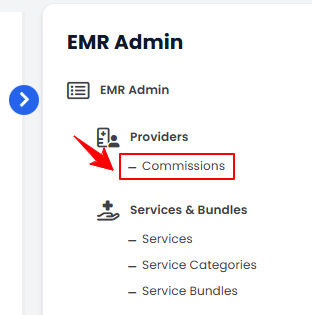
From the EMR Admin, click on “Commissions” under “Providers.”
-
From the Left Navigation, open the “EMR Admin” dropdown, select “Providers,” and then choose “Commissions” from the subsequent dropdown menu. Alternatively, you can type “Commissions” into the search bar in the Left Navigation.NoteBy default, clicking “Commissions” will open the Earnings Overview List Screen.
-
-
To set a provider’s commission rate, enter the desired percentage in the Commission Rate field next to the provider and click “Save” to confirm.
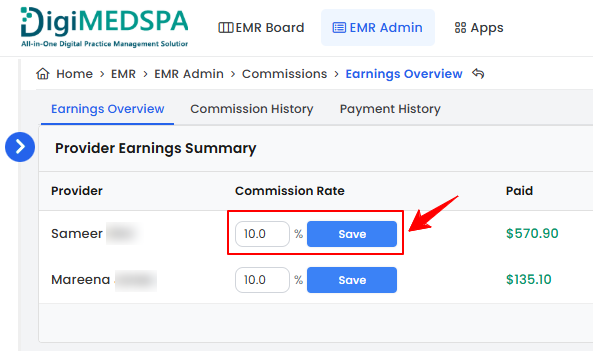 The provider’s commission rate has been successfully set and saved!
Part 2 of 3
Process Provider’s Commission Payment
-
On the Earnings Overview List Screen, click the “Pay” button in the Balance column for the desired provider to process their commission payment.
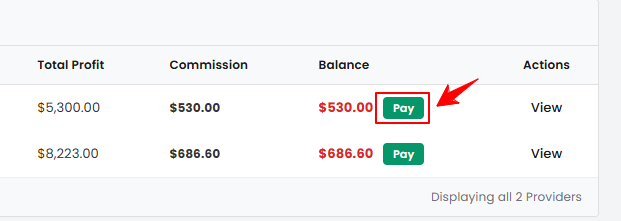 NoteWhenever a service is booked, the provider’s commission is automatically calculated based on the set rate and added to their balance. This commission is paid by the clinic, not the patient.
 -
The Provider and Paid Up To Date fields are filled in automatically. Enter the Payment Reference and any Notes, then click “Choose File” to upload the Payment Proof. Once complete, click “Process Payment” to finalize the transaction.
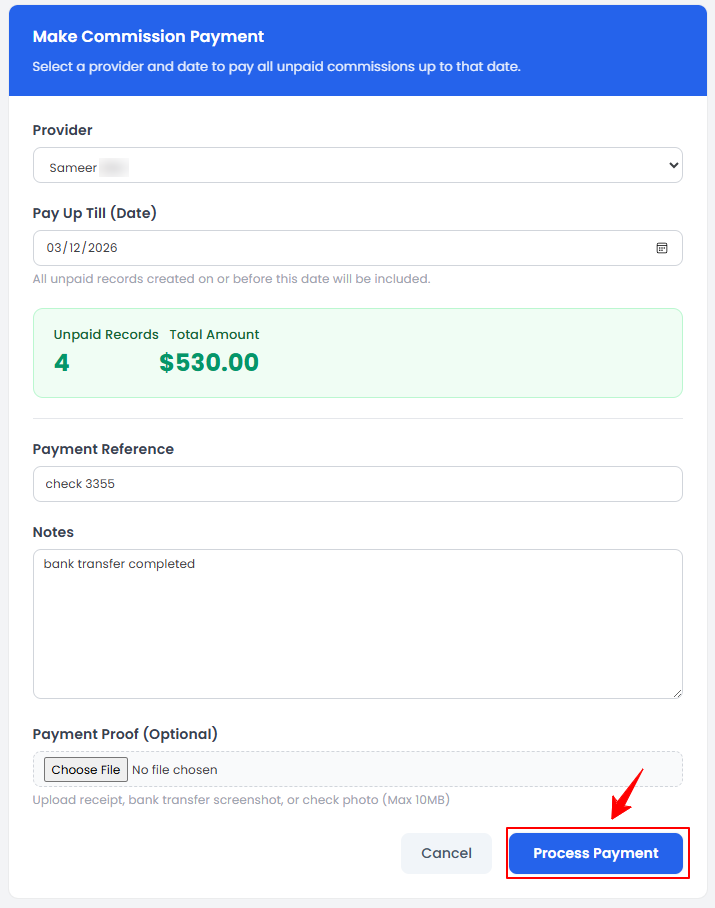 The provider’s commission payment has been successfully processed!
Part 3 of 3
View Provider’s Earnings Summary
-
On the Earnings Overview List Screen, click “View” under the Actions column for a provider to view their earnings summary.
-
You will be directed to the Commission History List Screen. Click “View” in the Action column to see the details of a specific commission.
-
The Commission Record View Screen will open, showing the commission details, revenue and profit breakdown, and payment status.NoteFor complete instructions on viewing a provider’s commission history, refer to the article “View Provider Commission History.”
You’re all set
That’s every step of “Manage Provider Commission”. Up next: View Provider Commission History.