

Understanding Terminologies
- Service
Services refer to cosmetic and health procedures offered at Med SPAs, such as facials, laser treatments, injectables, body contouring, etc. Managing services in the DigiMEDSPA Portal is important for accurate scheduling, resource management, and ensuring patients receive the appropriate treatments. It keeps offerings up to date, enables correct bookings, and provides pricing accuracy and overall operational efficiency.
- Provider
A provider is a licensed medical professional, such as a medical director, nurse, esthetician, or other qualified practitioner, who delivers cosmetic or health procedures (e.g. injectables, laser therapy, facials, body contouring etc.) designed to enhance a patient’s appearance and well-being. Providers are responsible for conducting thorough consultations to assess a patient’s medical history, skin type, and treatment goals, enabling them to recommend and perform the most suitable procedures.
Assign a Service to a New Provider
-
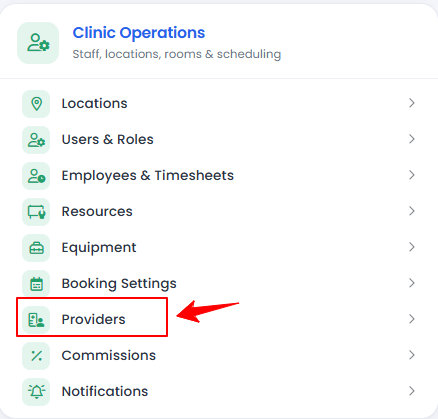
The user can assign a service to a provider while creating a new provider by accessing the Providers List Screen. From the “Admin” dashboard, click on “Providers” under “Clinic Operations,” or search providers in the top search bar.
-
To add a provider, click on "New Provider" in the top right corner of the screen.
-
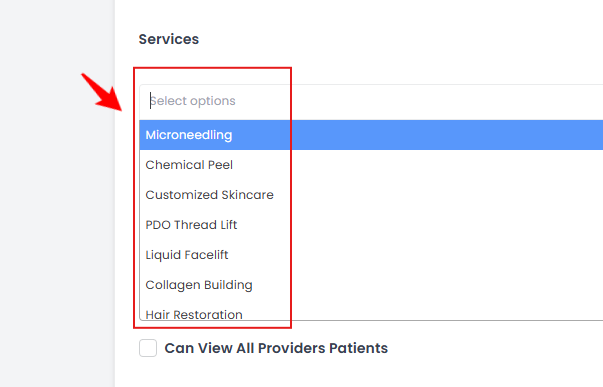
After completing all the required fields, select the services you want to assign to the provider from the dropdown menu. You can choose multiple services, allowing the provider to offer more than one service.
-
Complete the remaining steps required to create the provider, and then click “Submit” in Step 3 to finalize and create the new provider.NoteProviders can also be assigned to services when creating or editing a service. For detailed instructions, see the article “Add / View / Edit a Service.”
The services have been successfully assigned to the new provider!
Assign a Service to an Existing Provider
-
The user can assign a service to an existing provider by accessing the Providers List Screen. From the “Admin” dashboard, click on “Providers” under “Clinic Operations,” or search providers in the top search bar.
-
There are two ways to edit an existing provider.
-
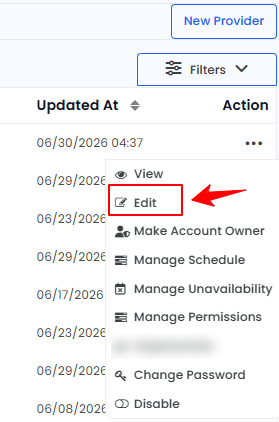
From the provider list, click on three dots under the action column and select "Edit" for the specific provider.
-
From the provider profile, hover over the “Actions” menu on the top right corner of the screen and click ‘’Edit Provider.”
-
-
In Step 1, make the necessary changes and select the services you want to assign to the provider. Then, in Step 3, click “Submit” to save your updates.
The services have been successfully assigned to the existing provider!
You’re all set
That’s every step of “How to Assign a Service to a Provider?”. Up next: Manage Provider Commission.