

Understanding Terminologies
- Provider Availability Status
Provider availability status refers to the current state of a Med SPA provider's availability for appointments or services within the portal. It indicates whether a provider is enabled and available for booking or disabled, meaning they are temporarily or indefinitely unavailable for appointments.
Part 1 of 2
Change Provider’s Availability Status
-
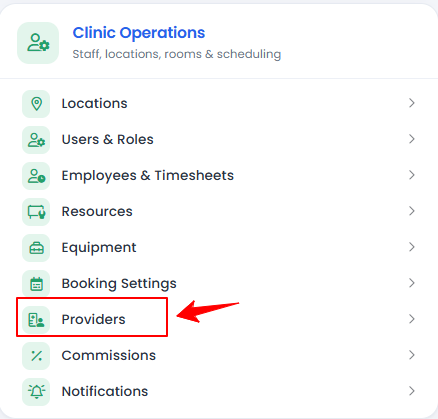
The user can change a provider’s availability status from the Providers List Screen. From the “Admin” dashboard, click on “Providers” under “Clinic Operations,” or search providers in the top search bar.
-
To disable an enabled provider, click the three dots under the action column of the provider list and select "Disable" for the specific provider.
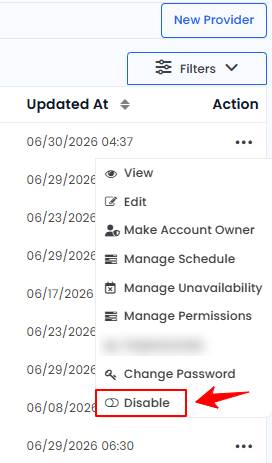 The provider's availability status has been successfully changed to disabled!
 -
To enable a disabled provider, click the three dots under the action column of the provider list and select '’Enable'’ for the specific provider.
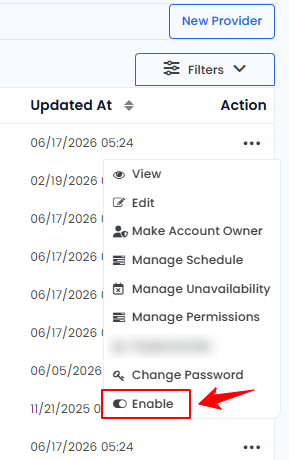 The provider's availability status has been successfully changed to enabled!
Part 2 of 2
Check Provider’s Availability Status
-
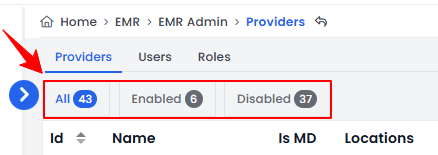
To check the status of a provider, go to the Providers List Screen and review the status indicators in the top scopes bar for the availability updates.
-
Click on the '’Enabled’’ scope to view a list of all available providers in the portal.
-
Click “Disabled” scope to view the list of providers currently unavailable for bookings.NoteYou can also view a provider's status in the ‘'All'’ providers list. The ‘’Status’’ column shows whether a provider is active or inactive currently.
You’re all set
That’s every step of “Update Provider's Availability Status”. Up next: Manage Provider Role.