

Understanding Terminologies
- Reverse Provider Commission Payment
The process of canceling or undoing a previously paid commission to a provider, adjusting their balance to reflect the reversal.
Part 1 of 2
Reverse Provider Commission Payment
-
The user can reverse the provider’s commission payment by accessing “Commissions” through two entry points:
-
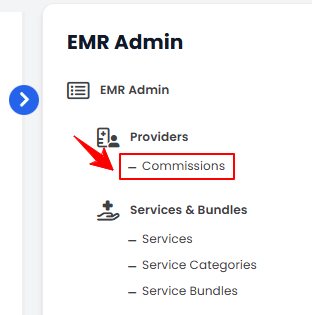
From the EMR Admin, click on “Commissions” under “Providers.”
-
From the Left Navigation, open the “EMR Admin” dropdown, select “Providers,” and then choose “Commissions” from the subsequent dropdown menu. Alternatively, you can type “Commissions” into the search bar in the Left Navigation.NoteBy default, clicking “Commissions” will open the Earnings Overview List Screen.
-
-
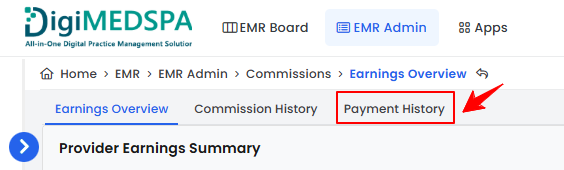
From the menu bar, click on the “Payment History” tab.
-
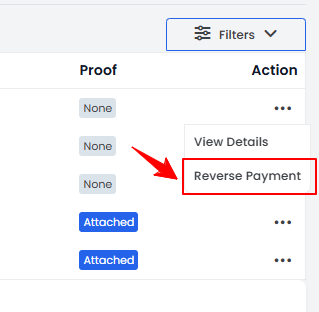
On the Payment History List Screen, click the three dots under the Action column and select “Reverse Payment” for a specific payment.
-
A confirmation pop-up will appear, click “OK” to confirm payment reversal.NoteThe reversed amount will be added back to the provider’s balance.
The provider’s commission payment has been successfully reversed!
Part 2 of 2
View Payment Details
-
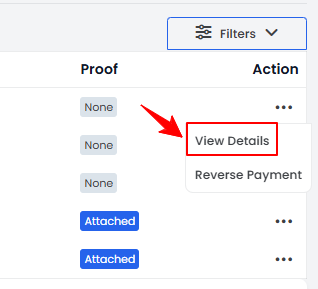
On the Payment History List Screen, click the three dots under the Action column and select “View Details” for a specific payment.
-
The Payment History View Screen will open, displaying the payment details, financial summary, payment proof, and commission records included in this payment.
You’re all set
That’s every step of “Reverse Provider Commission Payment”.