

Understanding Terminologies
- Good Faith Exam
A Good Faith Exam (GFE) is a documented medical evaluation performed by a qualified provider to assess a patient’s condition and determine their eligibility for aesthetic treatment. It ensures the provider acts in good faith by reviewing the patient’s medical history, risks, and suitability for services, supporting patient safety and regulatory compliance.
Part 1 of 2
Create a Good Faith Exam
-
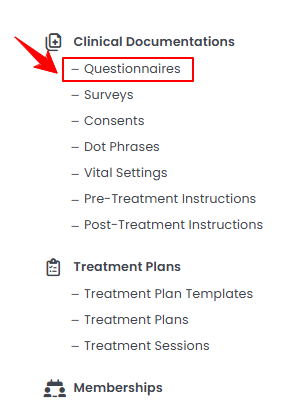
The user can create a Good Faith Exam by accessing the “Questionnaires” through Clinical Documentation from two entry points.
-
From the EMR Admin, click on “Questionnaires” under “Clinical Documentation.”
-
From the Left Navigation, open the “EMR Admin” dropdown, select “Clinical Documentation,” and then choose “Questionnaires” from the subsequent dropdown menu. Alternatively, you can type “Questionnaires” into the search bar in the Left Navigation.
-
-
To create a new GFE, click on the “New Questionnaire‘’ button in the top right corner of the screen.
-
The Form Type will be automatically set to Questionnaire. If you want to make a template questionnaire a Good Faith Exam, select the default template from the dropdown. To create a new questionnaire as a Good Faith Exam, leave the template unselected and proceed with a new form.
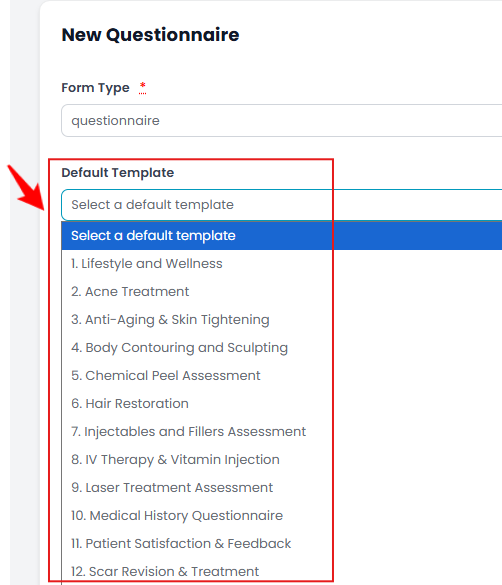 NoteOur portal provides default questionnaire templates. You can select one from these options for quick editing, or you can create your own custom template by following the instructions in this user guide.
 -
Enter the Title and Description for your Good Faith Exam, then check the “Active” box.

-
Now, select the “Good Faith Exam” checkbox to ensure that the questionnaire you are creating functions as a Good Faith Exam.
 NoteIf this box is unchecked, the Good Faith Exam will remain inactive in the portal and cannot be attached to any procedure or service.
 -
Next, choose who will be filling out this exam from the Filled By dropdown menu.
-
Select how often the exam is required from the Required dropdown menu.
-
In the Form Builder section, click Add Field to start adding questions. You can add as many fields as needed. Once all required fields are added, click “Create Questionnaire” to finalize and create the Good Faith Exam.NoteFor detailed instructions on adding new fields and customizing layouts in your Good Faith Exam questionnaire, refer to our “Manage Questionnaires” user guide.
The Good Faith Exam has been successfully created!
Part 2 of 2
Add a Good Faith Exam to a Procedure
-
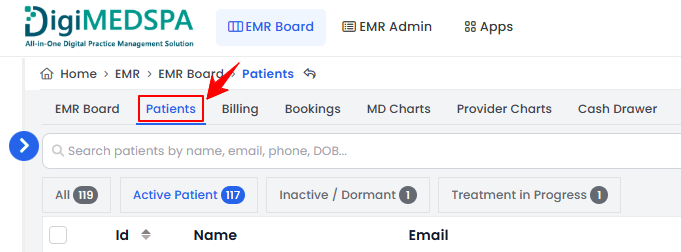
The user can add a Good Faith Exam to a procedure from the Procedure View Screen. From the EMR Board tabs, click on “Patients.”
-
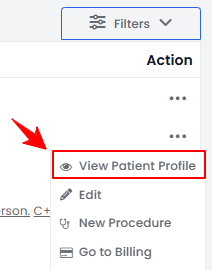
From the patient list, click on three dots under the action column and select "View Patient Profile" for the specific patient, or simply click anywhere on the patient’s data.
-
On the Patient Information Screen, users can access a comprehensive summary of all patient details. To view the procedures, simply click on the ‘’Procedures’’ tab.

-
Here, you will find all procedures for the patient. Click “View Procedure” next to the desired procedure to access its details.NoteThe Procedure View Screen can also be accessed through the Bookings List Screen and the EMR Board. For detailed navigation, refer to our “Create a New Procedure” article.
-
On the Procedure View Screen, click “Add Questionnaire” in the Questionnaires section to add a Good Faith Exam to the procedure.
 NoteAny questionnaires already assigned to the booked service will appear in the Questionnaires section.
 -
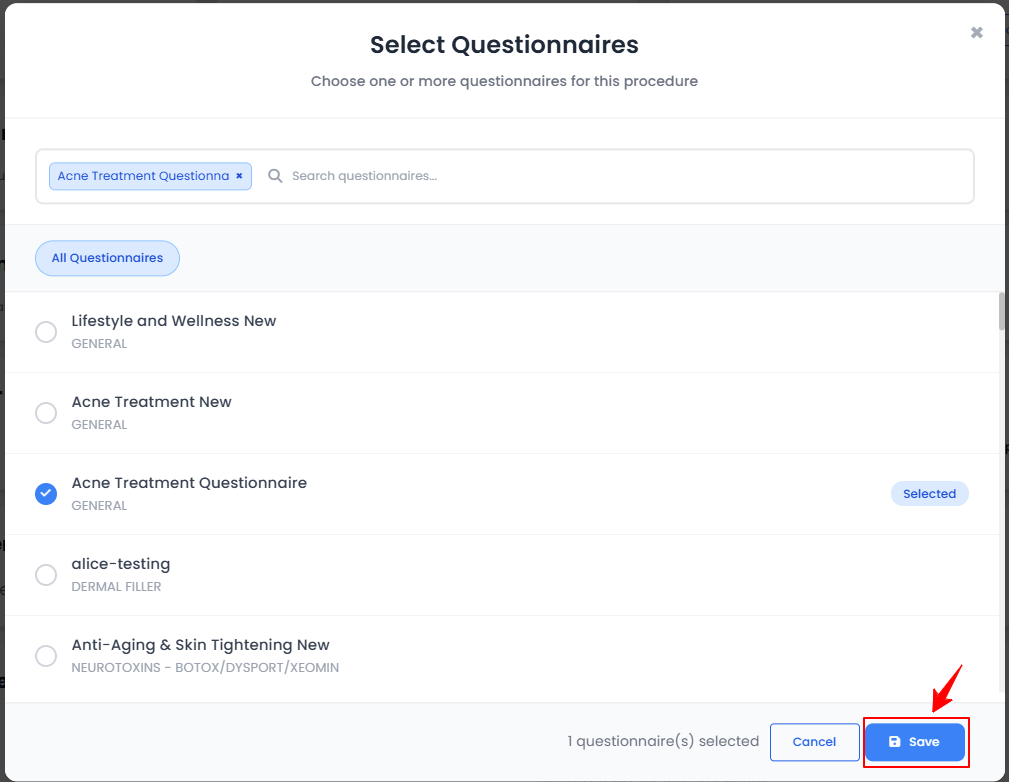
Select the desired Good Faith Exams and click “Save.”
-
The Good Faith Exam will be added. Click “Fill Questionnaire” to open the form, complete all fields, and then click “Submit.”
The Good Faith Exam has been successfully attached to the procedure!
You’re all set
That’s every step of “How to Create Good Faith Exam”.