

Understanding Terminologies
- Booking Notes
Booking notes are additional details or comments added to an appointment to provide important information about the patient or the booked service. These notes can include preferences, special instructions, or other relevant details that help ensure a smooth and personalized experience during the appointment.
Part 1 of 3
Add Booking Notes
-
The user can add Booking Notes while creating a new booking.
-
From the EMR Board, click on ‘’New Booking.’’

-
Navigate to the Bookings List Screen to book an appointment through New Booking.
-
From the EMR Board Tabs by selecting “Bookings.”
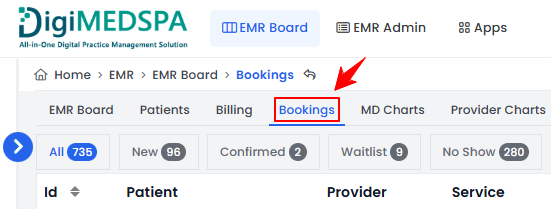
-
Alternatively, from the Left Navigation, click on the “EMR Board” dropdown menu and select “Bookings.”
-
On the Bookings List Screen, click on the “New Booking” button in the top right corner of the screen.
-
-
The user can also book an appointment through New Booking accessible via Patients List Screen.
-
From the EMR Board Tabs, click on ‘’Patients.’’
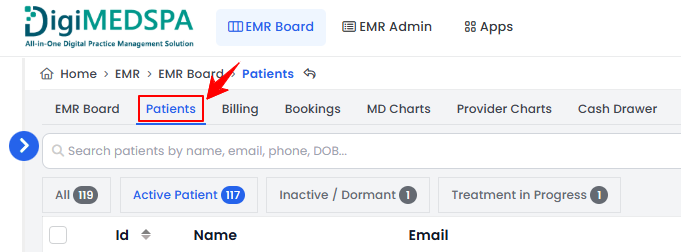
-
To view a specific patient from the list, click the three dots under the action column and select "View Patient Profile," or simply click anywhere on the patient’s data.
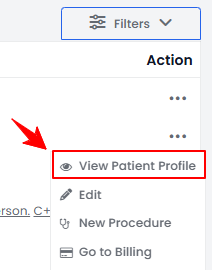
-
On the patient profile, hover over the “Actions” menu on the right side of the screen and select ‘’New Booking’’ from the dropdown menu.NoteAll three entry points open the New Booking form.
-
-
-
Fill out all details on the booking form and add any notes in the Booking Notes field. Once complete, click “Create Booking.”
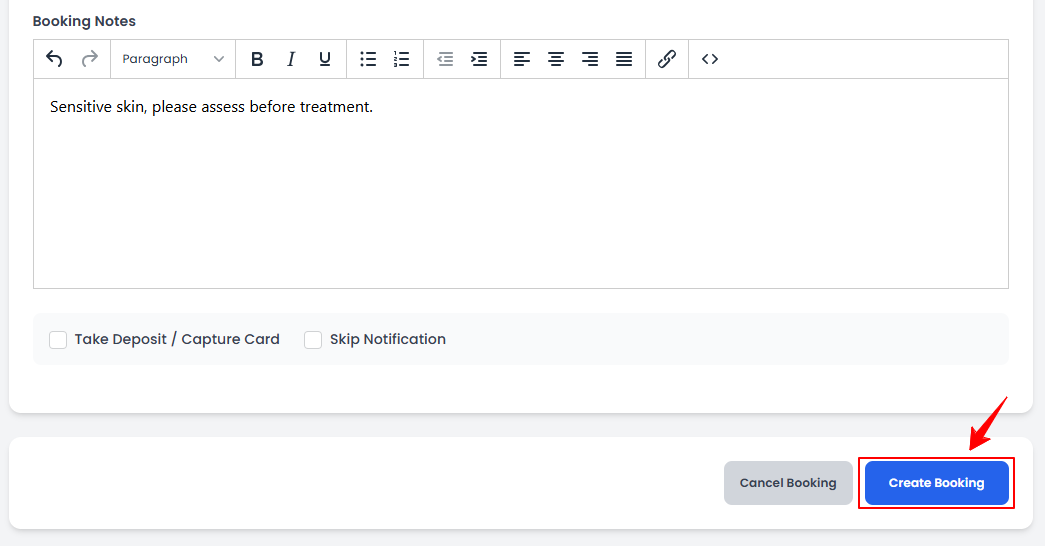
-
To use dot phrases, type a dot to quickly insert your pre-saved text in the booking notes. Before that, you must create and save these repetitive phrases in the Dot Phrases List Screen.NoteDot phrases can be created and managed within “Clinical Documentation” in the portal. For step-by-step instructions, refer to the “Manage Dot Phrases” user guide.
The booking notes have been added successfully! -
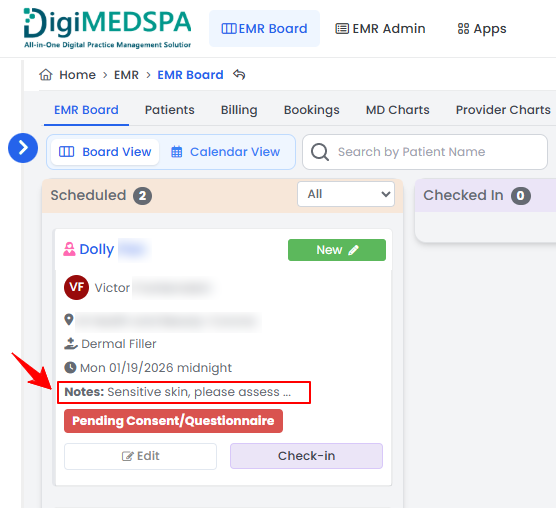
On the EMR Board, notes for each booking are displayed alongside the booking in the “Scheduled” section.
Part 2 of 3
Edit Booking Notes Through the Patient Profile
-
The user can edit booking notes through the patient profile accessible from two entry points.
-
From the EMR Board Tabs, click on ‘’Patients.’’
-
From the Left Navigation, click on the “EMR Board” dropdown menu and select “Patients.’’ Alternatively, you can type “Patients” into the search bar in the Left Navigation.
-
-
To view a specific patient from the list, click the three dots under the action column and select "View Patient Profile," or simply click anywhere on the patient’s data.
-
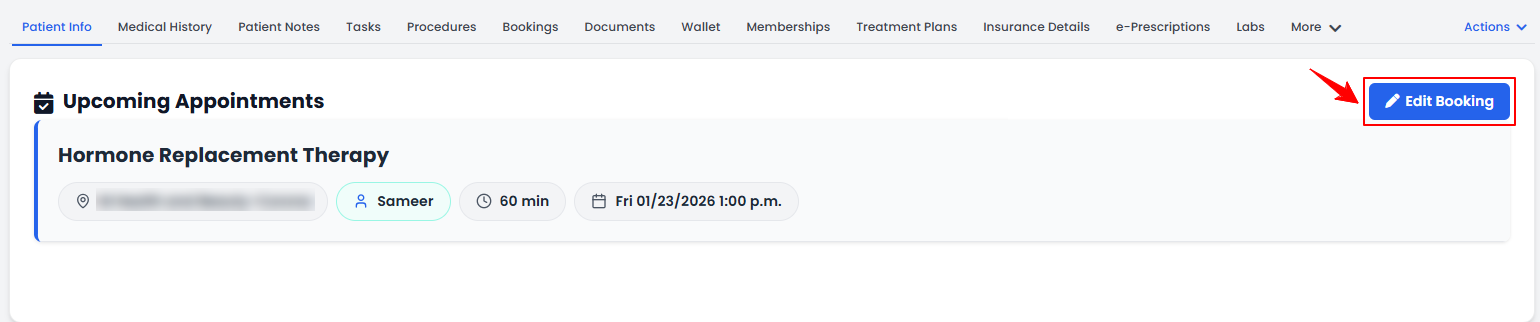
On the Patient Information Screen, users can view a comprehensive overview of the patient’s information. To modify an upcoming appointment, click “Edit Booking.”
-
Edit the booking notes by making the desired changes and click on ‘’Update Booking.’’
The booking notes have been successfully edited!
Part 3 of 3
Edit Booking Notes Through the Bookings List Screen
-
The user can edit booking notes while editing a booking through the Bookings List Screen accessible from two entry points.
-
From the EMR Board Tabs, select “Bookings.”
-
From the Left Navigation, click on the “EMR Board” dropdown menu and select “Bookings.’’ Alternatively, you can type “Bookings” into the search bar in the Left Navigation.
-
-
From the bookings list, click on three dots under the action column and select "Edit" for the specific booking.
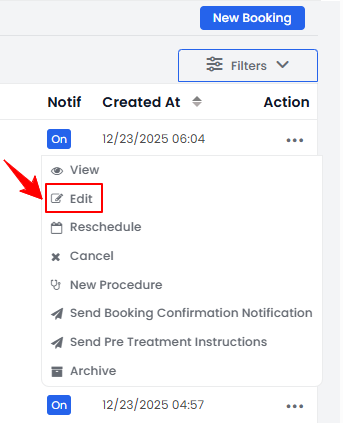 NoteEditing a booking lets you modify details such as services, notes, date, and time, whereas rescheduling a booking specifically adjusts the appointment’s date and/or time while keeping other details unchanged.
 -
Edit the booking notes by making the desired changes and click on ‘’Update Booking.’’NoteBookings can also be edited from the patient profile or the booking view screen. For detailed instructions, refer to the “Edit a Booking” user guide.The booking notes have been successfully edited!
You’re all set
That’s every step of “Add / Edit Booking Notes”. Up next: Manage Vital Settings.