

Understanding Terminologies
- Post-Treatment Instructions
Post-treatment instructions are guidelines given to patients after a medical or aesthetic procedure, outlining care steps to ensure proper recovery and optimal results. They typically cover skincare, activity restrictions, medication, and follow-up care.
Part 1 of 5
Add Post-Treatment Instructions
-
The user can create post-treatment instructions by accessing the “Post-Treatment Instructions” through Clinical Documentations from two entry points.
-
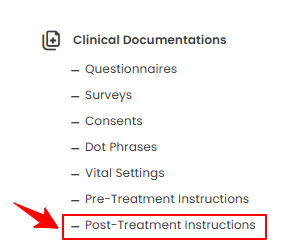
From the EMR Admin, click on “Post-Treatment Instructions” under “Clinical Documentations.”
-
From the Left Navigation, open the “EMR Admin” dropdown, select “Clinical Documentations,” and then choose “Post-Treatment Instructions” from the subsequent dropdown menu. Alternatively, you can type “Post-Treatment Instructions” into the search bar in the Left Navigation.
-
-
To add new instructions, click on the ‘’New Post-Treatment Instructions’’ button located in the top right corner of the screen.
-
Select the Default Template from the dropdown menu.
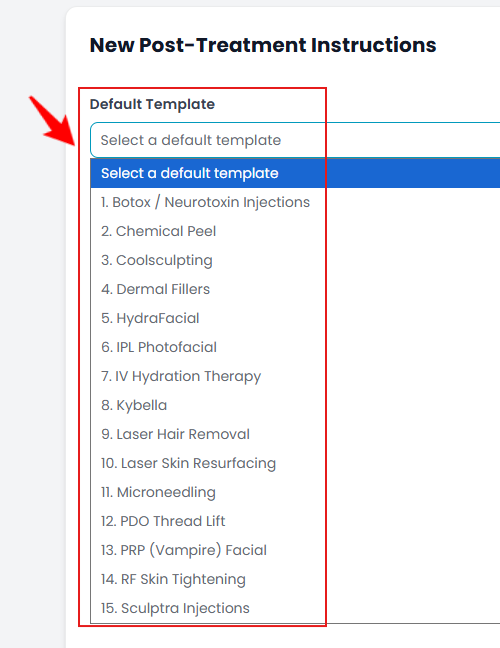 Note: Our portal provides default post-treatment instructions templates. You can select one from these options for quick editing, or you can create your own custom template by following the instructions in this user guide.
 -
Enter the required details, including the Name and Description for the post-treatment instructions specific to a service. Once finished, click "Create Post-Treatment Instructions" to save.
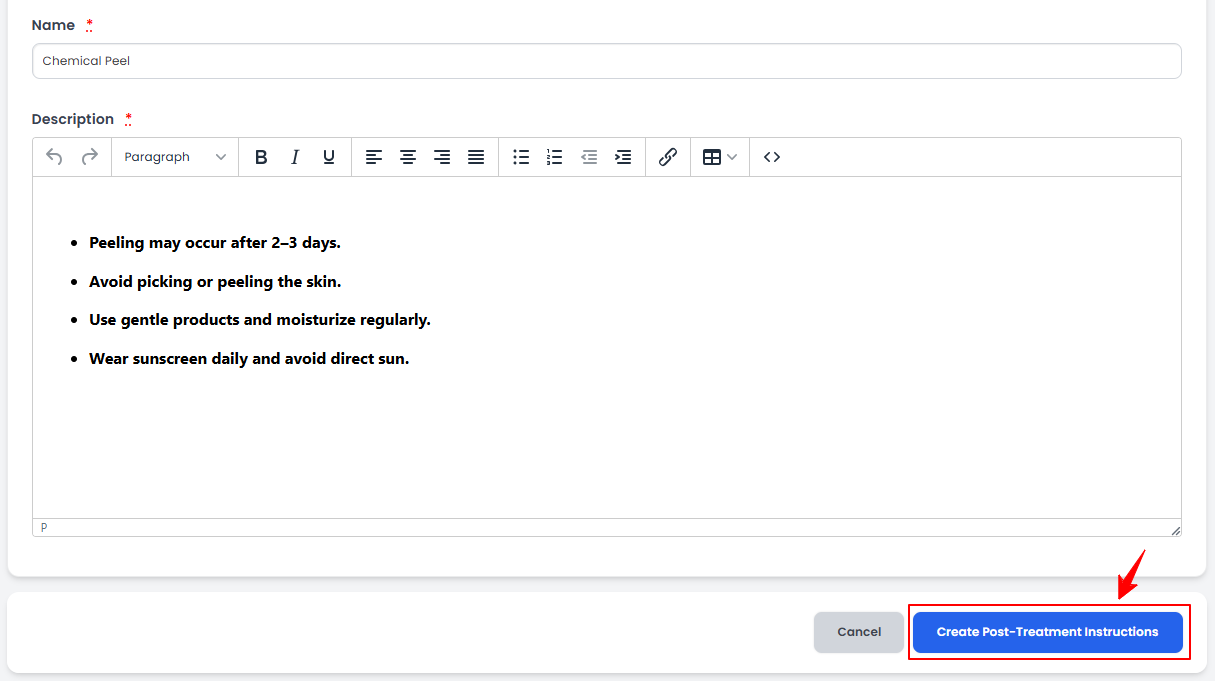 NoteYou can customize the formatting of the instruction text using the options in the description window. Adjust the font style, size, color, and background to create the exact look you want.
The post-treatment instructions have been successfully added!
Part 2 of 5
View Post-Treatment Instructions
-
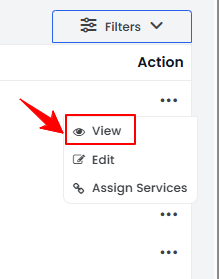
To view post-treatment instructions, click the three dots under the action column next to the specific post-treatment instructions and select “View.”
-
The Post-Treatment Instructions View Screen will open, showing all the details of the selected post-treatment instructions.
Part 3 of 5
Edit Post-Treatment Instructions
-
There are two ways to edit the existing post-treatment instructions.
-
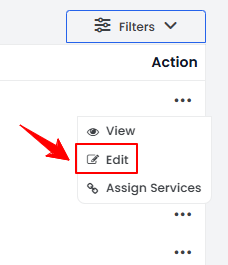
From the added post-treatment instructions list, click on three dots under the action column and select "Edit" for the specific instructions.
-
On the Post-Treatment Instructions View Screen, hover over the Actions menu in the top right corner of the screen and click "Edit Post-Treatment Instructions.”
-
-
Make the desired changes in the instructions. Once done, click "Update Post-Treatment Instructions."
The post-treatment instructions have been successfully edited!
Part 4 of 5
Assign Services to Post-Treatment Instructions
-
There are two ways to assign services to existing post-treatment instructions.
-
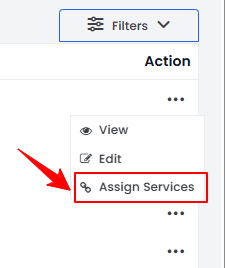
From the list of added post-treatment instructions, click the three dots under the action column and select “Assign Services” for the specific post-treatment instructions.
-
On the Post-Treatment Instructions View Screen, hover over the Actions menu in the top right corner of the screen and click "Assign Services.”
-
-
Select the services you want to assign to the post-treatment instructions from the dropdown menu and click “Assign Services.”
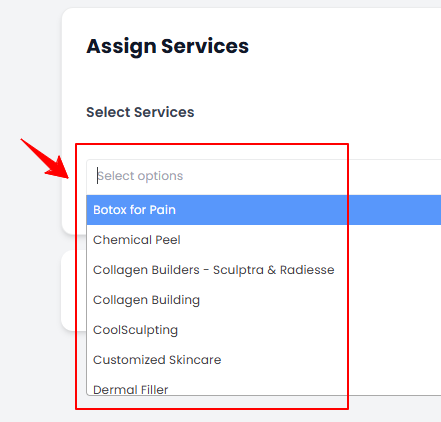 NoteAssigning services to post-treatment instructions links those specific services to that post-treatment instructions.
 -
Alternatively, to assign services, click the “Select Services” button in the top-right corner, choose the desired services, click “Save”, and then click “Assign Services” to complete the process.
The services have been successfully assigned to the post-treatment instructions!
Part 5 of 5
Attach Post-Treatment Instructions to a Service
-
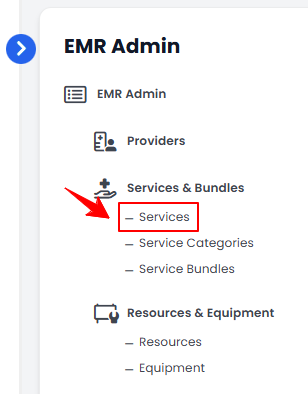
From the EMR Admin, click on “Services” under “Services & Bundles.”
-
Click the "New Service" button to add a service, or select an existing service from the list to edit.
-
Go to the Step 2 of creating or updating a service, select the appropriate post-treatment instructions you want to attach to the service from the dropdown menu.
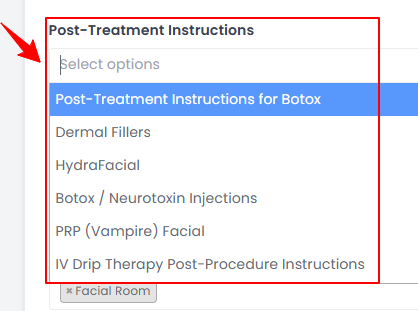 Note: Multiple post-treatment instructions can be attached to a single service.
 -
After selecting the relevant post-treatment instructions for the service, click “Next.” At Step 3, click “Submit” to save the updates.NoteWhen a procedure is completed, the post-treatment instructions attached with the service performed will be automatically emailed to the patient along with the billing invoice, ensuring patients receive essential post-treatment guidelines right after their treatment.
The post-treatment instructions have been successfully attached to the service!
You’re all set
That’s every step of “Manage Post-Treatment Instructions”. Up next: Create and Manage Patient Notes.