

This user guide provides instructions for creating and documenting provider notes during procedure creation.
Understanding Terminologies
- Provider Notes
Provider notes are written observations, comments, or details recorded during a procedure to document important patient treatment information.
Part 1 of 4
Add a Provider Note for a Procedure Through EMR Board
-
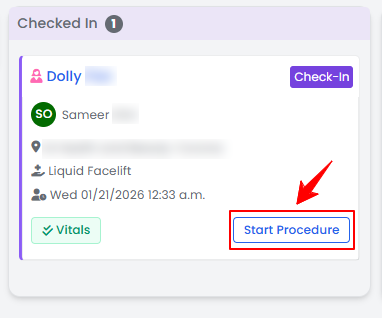
The user can add a provider note for a procedure while creating a procedure. From the EMR Board select a booking that is in the ‘’Checked In’’ step then press the ‘’Start Procedure’’ button to move that booking to the ‘’In Procedure’’ phase.
-
Choose the Body Area from the dropdown menu and click “Start Procedure.”NoteFor services without a selected procedure type, you will be prompted to choose the procedure type at this step.
-
You will be directed to the Procedure View Screen in the patient profile, where all procedure sections are displayed.
-
On the Procedure View Screen, add a provider note by clicking “Add Provider Note” in the Provider Note section.

-
Enter the required information in the Provider Note field and click “Save” to confirm.
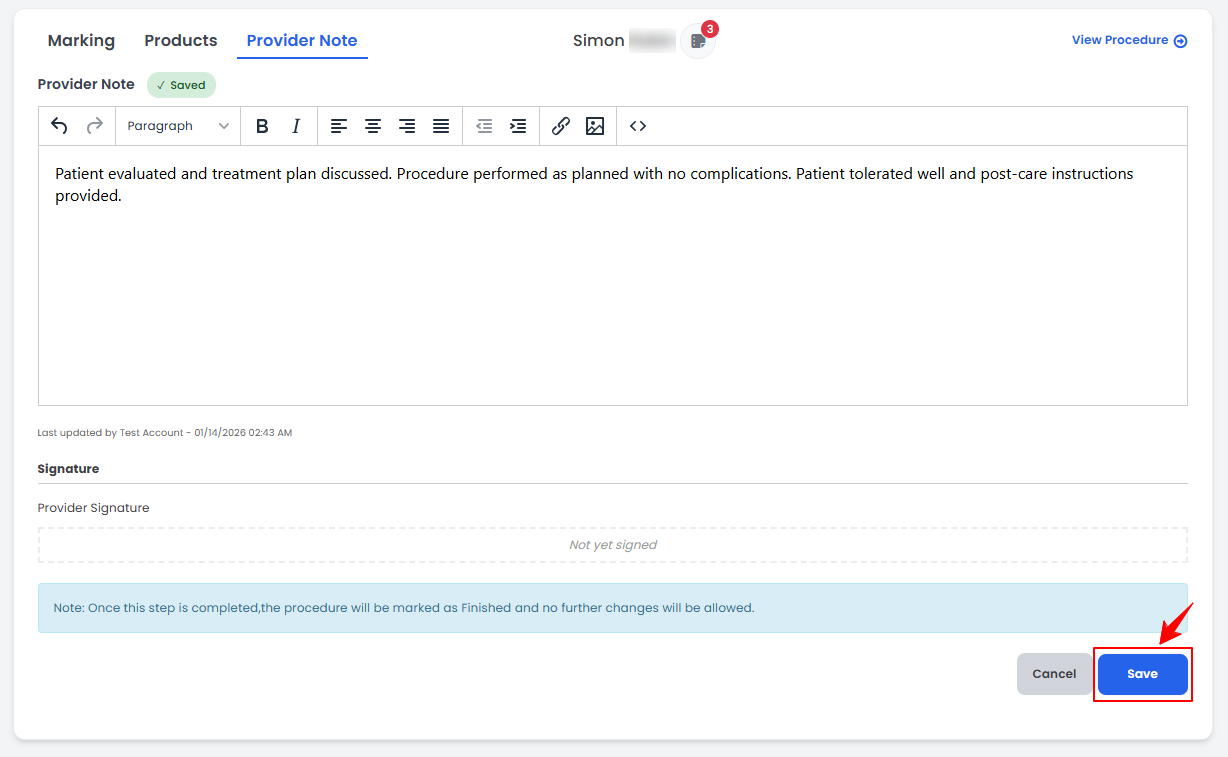 NoteCustomize the formatting of the note text using the options under the Provider Note window. Adjust the font style, size, color, and background or insert images to create the exact look you want.
 -
To access “dot phrases,’’ type a dot (.) in notes. These pre-created phrases will appear in a dropdown menu, allowing you to quickly select and insert repetitive notes instead of typing them manually.
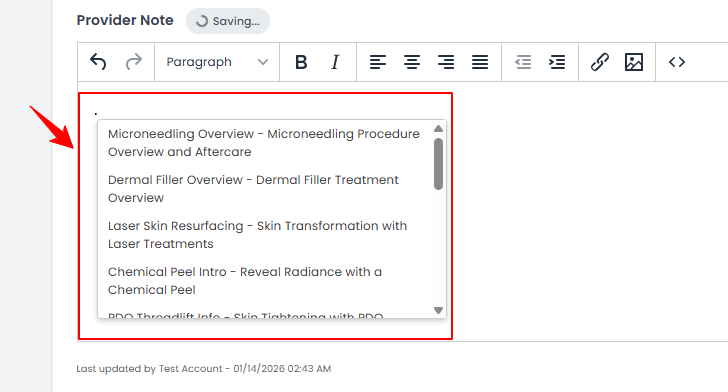 NoteTo use Dot Phrases, you must first create and save them in the Dot Phrases List within Clinical Documentation in the portal. Once saved, simply type a dot (.) to insert them. For step-by-step guidance, refer to the “Manage Dot Phrases” tutorial.
The provider note has been successfully added!
Part 2 of 4
Add a Provider Note for a Procedure Through Patient List Screen
-
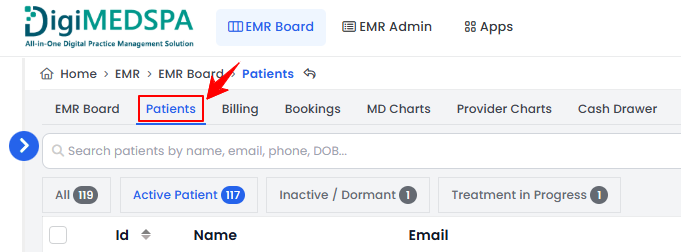
The user can add a provider note for a procedure through the Patient List Screen. From the EMR Board Tabs, select “Patients.”
-
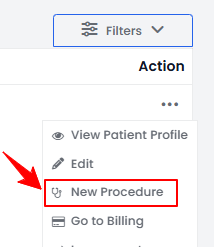
To create a procedure for a specific patient from the list, click the three dots under the action column and select "New Procedure."
-
The patient details will be automatically filled in. Complete the booking and procedure details, then click “Save & Chart” to proceed to image upload and access the Marking Screen.
-
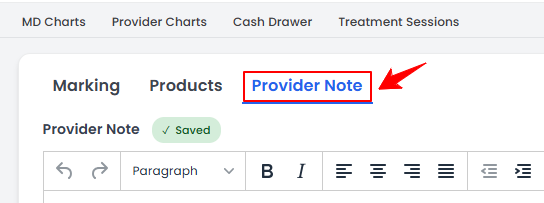
On the Marking Screen, select the Provider Note tab at the top.
-
Enter the required information in the Provider Note field and click “Save” to confirm.
The provider note has been successfully added!
Part 3 of 4
Add a Provider Note for a Procedure Through Bookings List Screen
-
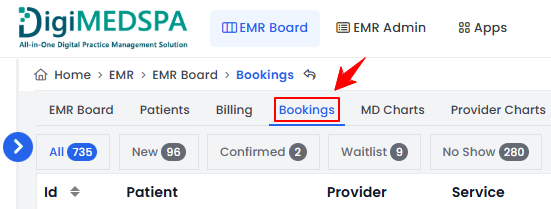
The user can add a provider note for a procedure through the Bookings List Screen. From the EMR Board Tabs, select “Bookings.”
-
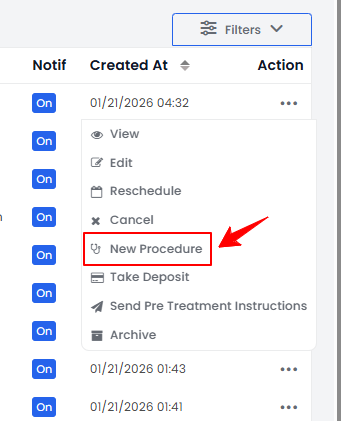
From the booking list, navigate to the desired booking. Click the three dots under Action and select “New Procedure.”
-
The patient and booking details will be automatically filled in. Complete the procedure details and click “Save & Chart” to proceed with uploading images and accessing the Marking Screen.
-
On the Marking Screen, select the Provider Note tab at the top.
-
Enter the required information in the Provider Note field and click “Save” to confirm.
The provider note has been successfully added!
Part 4 of 4
Edit a Provider Note Through Procedure View Screen
-
On the Procedure View Screen, click “Edit” in the Provider Note section to make changes to an existing note.

-
Make the necessary changes, then click “Save” to save the updates.
The provider note has been successfully edited!
You’re all set
That’s every step of “Add / Edit a Provider Note for a Procedure”. Up next: Add / Edit Booking Notes.