

Understanding Terminologies
- Self Note
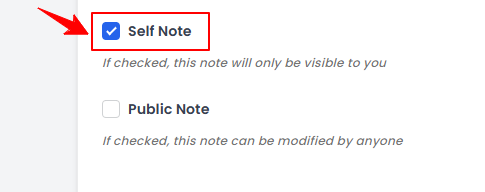
Marking a note as Self Note makes it visible only to you. No other user will be able to view or edit it.
- Public Note
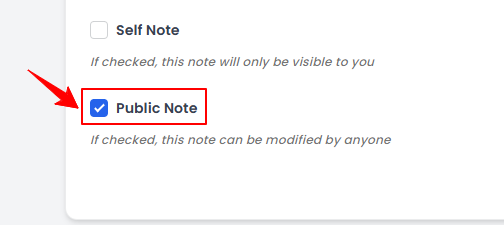
Marking a note as Public Note makes it visible to all authorized users. Anyone with access can view and modify the note.
Part 1 of 2
Create a Public Note
-
A user can create a Public Note from a patient’s profile, which can be accessed from the Patients List Screen via two entry points.
-
From the EMR Board Tabs, select “Patients.’’
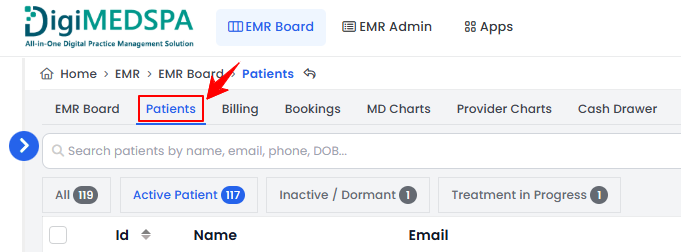
-
From the Left Navigation, click on the “EMR Board” dropdown and select “Patients.” Alternatively, you can type “Patients” into the search bar in the Left Navigation.
-
-
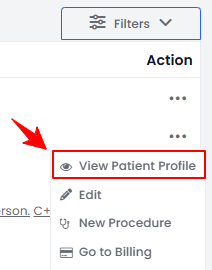
Click anywhere on the patient's data in the patient listing, or click the three dots under the action column next to the specific patient and select “View Patient Profile.”
-
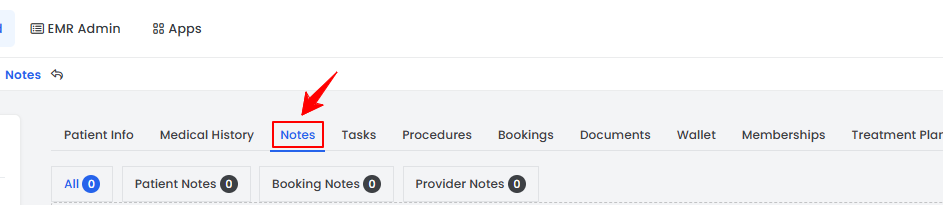
On the Patient Information Screen, users can view a detailed overview of the patient's information. Click on the “Notes" tab.
-
Enter the Title and Content for your note, and then select the Note Type from the available options: Normal Note, Sticky Note, or Sticky Permanent Note.
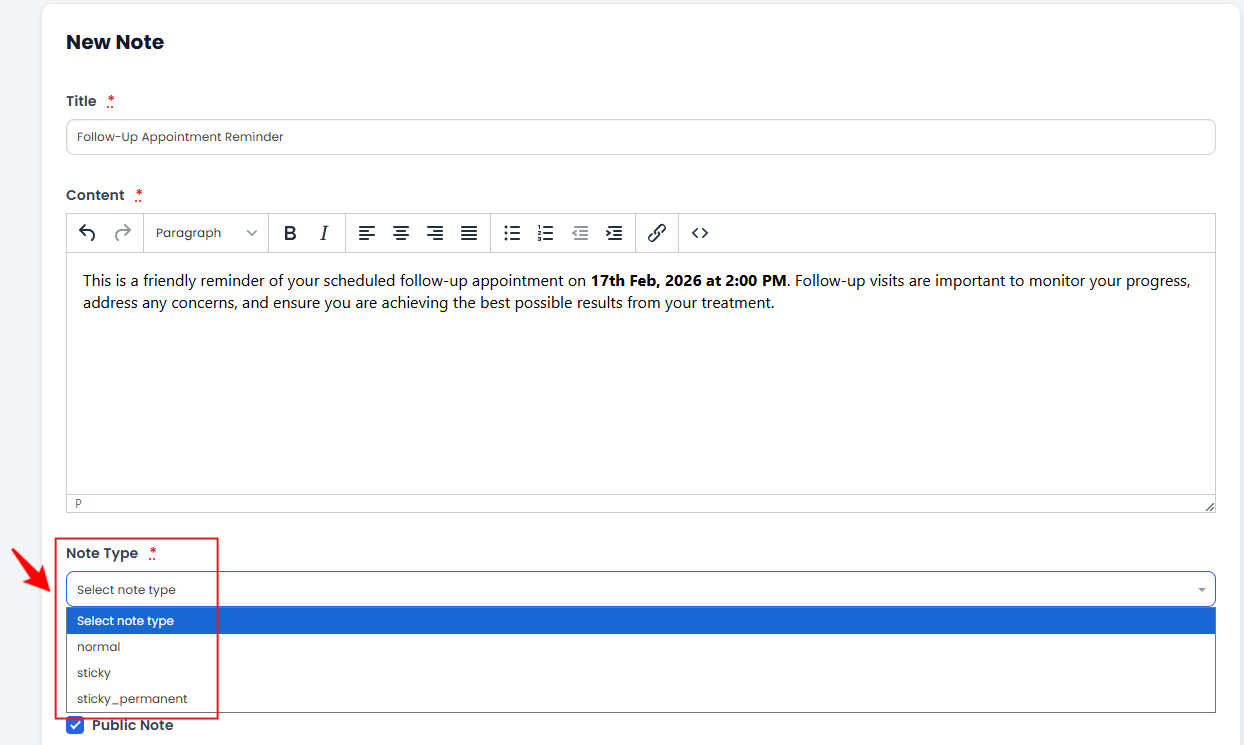 Note“Normal Notes” are standard notes that stay in the patient’s note list but do not pop up automatically. “Sticky Notes” are pop-up notes that appear when the patient’s profile is opened, used for important, time-sensitive information. “Sticky Permanent Notes” are non-dismissible pop-ups that always appear whenever the profile is accessed, ensuring vital information is continuously visible.
 -
Next, select “Public Note” to make the patient note visible and editable by all authorized users.
-
After filling in all the required information, click “Create Note” to save.
The public note has been successfully created!
Part 2 of 2
Create a Self Note
-
Enter the Title, Content and select the Note Type for a new note. Then check “Self Note” to make the note visible only to you.
-
After filling in all the required information, click “Create Note” to save.
The self note has been successfully created!
You’re all set
That’s every step of “How to Add Public Notes or Self Notes”. Up next: How to Create Good Faith Exam.