

Understanding Terminologies
- SMS Campaign Audience
A SMS campaign audience consists of a targeted group of patients and potential patients selected to receive specific marketing communications. This audience is defined based on service preferences, demographics, appointment history, and engagement levels with previous campaigns. Med SPAs can deliver personalized content, promotions, and wellness tips that resonate with recipients by effectively segmenting the audience, enhancing patient engagement, and driving bookings.
Part 1 of 4
Add SMS Campaign Audience
-
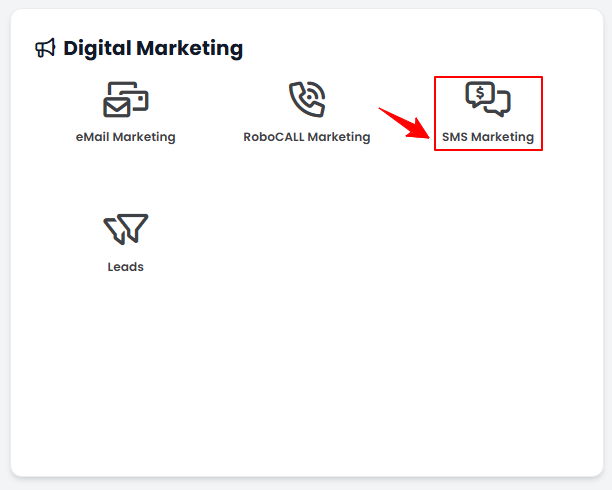
The user can create an email campaign audience by accessing “SMS Marketing” in the Digital Marketing Panel from two entry points.
-
Click “Apps” in the Top Menu Navigation to access the applications.

-
Navigate to the Digital Marketing Panel and click on “SMS Marketing.”
-
-
From the Left Navigation, click on the “Digital Marketing” dropdown menu, and select “SMS Marketing.’’ Alternatively, you can type “SMS Marketing” into the search bar in the Left Navigation.NoteThe user can also create an audience in the Step 4 of creating a new SMS campaign. For more information on creating an SMS campaign, refer to our ‘’Create and Manage SMS Campaigns’’ user guide.
-
-
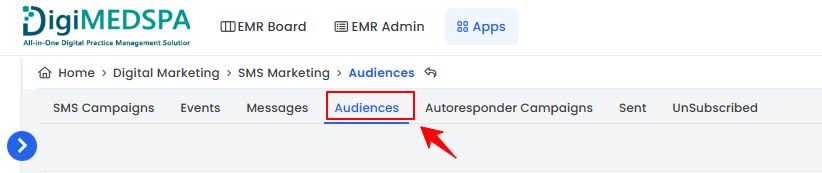
On the SMS Campaigns List Screen, click on ‘’Audiences’’ tab.
-
To create a new SMS campaign audience, click on the ‘’New Audience’’ button in the top right corner of the screen.
-
Enter the Name for the audience and click on ‘’Create Audience.’’
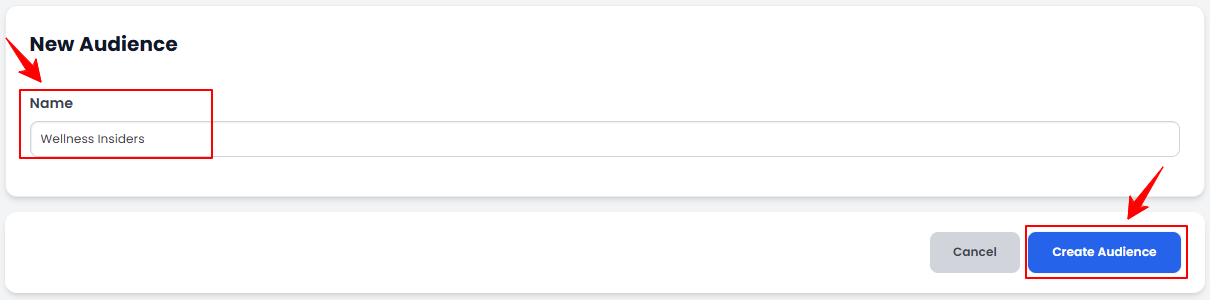 The SMS campaign audience has been successfully created!
Part 2 of 4
Update SMS Campaign Audience
-
Once the audience is created, select the Audience Type from the available options: Contact, Patient, or Lead. You can also search for the audience using filters such as City, Country, State, Tags, or Zip Code. After selecting the desired audience, click “Update Audience” in the top right corner to save your selection.
 The SMS campaign audience has been successfully updated!
Part 3 of 4
View SMS Campaign Audience
-
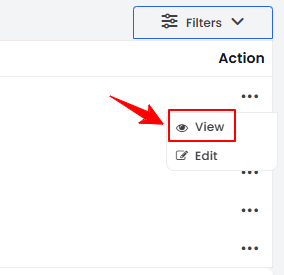
To view a specific audience from the list, click the three dots under the action column and select "View.”
-
The Update Audience Screen will open, allowing you to view the list of selected audiences.
Part 4 of 4
Edit SMS Campaign Audience
-
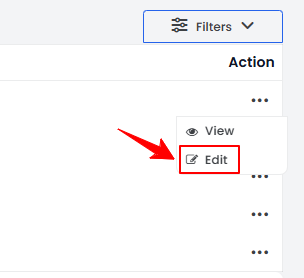
From the audience list, click on the three dots under the action column and select "Edit" for the specific audience.
-
Make the desired changes in the audience. Once done, click “Update Audience.’’
The SMS campaign audience has been successfully edited!
You’re all set
That’s every step of “Manage SMS Campaign Audience”. Up next: Add / View / Edit / Delete SMS Campaign Schedule.