

Understanding Terminologies
- Message Notification
Message notification refers to an automated or customized alert sent to patients to inform them of important updates, such as appointment reminders, procedure follow-ups, special promotions, or new service offerings. These notifications are tailored to keep patients engaged, informed, and reminded of relevant services, helping to enhance the overall patient experience and maintain consistent communication.
Part 1 of 3
Add Message Notification
-
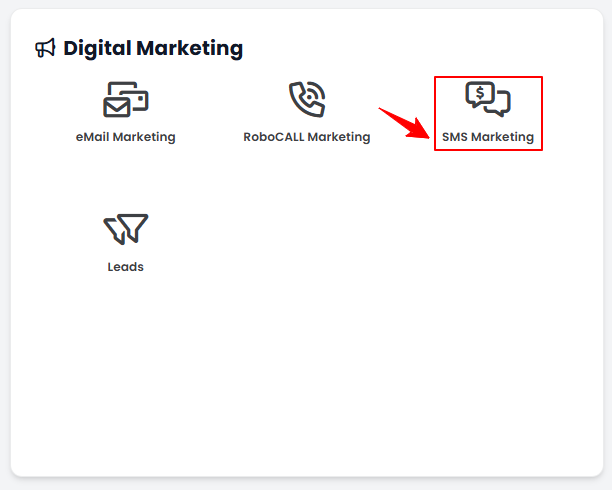
The user can create a message notification by accessing “SMS Marketing” in the Digital Marketing Panel from two entry points.
-
Click “Apps” in the Top Menu Navigation to access the applications.

-
Navigate to the Digital Marketing Panel and click on “SMS Marketing.”
-
-
From the Left Navigation, click on the “Digital Marketing” dropdown menu, and select “SMS Marketing.’’ Alternatively, you can type “SMS Marketing” into the search bar in the Left Navigation.NoteThe user can also create a message in the Step 3 of creating a new SMS campaign. For more information on creating an SMS campaign, refer to our ‘’Create and Manage SMS Campaigns’’ user guide.
-
-
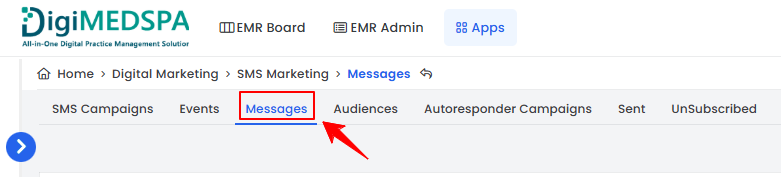
On the SMS Campaigns List Screen, click on ‘’Messages’’ tab.
-
To create a new message notification, click on the ‘’New Message Notification’’ button in the top right corner of the screen.
-
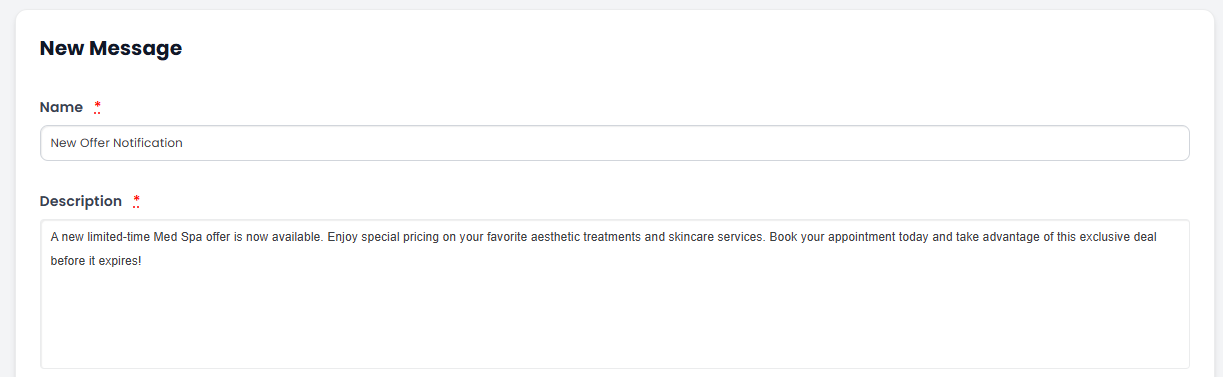
Enter the Name and Description of the message notification.
-
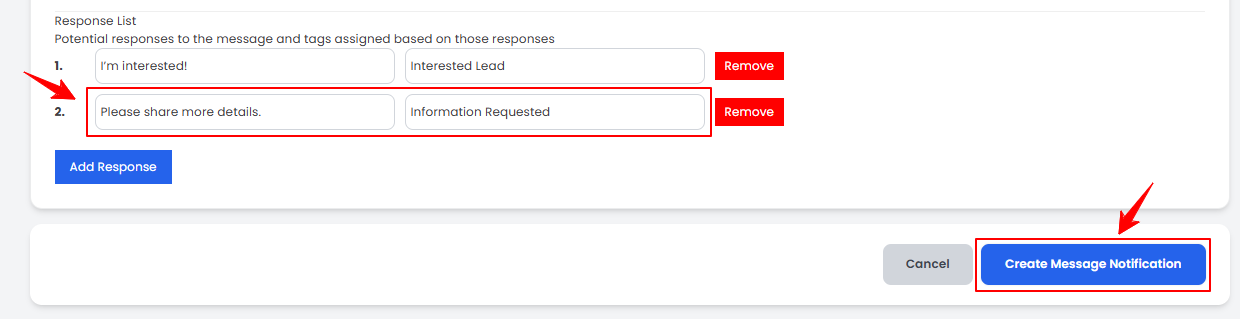
To add a response, click the “Add Response” button. Enter the response text and assign the appropriate tag in the provided fields. After completing all entries, click “Create Message Notification” to save.
 The message notification has been successfully sent!
Part 2 of 3
View Message Notification
-
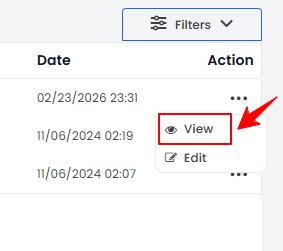
To view a specific message notification from the list, click the three dots under the action column and select "View.”
-
The Message Notification View Screen will open, displaying all message details. Enter a number in the Test SMS field and click “Send” to send the message.
Part 3 of 3
Edit Message Notification
-
There are two ways to edit an existing message notification.
-
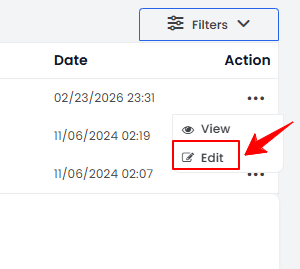
From the message notifications list, click on the three dots under the action column and select "Edit" for the specific message notification.
-
On the Message Notification View Screen, click on the ‘’Edit Message Notification’’ button on the top right corner of the screen.
-
-
Make the desired changes in the message notification. Once done, click ‘’Update Message Notification.’’
The message notification has been successfully edited!
You’re all set
That’s every step of “Add / View / Edit SMS Campaign Message Notification”. Up next: Check Sent SMS Campaigns.