

Understanding Terminologies
- SMS Campaign
An SMS campaign is a marketing strategy that uses text messages to communicate directly with patients, promoting services, special offers, appointment reminders, and event invitations. These short, targeted messages are designed to engage patients instantly, drive bookings, and build loyalty by keeping patients informed about procedures and exclusive Med SPA promotions.
Part 1 of 2
Create SMS Campaign
-
The user can create an SMS campaign by accessing “SMS Marketing” in the Digital Marketing Panel through two entry points.
-
Click “Apps” in the Top Menu Navigation to access the applications.

-
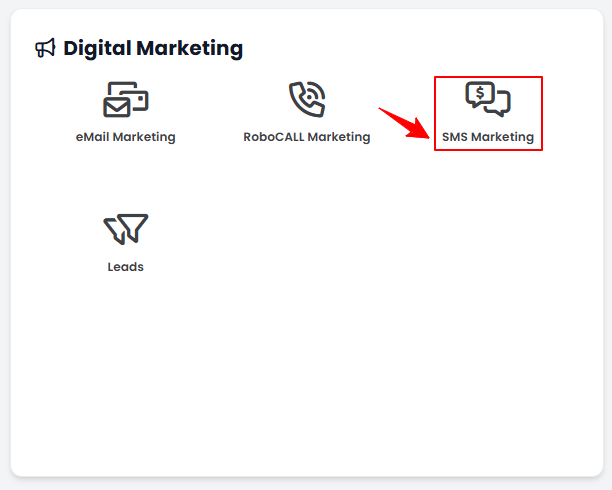
Navigate to the Digital Marketing Panel and click on “SMS Marketing.”
-
-
From the Left Navigation, click on the “Digital Marketing” dropdown menu, and select “SMS Marketing.’’ Alternatively, you can type “SMS Marketing” into the search bar in the Left Navigation.
-
-
To create a new campaign, click on the “New SMS Campaign‘’ button in the top right corner of the screen.
-
Step 1: Name
-
In Step 1, create a suitable name for the SMS campaign then click the ‘’Next’’ button to proceed.
-
-
Step 2: Event
-
In Step 2, select an event from the dropdown menu or create a new event by clicking on ‘’+Add New Event.’’ Click the ‘’Next’’ button to proceed to the next step or click the ‘’Skip’’ button if you don't want to create an event.
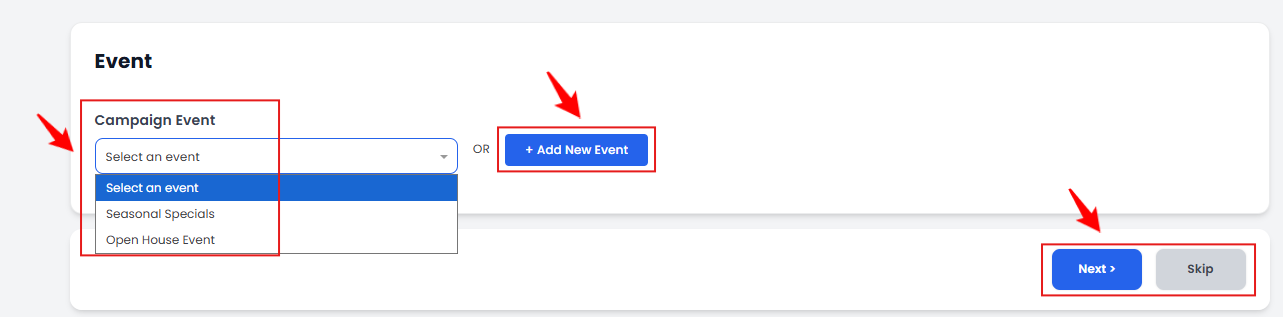 Note“Event” is a special promotion or seasonal offering designed to attract patients with limited-time deals, exclusive treatments, or packages. Refer to the "Manage SMS Campaign Event" user guide for instructions on creating a new event.
-
-
Step 3: Message
-
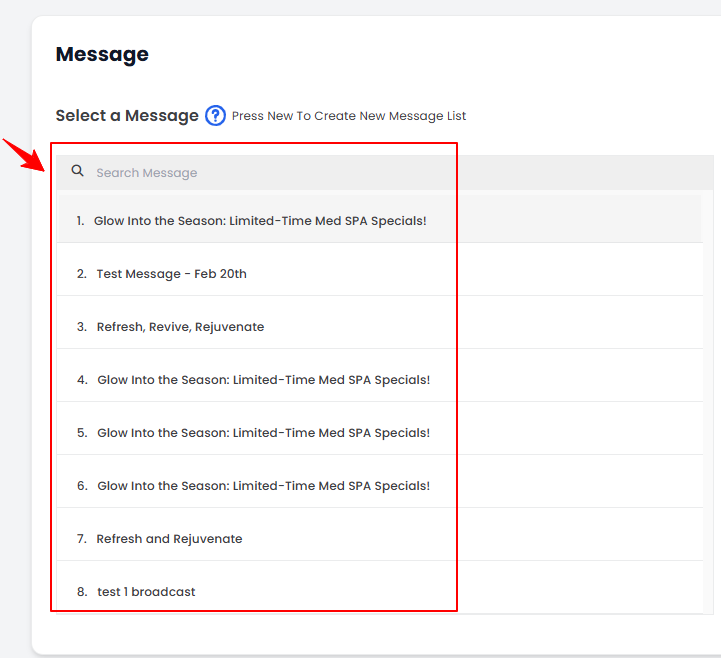
In Step 3, select a message for the campaign by clicking on the ‘’Search Message’’ dropdown menu or click the ‘’+New’’ button at the top right to create a new message for the campaign.
 NoteFor detailed instructions on creating a new message for the SMS campaign, refer to “Add / View / Edit SMS Campaign Message Notification” user guide.
 -
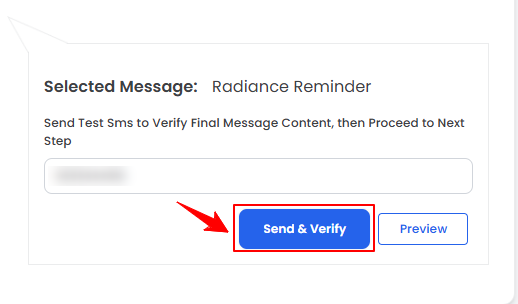
A preview of the selected message will appear on the right. To send and verify the SMS content, enter the number in the provided space and click the “Send & Verify” button.
-
The preview of the message displays the SMS content.
-
Once you are done, click on the ‘’Next button to proceed.
-
-
Step 4: Audience
-
In Step 4, select the audience from the dropdown menu to whom you want to send the SMS campaign or click on the ‘’+New’’ button in the top right corner to create a new audience. A preview of the selected audience will be displayed on the right. Once you are finished, click on the ‘’Next’’ button to proceed.
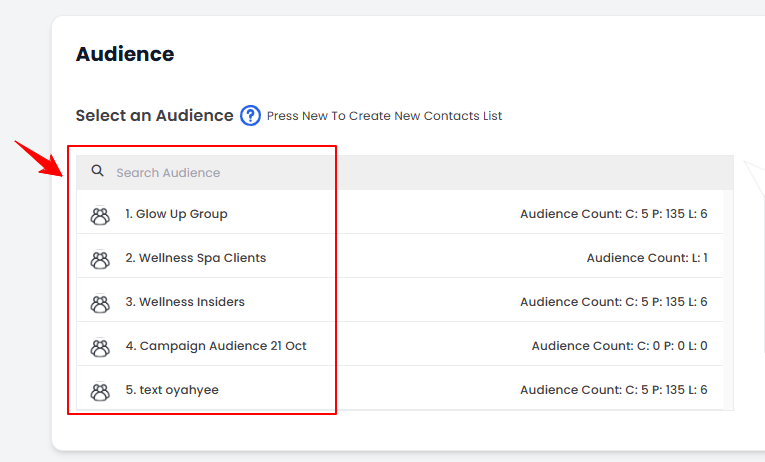 Note“Audience” refers to the specific group of individuals, such as patients, selected for the campaign based on criteria like demographics, behavior, and interests. For detailed instructions on adding a new audience, refer to “Manage SMS Campaign Audience” user guide.
-
-
Step 5: Schedule
-
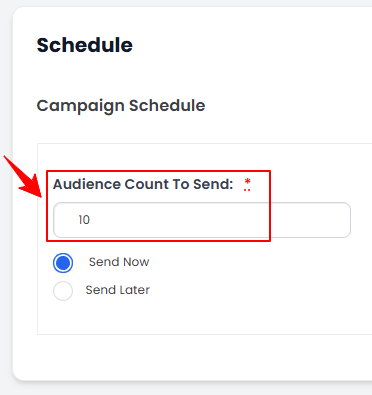
In Step 5, create the campaign schedule by entering the number of recipients in the “Audience Count to Send” field to determine how many contacts will receive the campaign.
-
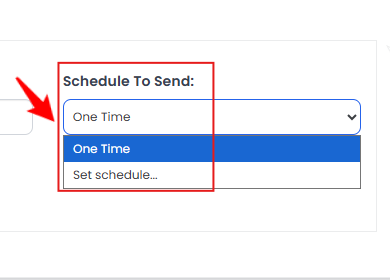
If you check the ‘’Send Now’’ then the SMS campaign will be sent just as you complete and send the campaign. Click the “Schedule to Send” dropdown menu and select “One Time” if you want to send the SMS campaign only once.
-
If you select the ‘’Send Later’’ option then set a ‘’Start Time’’ for sending the campaign.
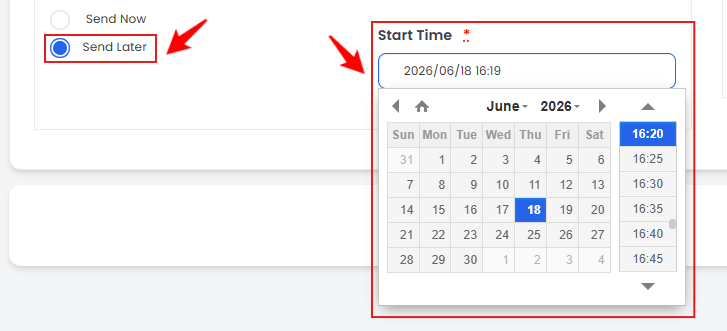 NoteSending the campaign labeled “One Time” means that the SMS campaign is sent only once to the selected audience at a specific start time, with no repetitions.
 -
If you choose to “Set a Schedule” for the campaign then a popup will appear to set the schedule for the campaign. Choose the Frequency for sending the campaign from the dropdown menu and press ‘’OK’’ button to confirm.
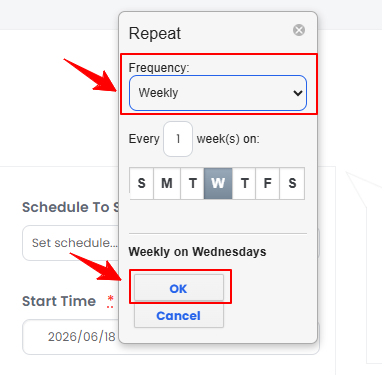 NoteScheduling a SMS campaign allows it to be sent multiple times according to a defined schedule. This option lets you specify the start time, the frequency of repetitions, and the total number of occurrences. “Frequency” refers to how often SMS are sent to the target audience within a specific time period.
 -
If you mark the Repetition for the campaign as ‘’No’’ then enter the number of contacts to whom you want to send the campaign per schedule in the ‘’Audience Count To Send Per Schedule’’ field. Select the ‘’Start Time’’ and ‘’End Time’’ for the campaign.
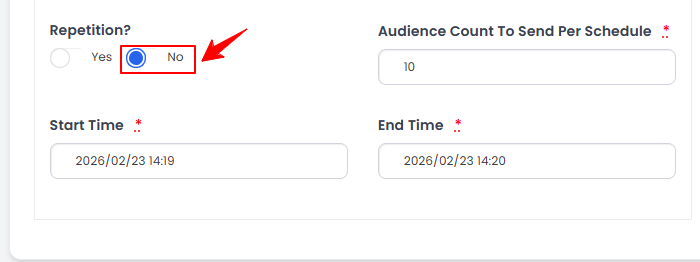 Note“Repetition” refers to a structured schedule where SMS are sent repeatedly to the target audience at set intervals. “Start Time” is when the SMS campaign sends SMS to the target audience. “End Time” is when the SMS campaign stops sending SMS, marking the conclusion of the scheduled delivery period.
 -
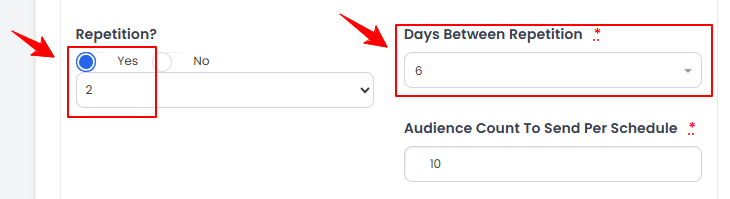
If you mark the Repetition for the campaign as “Yes,” then select the number of repetitions and the “Days Between Repetitions” from the dropdown menus. Enter the “Audience Count to Send Per Schedule,” as well as the “Start Time” and “End Time” for the campaign.
-
-
Step 6: Summary
-
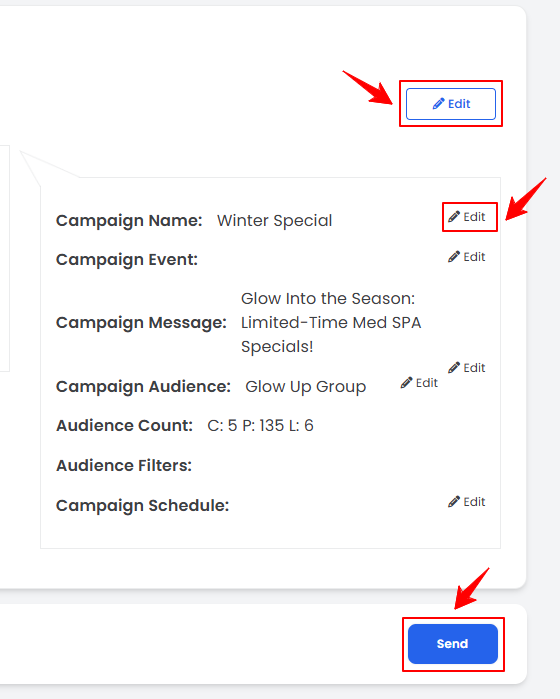
In Step 6, a summary of the SMS campaign will be displayed. To make changes, click the “Edit” button in the top-right corner, or click the “Edit” button next to each step to update specific steps of the campaign. Once you have completed the campaign, click the “Send” button to send it.
 The SMS campaign has been successfully sent!
-
Part 2 of 2
Update SMS Campaign
-
From the SMS campaign list, click the three dots under the action column and select “Update” for the specific campaign you want to update.
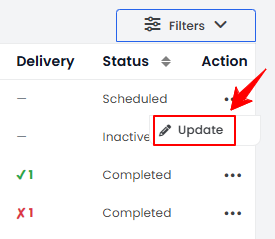 NoteFor incomplete campaigns, clicking “Update” will resume the campaign from the step where you left off. If the campaign is complete, clicking “Update” will allow you to change the campaign status.
 -
Select the status of the campaign from the dropdown menu. If the campaign is active select ‘’True’’ and if you want to make it inactive select ‘’False.’’
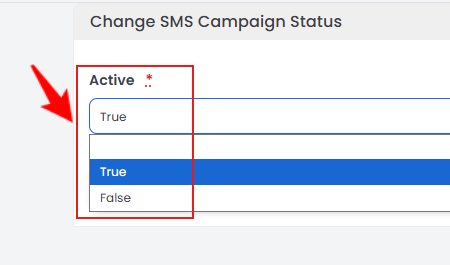 Note"Active" status means the campaign is ongoing, with regular SMS sent and engagement tracked. "Inactive" status indicates the campaign has ended or paused, often due to low engagement.
 -
Once you have changed the campaign's status, click the "Update" button to save the change.
The SMS campaign has been successfully updated!
You’re all set
That’s every step of “Create and Manage SMS Campaigns”. Up next: Create and Manage Email Campaigns.