

Understanding Terminologies
- Email Campaign Schedule
An email campaign schedule is a strategic timeline that outlines when marketing emails are delivered to a targeted audience. It is designed to send messages at optimal times, helping to maximize engagement, open rates, and overall campaign effectiveness.
- Autoresponder Campaigns
Autoresponder campaigns are automated email sequences that are triggered by specific actions or timelines, such as a new patient sign-up, post-treatment follow-up, or upcoming appointment. These campaigns help Med SPAs maintain consistent, timely communication with patients—boosting engagement, retention, and overall patient satisfaction without manual effort.
Part 1 of 4
Add Email Campaign Schedule
-
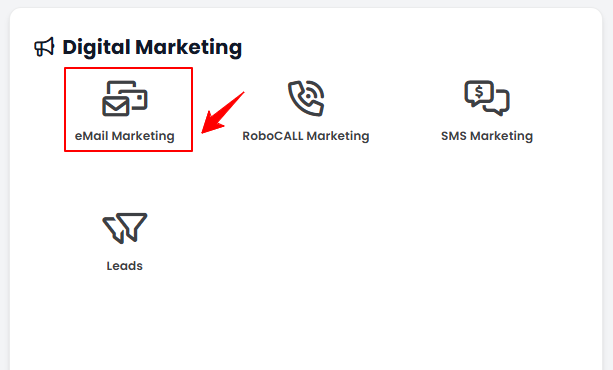
The user can create a campaign schedule by accessing “eMail Marketing” in the Digital Marketing Panel from two entry points.
-
Click “Apps” in the Top Menu Navigation to access the applications.

-
Navigate to the Digital Marketing Panel and click on “eMail Marketing.”
-
-
From the Left Navigation, click on the “Digital Marketing” dropdown menu, and select “eMail Marketing.’’ Alternatively, you can type “eMail Marketing” into the search bar in the Left Navigation.
-
-
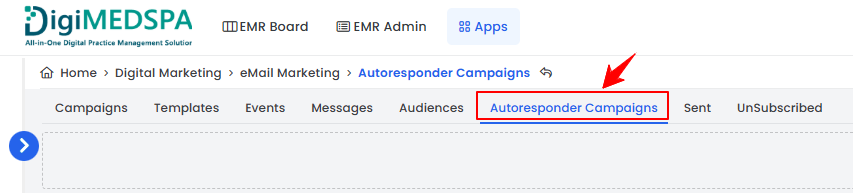
On the Campaigns List Screen, click on ‘’Autoresponder Campaigns’’ tab.
-
To create a new campaign schedule, click on the ‘’New Campaign Schedule’’ button in the top right corner of the screen.
-
Enter a Tag, select when to send the campaign from the dropdown menu, and check the “Active” box if the campaign is currently active.
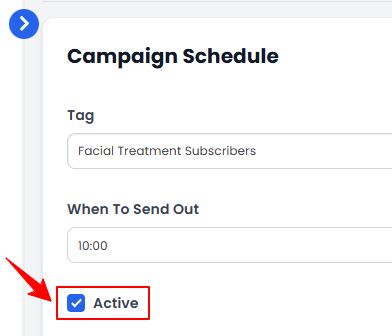 NoteA “Tag” is a label assigned to contacts that determines if or when they should receive a scheduled email campaign. It helps segment the audience so that only those with specific tags receive the message at the scheduled time.
 -
To add a campaign schedule, click on “Add New Campaign Schedule Item.”
-
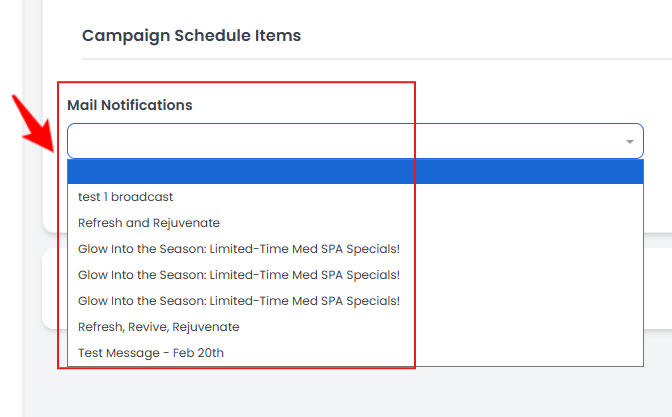
Choose a mail notification from the Mail Notifications dropdown menu.
-
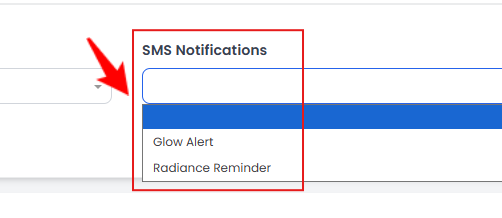
Choose a SMS notification from the SMS Notifications dropdown menu.
-
Enter the number of days after which the campaign will be sent, then click “Create Campaign Schedule” to save.
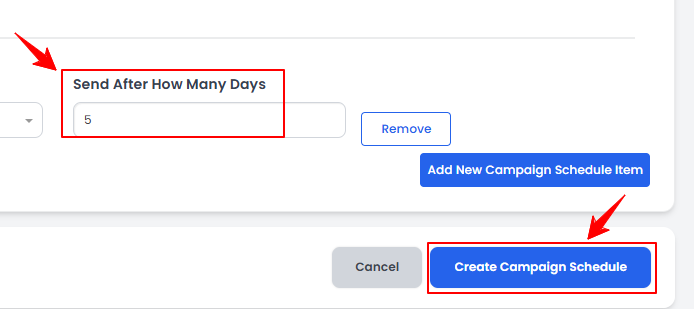 The email campaign schedule has been successfully created!
Part 2 of 4
View Email Campaign Schedule
-
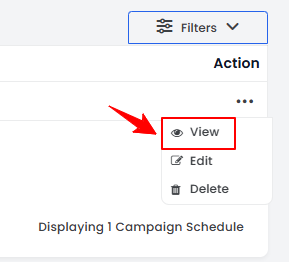
To view a campaign schedule from the list, click the three dots under the action column and select "View,” or simply click anywhere on the schedule’s data.
-
The Campaign Schedule View Screen will open, displaying all campaign schedule details.
Part 3 of 4
Edit Email Campaign Schedule
-
There are two ways to edit an existing campaign schedule.
-
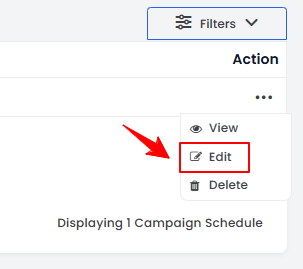
From the Campaign Schedule List Screen, click on the three dots under the action column and select "Edit" for the specific campaign schedule.
-
On the Campaign Schedule View Screen, hover over the “Actions” menu on the right corner of the screen and select “Edit Campaign Schedule” from the dropdown menu.
-
-
Make the necessary changes and click “Update Campaign Schedule” to save your updates.The email campaign schedule has been successfully edited!
Part 4 of 4
Delete Email Campaign Schedule
-
There are two ways to delete an existing campaign schedule.
-
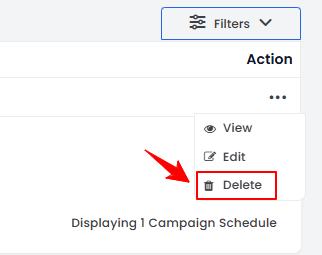
From the Campaign Schedule List Screen, click on the three dots under the action column and select "Delete" for the specific campaign schedule.
-
On the Campaign Schedule View Screen, hover over the “Actions” menu on the right corner of the screen and select “Delete Campaign Schedule” from the dropdown menu.
-
-
A confirmation pop-up will appear. To delete the campaign schedule, click ”OK.”The email campaign schedule has been successfully deleted!
You’re all set
That’s every step of “Add / View / Edit / Delete Email Campaign Schedule”. Up next: Manage Email Campaign Audience.