Manage Questionnaires
This user guide provides step-by-step instructions for adding, viewing, editing, and attaching a questionnaire to a service or procedure in the DigiMEDSPA Portal.
Understanding Terminologies
Questionnaires
Questionnaires refer to structured sets of questions designed to collect important and relevant medical and personal information from patients before a procedure. These forms may include questions about a patient's medical history, current health status, treatment goals, and any specific concerns or preferences. Questionnaires help providers assess patient suitability for certain treatments, ensure patient safety, and maintain proper documentation for legal and medical purposes.
Access this link: https://digimedspa.com/ap2/questionnaires
Create a Questionnaire
- The user can create a questionnaire by accessing the “Questionnaires” through Clinical Documentation from two entry points.
- From the EMR Admin, click on “Questionnaires” under “Clinical Documentation.”

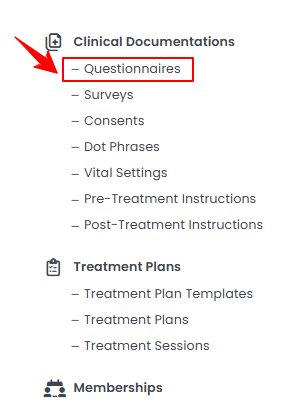
- From the Left Navigation, open the “EMR Admin” dropdown, select “Clinical Documentation,” and then choose “Questionnaires” from the subsequent dropdown menu. Alternatively, you can type “Questionnaires” into the search bar in the Left Navigation.
- From the EMR Admin, click on “Questionnaires” under “Clinical Documentation.”
- To create a new questionnaire, click on the “New Questionnaire‘’ button in the top right corner of the screen.
- The Form Type will be automatically set to Questionnaire. Select the Default Template from the dropdown menu.
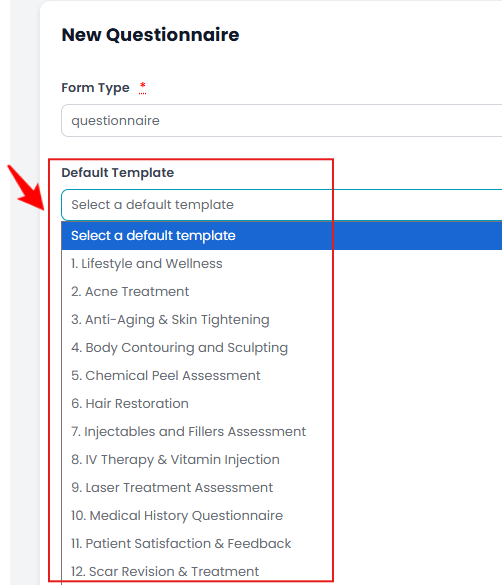 Note: Our portal provides default questionnaire templates. You can select one from these options for quick editing, or you can create your own custom template by following the instructions in this user guide.
 - Enter the Title and Description for your questionnaire, then check the “Active” box.
 Note: If this box is unchecked, the questionnaire will remain inactive in the portal and cannot be attached to any procedure or service.
 - Select the “Good Faith Exam” checkbox if the questionnaire you are creating is intended to serve as a Good Faith Exam.Note: A “Good Faith Exam” is a preliminary medical evaluation conducted to ensure that a proposed treatment or procedure is appropriate and safe for the patient. It typically involves reviewing the patient’s medical history, current health status, allergies, medications, and aesthetic goals before performing cosmetic or wellness procedures.
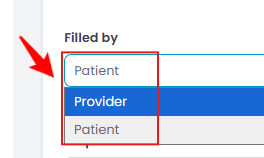
- Next, choose who will be filling out this form from the Filled By dropdown menu.
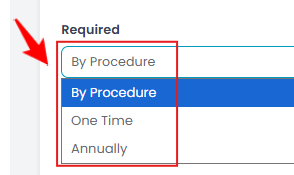
- Select how often the form is required from the Required dropdown menu.
- In the Form Builder section, click “Add Field” to start adding questions.
Note: You can add as many questions to your questionnaire as needed. - Select the Field Type from the pop-up menu to create your form as required.
- Select Text Field as Field Type.
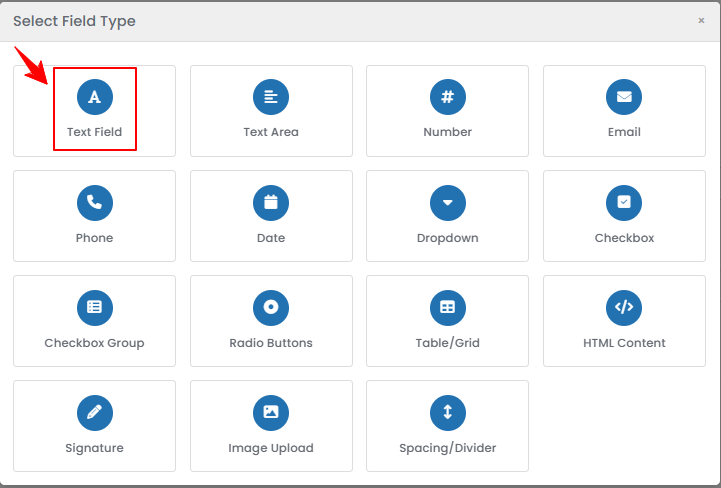
- If you select the Text Field option, the Field Type and Field Name will be auto-filled. Enter the Label and choose a Variable from the dropdown to appear in the Placeholder. Check “Required Field” for mandatory questions, enter the Grid Row, and click “Save Field.”
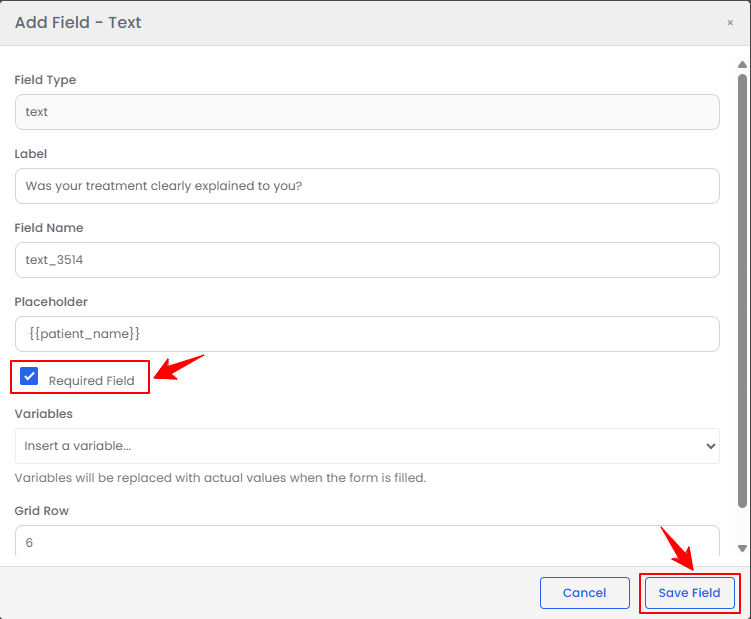 Note: A “Variable” is a unique name that stores the data entered in a field, allowing the system to use it in forms, reports, and templates. A “Placeholder” is text that appears inside a form field to give the user a hint or example of what to enter. “Grid Row” refers to the position of a field in a form layout. It determines which row the field appears on when the form is displayed. Field types such as Text Area, Number, Email, Phone, and Date are added in the same way as a Text Field.
 - For a Dropdown field, enter the Label and Placeholder, then add the answer options. When finished, click “Save Field.”
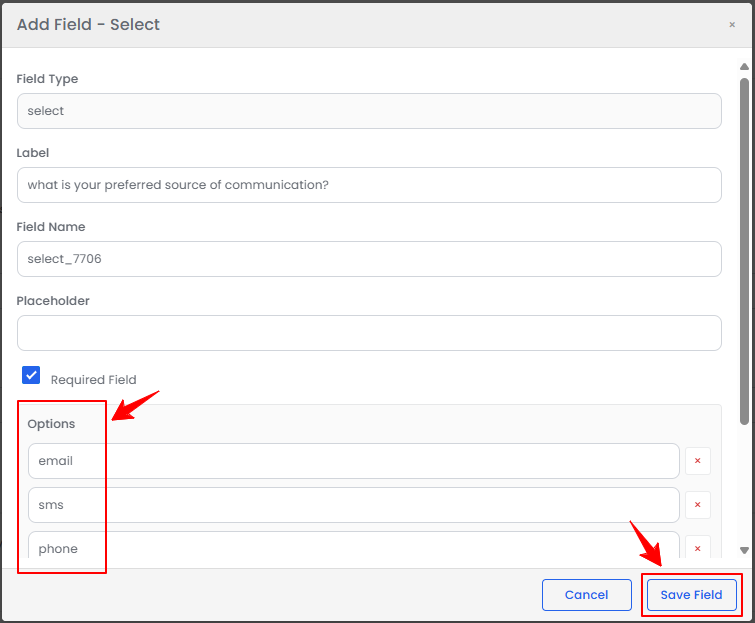 Note: A dropdown field allows the patient to select one option from a predefined list. When the patient clicks the field, the list of options appears, and they can choose the most appropriate response. The “Radio Buttons” field type is added the same way as a dropdown. Radio buttons display all options on the screen at once. They take more space but allow quicker selection when there are only a few choices.
 - For Checkbox and Signature field types, simply enter the Label and Grid Row, then click “Save Field.”
- For a Checkbox Group field, enter the Label, add the options, specify the Number of Columns, and click “Save Field.”
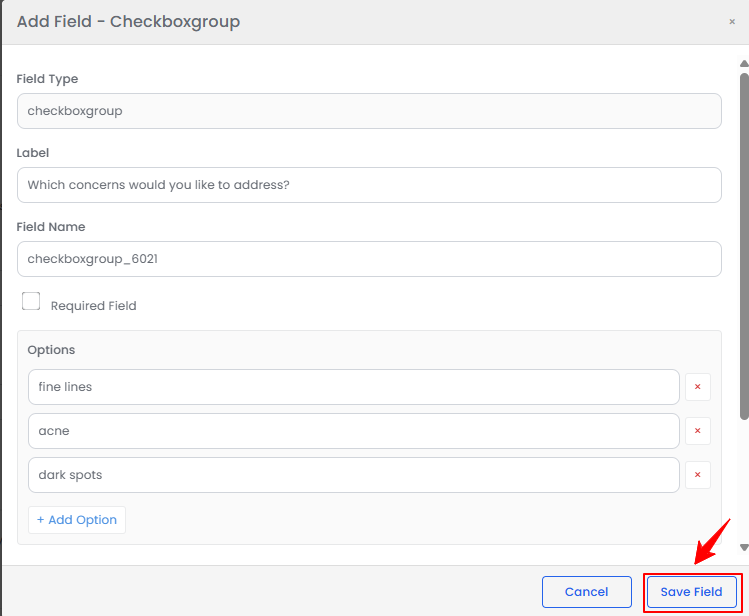 Note: A single checkbox is used when the patient needs to confirm or agree to something while a checkbox group allows the patient to select multiple options from a list. In a checkbox group field, the “Number of Columns” refers to how the options are arranged visually on the form.
 - For a Table/Grid field, the Table Data Name, Field Type, and Field Name are pre-filled. Enter the Label and Table Label, add and fill columns (choose type from the dropdown), set row permissions, enter Initial Rows and Initial Data (JSON Array), specify the Grid Row, and click “Save Field.”
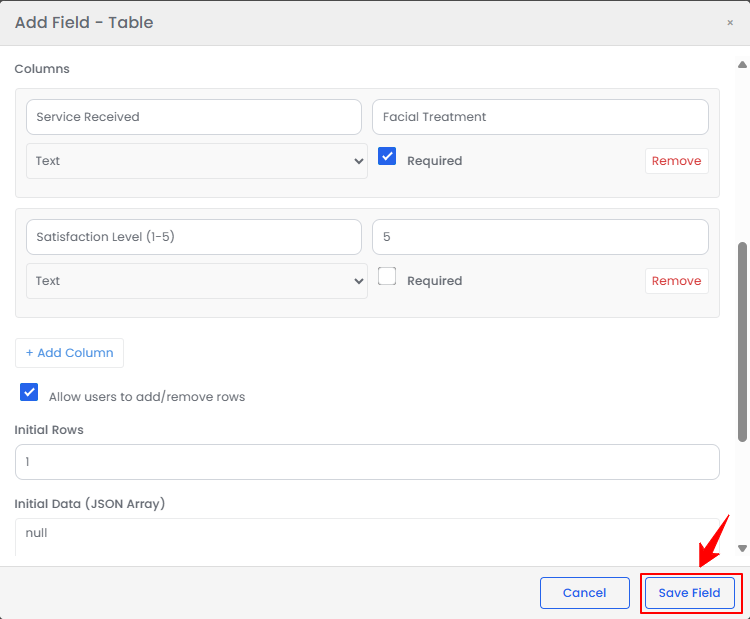 Note: A “Table/Grid” is a structured layout used to organize multiple fields or data in rows and columns within a form. Initial Data (JSON Array) is a field used to pre-fill a table or grid with existing data in a structured format. JSON (JavaScript Object Notation) is a standard way to represent data as text. A JSON Array is a list of items, where each item can have multiple properties (like columns in a table). By entering initial data in this format, the grid/table will automatically display these rows and columns when the form loads.
 - For the HTML Content field, enter the text or HTML code you want to display in the form. Click “Save Field” to save.
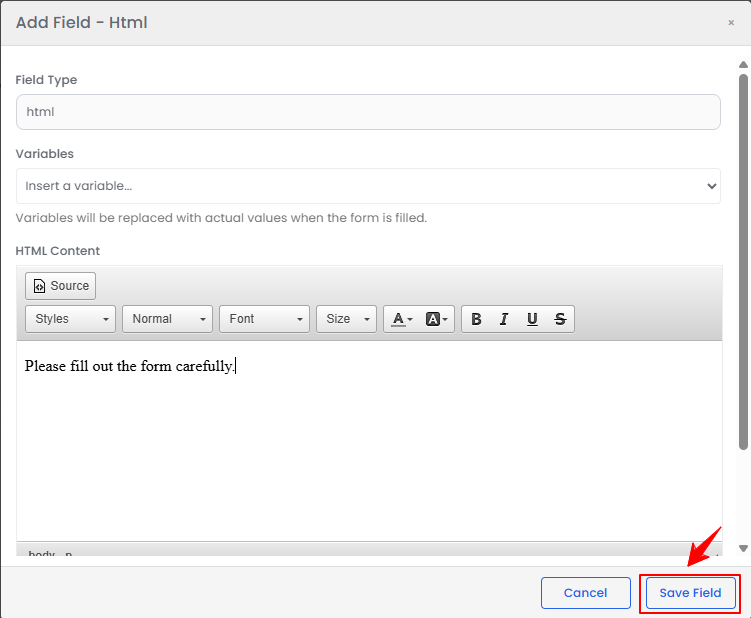 Note: HTML Content is a field type that allows you to add formatted text, images, links, or other HTML elements directly into a form. It is used to display custom content such as instructions, headings, or media without collecting user input.
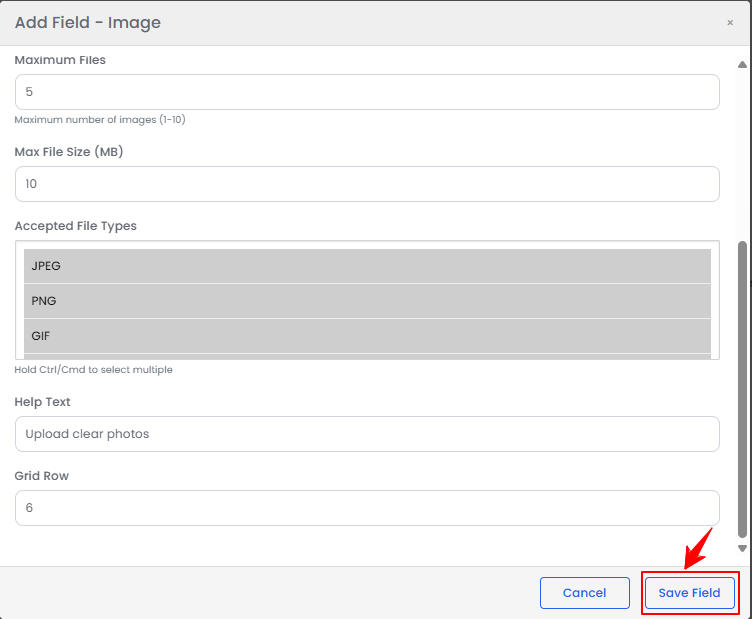
 - For the Image Upload field, the Label, Field Type, and Field Name are auto-filled. Enter the Maximum Files and File Size, select Accepted File Types, add Help Text, specify the Grid Row, and click “Save Field.”
- For a Spacing/Divider field, enter the Label and Height, select a Style from the dropdown, specify the Grid Row, and click “Save Field.”
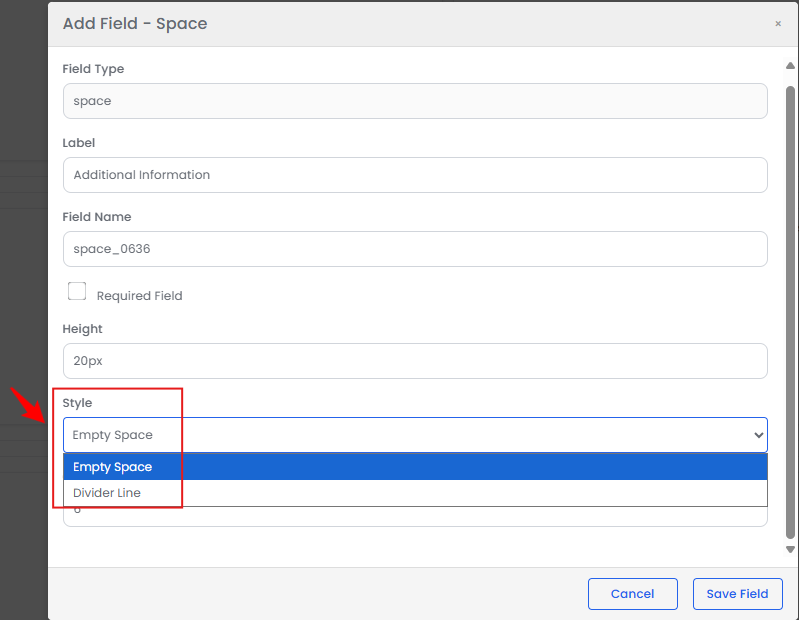 Note: A “Spacing/Divider” is a non-input field used to organize and separate sections within a form.
- Select Text Field as Field Type.
- Once all fields are saved, click “Preview” to view the questionnaire form. To modify a specific field, use the “Edit” or “Delete” buttons on the right side of that field.
- Once you've finished adding all the questions and options, click “Create Questionnaire” to save it.
The questionnaire has been successfully created!
View a Questionnaire
- To view a specific questionnaire from the list, click the three dots under the action column and select "View," or simply click anywhere on the questionnaire’s data.
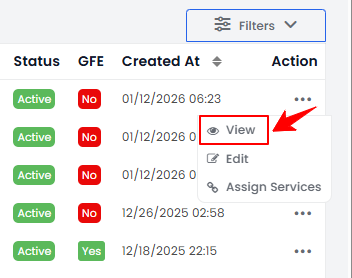
- The Questionnaire View Screen will display the complete questionnaire details.
Edit a Questionnaire
- There are two ways to edit an existing questionnaire.
- From the list of added questionnaires, click the three dots under the action column and select “Edit” for the specific questionnaire you want to edit.
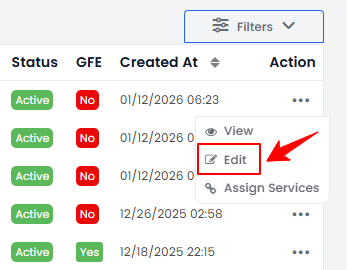
- On the View Questionnaire Screen, click on the "Edit Questionnaire" button in the top right corner of the screen.
- From the list of added questionnaires, click the three dots under the action column and select “Edit” for the specific questionnaire you want to edit.
- Make the desired changes in the questionnaire form. Once done, click “Update Questionnaire.”
The questionnaire has been successfully edited!
Assign Services to a Questionnaire
- There are two ways to assign services to an existing questionnaire.
- From the list of added questionnaires, click the three dots under the action column and select “Assign Services” for the specific questionnaire.
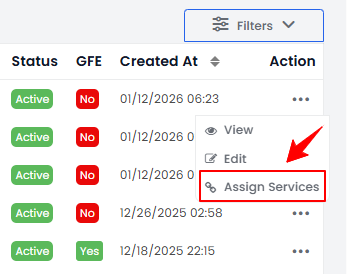
- On the View Questionnaire Screen, click on the "Assign Services" button in the top right corner of the screen.
- From the list of added questionnaires, click the three dots under the action column and select “Assign Services” for the specific questionnaire.
- Select the services you want to assign to the questionnaire from the dropdown menu.
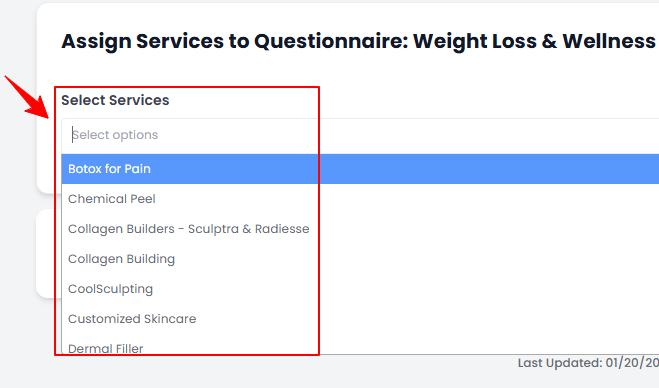
The services have been successfully assigned to the questionnaire!Note: Assigning services to a questionnaire links those specific services to that questionnaire.
Attach a Questionnaire to a Service
- From the EMR Admin, click on “Services” under “Services & Bundles.”
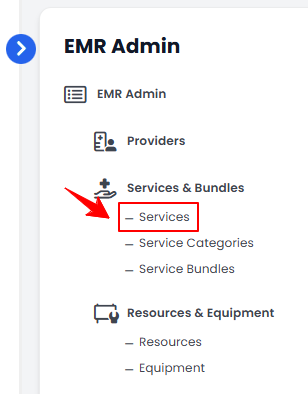
- Click the "New Service" button to add a service, or select an existing service from the list to edit.
- Go to the Step 2 of creating or updating a service, select the appropriate questionnaire you want to attach to the service from the dropdown menu.
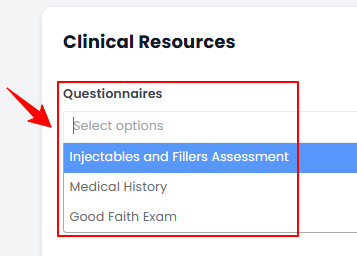
- After selecting the relevant questionnaires for the service, click “Next.” At Step 3, click “Submit” to save the updates.Note: Attaching a questionnaire to a service allows you to link relevant questionnaires while creating or updating a service.
The questionnaire has been successfully attached to the service!
Add Questionnaire to a Procedure
- The user can add questionnaires to the procedure. From the EMR Board select a booking that is in the ‘’Checked In’’ step then press the ‘’Start Procedure’’ button to move that booking to the ‘’In Procedure’’ phase.
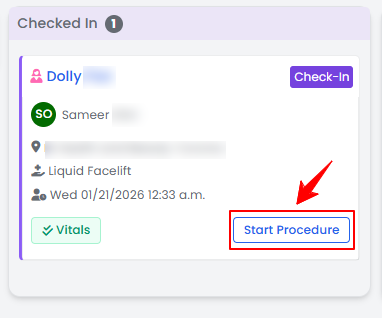
- Choose the Body Area from the dropdown menu and click “Start Procedure.”Note: For services without a selected procedure type, you will be prompted to choose the procedure type at this step. For detailed instructions on creating a procedure, refer to “Create a New Procedure” article.
- You will be directed to the Procedure View Screen in the patient profile, where all procedure sections are displayed.
- To add a questionnaire to the procedure, click “Add Questionnaire” in the Questionnaires section.

- Select the desired questionnaires and click “Save.”
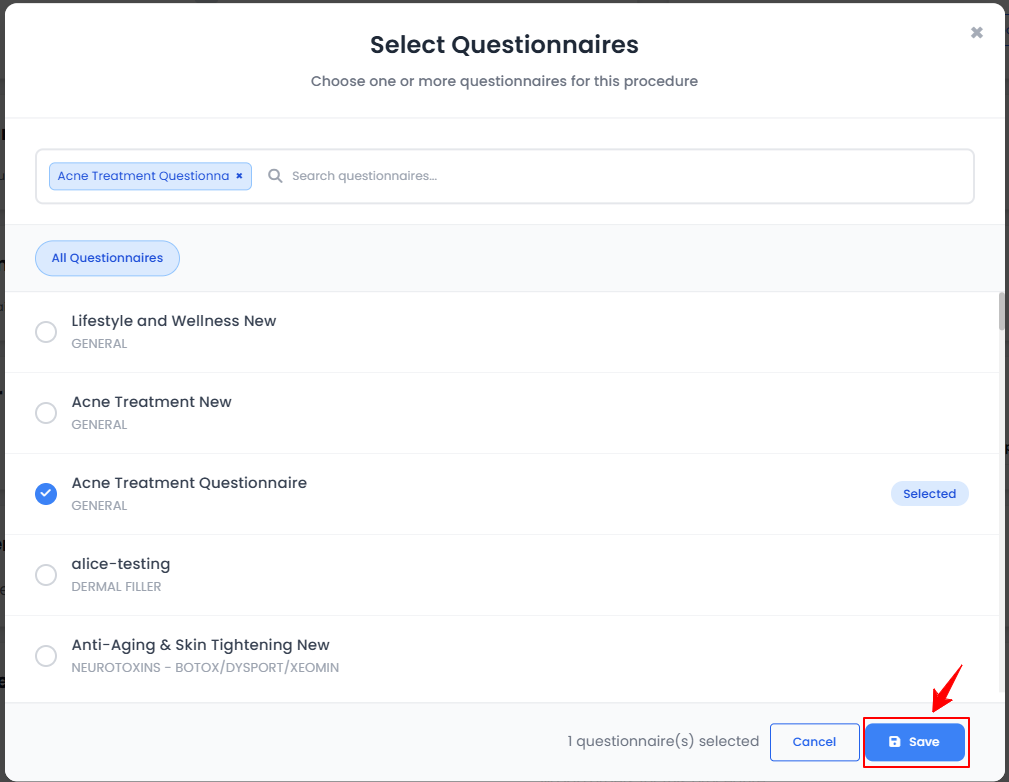
- The questionnaire will be added. Click “Fill Questionnaire” to open the form, complete all fields, and then click “Submit.”
The questionnaires have been added to the procedure successfully!
Send Questionnaire Through the Patient Profile
- The user can send the questionnaire through the patient profile by accessing Patients List Screen. From the EMR Board Tabs, select “Patients.”
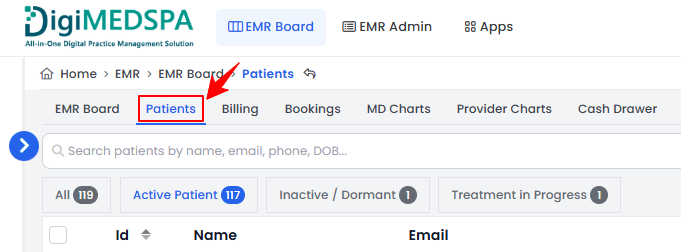
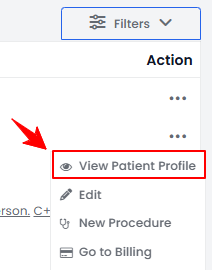
- To view a specific patient from the list, click the three dots under the action column and select "View Patient Profile," or simply click anywhere on the patient’s data.
- On the Patient Information Screen, the user will find a detailed overview of the patient’s information. To view the documents, simply click on the “Documents” tab.
- To access the questionnaires, simply click on the “Questionnaires” tab.
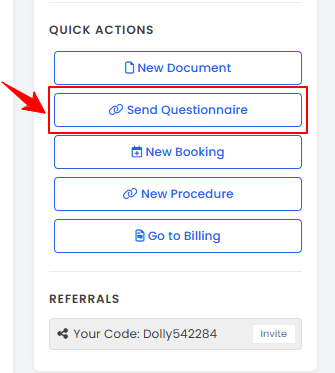
- From the Quick Actions menu at the bottom left, click “Send Questionnaire.”
- Select the questionnaire from the dropdown, link it to a booking if needed, then click “Send Email.”
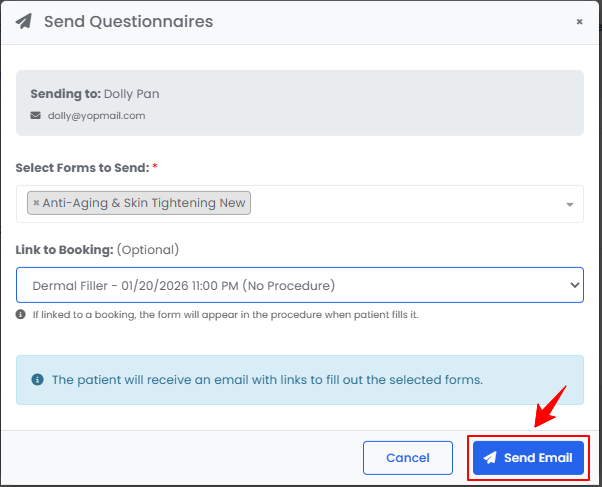
The questionnaire has been successfully sent to the patient!