How to Add Referee Code Through the Patient Profile?
This user guide explains how to add a referee code through the patient profile to track referrals accurately. It helps ensure proper attribution of referrals for reporting, rewards, or promotional purposes.
Understanding Terminologies
Referee Code
A referee code is a unique referral identifier used to link a new or existing patient to the person, provider, or campaign that referred them, helping track referrals, rewards, or promotional benefits accurately.
Access this link: https://digimedspa.com/ap2/patients
How to Add Referee Code Through for a New Patient
- The user can add a referee code for a new patient by accessing the Patients List Screen from two entry points:
- From the EMR Board Tabs, select “Patients”.

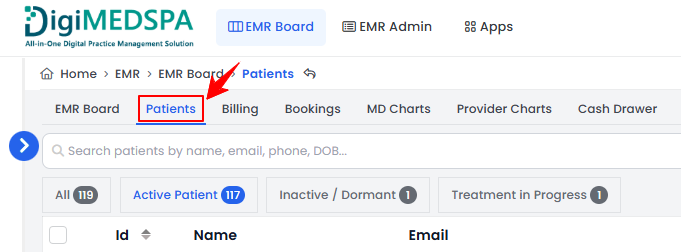
- From the Left Navigation, click on the “EMR Board” dropdown menu and select “Patients.” Alternatively, you can type “Patients” into the search bar in the Left Navigation.
- From the EMR Board Tabs, select “Patients”.
- On the Patients List Screen, click the "New Patient" button in the top right corner of the screen.
- The New Patient form will open for the user to enter patient information. There is an optional field for adding a Referee Code. Enter the code of an existing patient who referred this new patient and once you've filled in all required fields, click "Create Patient" to finish.
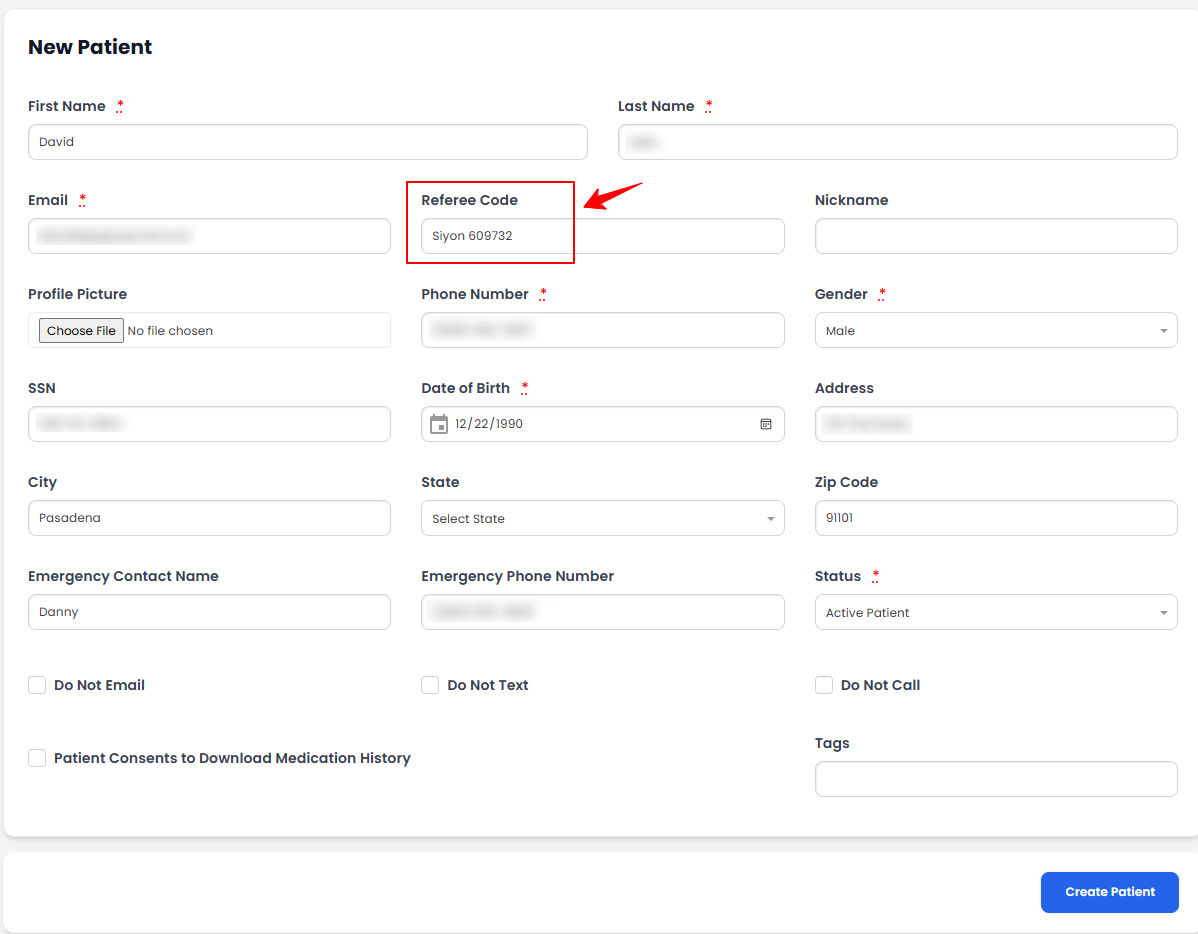 Note: Ensure the referee code entered is linked to an existing patient in the portal; otherwise, it will be invalid, and the new patient form cannot be submitted.
How to Add a Referee Code for an Existing Patient
- A referee code for an existing patient can be added from the patient profile, which is accessible through two entry points.
- From the EMR Board Tabs, select “Patients.”
- From the Left Navigation, click on the “EMR Board” dropdown menu and select “Patients.” Alternatively, you can type “Patients” into the search bar in the Left Navigation.
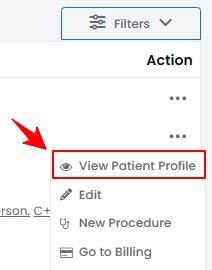
- To view a specific patient from the list, click the three dots under the action column and select "View Patient Profile," or simply click anywhere on the patient’s data.
- On the Patient Information Screen, the user will find a detailed overview of the patient’s information. Navigate to the Referrals section located at the bottom of the left panel, then click “Add Code” to enter the referee code.Note: If a referral code has already been added for a patient, the “Add Code” button will no longer be visible in the Referrals section of that patient’s profile.
- Enter the Referee Code and click “Submit” to save.
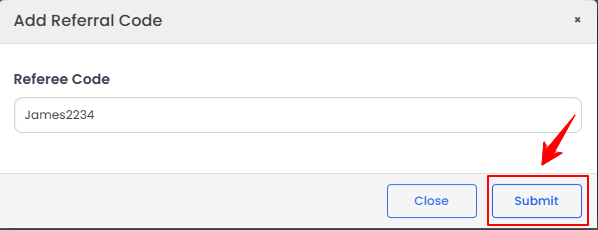
The referee code has been successfully added for an existing patient through the patient profile!Note: The “Invite” button in the Referrals section is used to invite others using this patient’s referral code. While the “Add Code” button is used to enter the referral code of the patient who referred this patient. The code must already be linked to an existing patient in the portal; otherwise, it will be invalid.