

Understanding Terminologies
- Emergency Contact
An emergency contact is a trusted person designated by a patient to be contacted in case of a medical emergency or urgent situation when the patient is unable to communicate themselves.
Part 1 of 2
How to Add a New Patient's Emergency Contact?
-
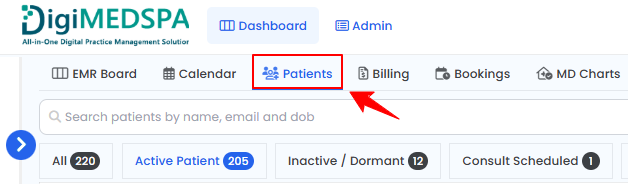
The user can add a patient's emergency contact while creating a new patient from the Patient List Screen. From the EMR Board Tabs, select “Patients.”
-
To add a patient, click the “New Patient” button in the top right corner of the screen.
-
Complete the required patient information, then enter the Emergency Contact Name and Phone Number. Once done, click “Create Patient” to save.
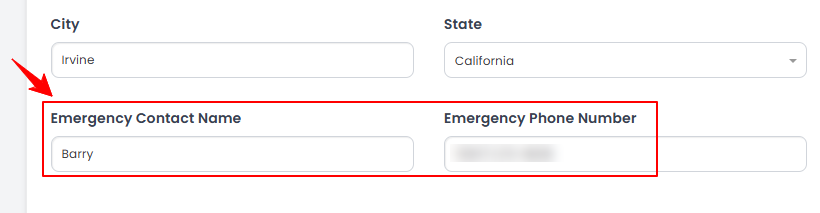 The emergency contact has been successfully added for the new patient!
Part 2 of 2
How to Add an Existing Patient's Emergency Contact?
-
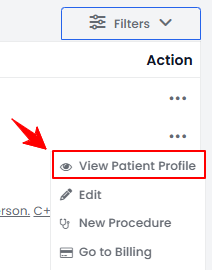
The user can add an emergency contact while editing an existing patient from two entry points. Click anywhere on the patient's data in the patient listing, or click the three dots under the action column next to the specific patient and select “View Patient Profile.”
-
On the Patient Information Screen, click the "Edit Patient" button in the top right corner of the screen.
-
From the patients list, click on three dots under the action column and select "Edit" for the specific patient.
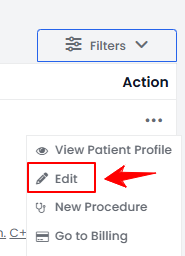 NoteThe patient information form will open in edit mode from both points.
 -
From here, enter the Emergency Contact Name and Phone Number. Click "Update Patient” to save.
The emergency contact has been successfully saved for the existing patient!
-
You’re all set
That’s every step of “How to Add a Patient's Emergency Contact?”. Up next: How to Mark a Patient Active/ Inactive.