Cancel a Membership for a Patient
This user guide provides step-by-step instructions for canceling a patient membership in the DigiMEDSPA Portal. Authorized users, including providers, employees, and patients (under staff supervision), can cancel memberships through the patient profile.
Understanding Terminologies
Patient Memberships
Patient membership is a subscription program that provides patients with access to exclusive benefits and perks, such as discounted services, priority booking, and special product pricing, in exchange for a recurring fee. Patient memberships often offer different tiers, allowing patients to select the membership type that best suits their needs and budget.
Access this link: https://digimedspa.com/ap2/patients?dashboard=true
Cancel Patient Membership
- You can cancel a patient membership through a patient’s profile, accessible via two entry points.
- From the EMR Board Tabs, select “Patients.”

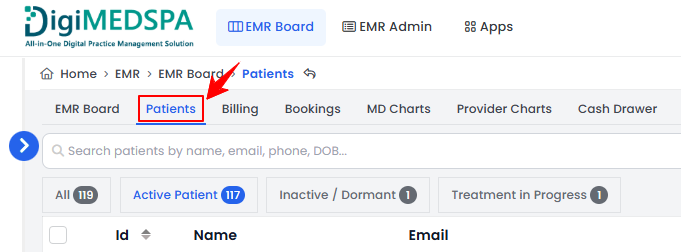
- From the Left Navigation, click on the “EMR Board” dropdown menu and select “Patients.” Alternatively, you can type “Patients” into the search bar in the Left Navigation.
- From the EMR Board Tabs, select “Patients.”
- To view a patient's profile, click anywhere on the patient's data in the patient listing, or click the three dots in the action column next to the specific patient and select “View Patient Profile.”
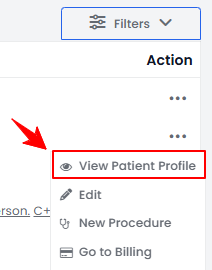
- On the Patient Information Screen, users can access complete patient information. Click on the “Memberships” tab.
 Note: The list of all memberships added for the patient will be displayed. If no membership has been added, clicking the "Memberships" tab will directly open the patient membership form.
 - From the Patient Membership List Screen, click on three dots under the action column and select "Cancel Membership" for the specific membership.
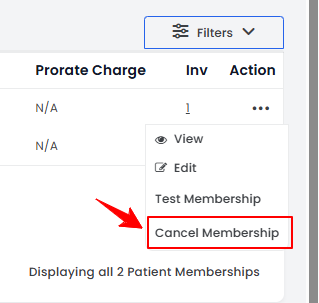
- A pop-up confirmation message will appear on the screen. Click “OK” to cancel membership.
- In the patient profile, the status of a canceled membership will be shown as “Mark as Canceled” in the status column.Note: A canceled membership will remain in the patient profile with the status “Mark as Cancelled” until its expiry date. After expiration, the status will be automatically changed to “Cancelled.”
Resume Patient Membership
- From the Patient Membership List Screen in the patient profile, click on three dots under the action column and select "Resume Membership" for the specific membership.
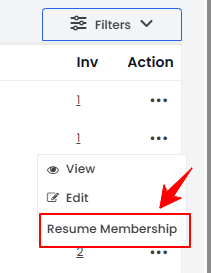
- A confirmation pop-up will appear, click “OK” to resume the membership.
The patient membership has been successfully resumed!