Accessibility StatementCommitment to Accessibility
We believe in providing an accessible and inclusive web experience for all users. Our goal is to make websites usable by the widest audience, regardless of their abilities. Our ADA tool follows the Web Content Accessibility Guidelines (WCAG) 2.1 at Level AA, developed by the World Wide Web Consortium (W3C). These guidelines help ensure that web content is accessible to people with a range of disabilities, including visual, motor, and cognitive impairments.
The websites we create integrate various technologies to maintain high accessibility standards. We offer an accessibility interface that allows users with specific needs to customize the user interface (UI) according to their preferences.
Accessibility Profiles Available on Our Website
- Seizure Safe Profile: This profile reduces the risk of seizures by stopping flashing or blinking animations and reducing color saturation.
- Vision Impaired Profile: This profile adjusts the website to support various visual impairments, such as deteriorating eyesight, tunnel vision, cataracts, and glaucoma.
- ADHD Friendly Profile: This profile minimizes distractions and reduces noise, aiding individuals with ADHD and other neurodevelopmental disorders in navigating and focusing on the website content.
- Cognitive Disability Profile: This profile provides features that help users with cognitive disabilities, such as autism and dyslexia, to focus on key content more easily.
- Dyslexia Friendly Profile: This profile makes text easier to read with a plain, clear font and more space between letters, words, and lines.
Customization Options for UI and Design
- Text Adjustments: Users can change the font type, font size, alignment, line height, and the spacing between letters and words.
- Color Adjustments: Users can select light, dark, or high contrast, invert the colors, dim the screen or give it warmer colors, and increase, reduce, or remove color saturation (monochrome).
- Animation and Sound Control: Users can stop animations, including autoplaying videos, animated GIFs, and CSS animations and transitions, with a single click, catering to those sensitive to motion, and can mute the sound of audio and video players. When a device is set to reduce motion, animations are stopped automatically.
- Content Emphasis: Users can highlight important elements such as links and headings or choose to highlight elements only when they are focused or hovered over.
- Reading Support: In browsers that support speech, Read Aloud reads out the text users click, select, or reach with the keyboard. The text magnifier, reading guide, and reading mask help users keep their place.
- Navigation: Page Structure lists the landmarks and headings of a page so users can jump straight to any section. Keyboard users are also offered a “Skip to main content” link.
Browser and Assistive Technology Compatibility
We aim to support a broad range of browsers and assistive technologies to provide users with the best possible experience. We ensure compatibility with all major browsers, including Google Chrome, Apple Safari, Microsoft Edge, Mozilla Firefox, and Opera, and across both Windows and Mac platforms. The accessibility menu works with a keyboard: press Alt + A (Option + A on a Mac) to open or close it, and your adjustments are remembered as you move between pages.
Feedback and Continuous Improvement
While we strive to make websites entirely accessible, some areas may still need enhancement or lack the necessary technology. We are committed to continuous improvement, updating our features, and adopting new technologies to enhance accessibility.


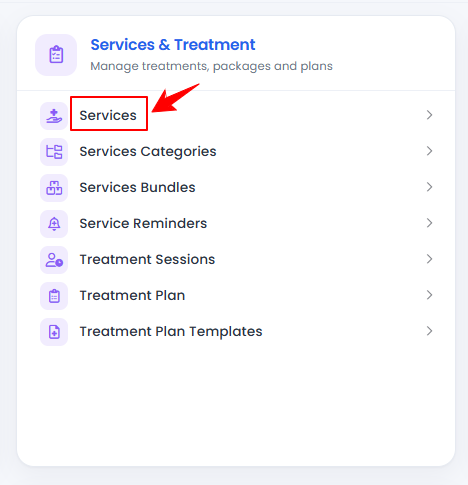
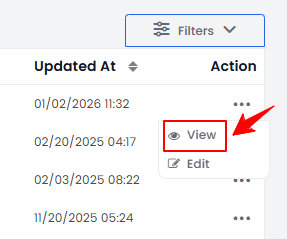
 You have successfully viewed booking statistics for a service!