

Understanding Terminologies
- Services
Services refer to cosmetic and health procedures offered at Med SPAs, such as facials, laser treatments, injectables, body contouring, etc. Managing services in the DigiMEDSPA Portal is important for accurate scheduling, resource management, and ensuring patients receive the appropriate treatments. It keeps offerings up to date, enables correct bookings, and provides pricing accuracy and overall operational efficiency.
Set the Order of Services in the Service List Screen
-
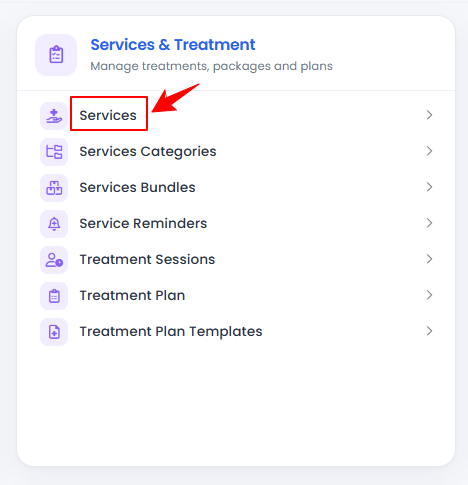
The user can set the order of services by accessing the Services List Screen. From the “Admin” dashboard, click on “Services” under “Services & Treatment,” or search services in the top search bar.
-
To set the order of services, click "Order Services" in the top right corner of the screen.
-
Drag and drop the services to arrange them in your preferred order. Once a service is moved to the desired position, the new order is automatically saved.
-
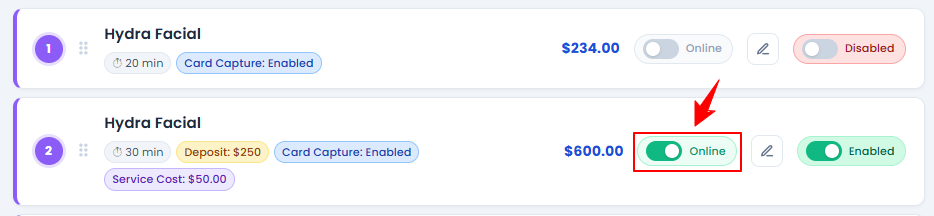
Each service displays its current status, indicating whether it is enabled or disabled in the portal. To make a service available for online booking, simply turn on the “Online” toggle.
-
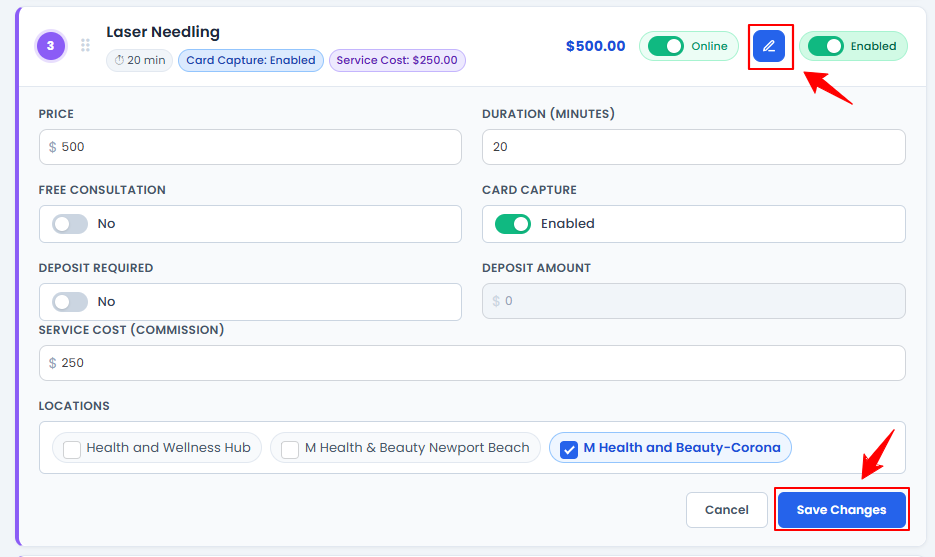
Click the “Edit” icon to update the service details, including the price, duration, free consultation, card capture, deposit requirement, deposit amount, service cost, and available locations. Once you've made the necessary changes, click “Save Changes.”
-
After setting the desired order, click the back icon in the top-left corner of the screen to return to the Service List Screen.
The order of services in the Service List Screen has been set successfully!
You’re all set
That’s every step of “How to Set the Order of Services in the Service List Screen?”.