

This user guide provides step-by-step instructions for adding, viewing, editing, and attaching a service category to a service offered by Med SPAs in the DigiMEDSPA Portal.
Understanding Terminologies
- Service Categories
Service categories are classifications that group similar types of services or procedures offered at a Med SPA based on their similar characteristics, such as facial treatments, body contouring, injectables, laser treatments, etc. Service categories streamline the booking process, making it easier for patients to navigate offerings and allowing the Med SPA to manage services efficiently by grouping related procedures under specific headings, helping with pricing, promotions, and resource allocation.
Add Service Category
-
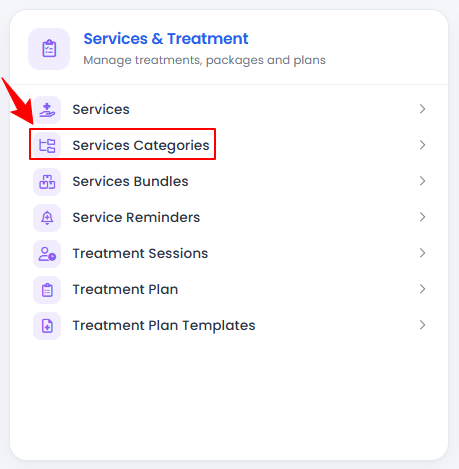
The user can create a service category by accessing the Service Categories List Screen. From the “Admin” dashboard, click on “Service Categories” under “Services & Treatment,” or search service categories in the top search bar.
-
To add a new service category, click on the “New Category‘’ button in the top right corner of the screen.
-
Enter a Name for the Service Category, then select the relevant Services from the dropdown menu to include in the category.
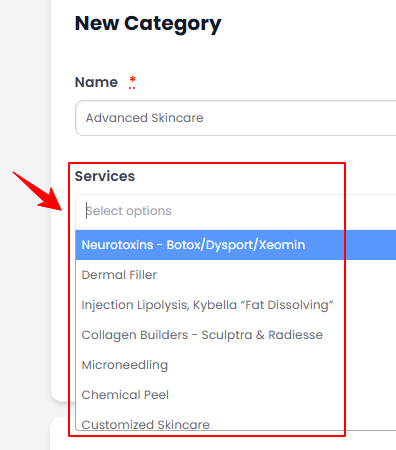 NoteYou can choose as many services as needed for the category.
 -
Select the service category Status as “Enable” or “Disable.” If you want the category to be available for online booking, select “Available for Online Booking.” Then, click “Create Category.”NoteWhen a service category is “Enabled”, it becomes active and visible in the portal, allowing patients and providers to view and book its services. When a category is “Disabled”, it is hidden and cannot be selected in the portal until re-enabled. This is useful for temporarily removing services without deleting them.The service category has been added successfully!
View a Service Category
-
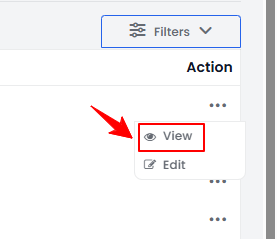
To view a specific service category from the list, click the three dots in the action column and select "View," or simply click anywhere on the service category’s data.
-
The Service Category View Screen will open, displaying all the details of the service category.
Edit a Service Category
-
There are two ways to edit an existing service category.
-
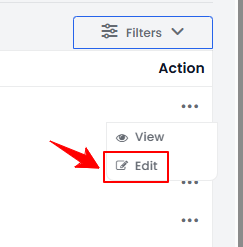
From the service category list, click on three dots under the action column and select "Edit" for the specific service category.
-
On the View Service Category Screen, click the ‘’Edit Category’’ button located in the top right corner of the screen.
-
-
Make the desired changes in the service category form. Once done, click “Update Category.’’ The service category has been successfully edited!
Attach a Service Category to a Service
-
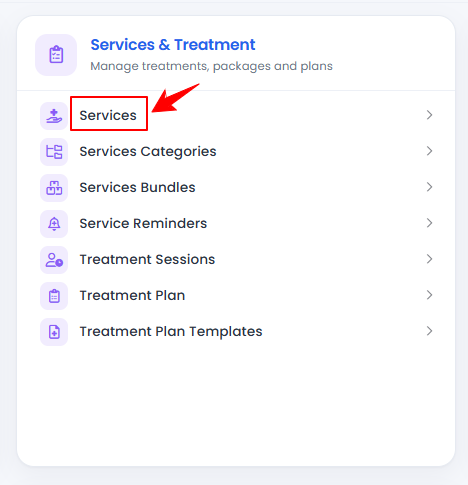
From the “Admin” dashboard, click on “Services” under “Services & Treatment,” or search booking settings in the top search bar.
-
Click the "New Service" button to add a service, or select an existing service from the list to edit.
-
Go to the Step 1 of creating or updating a service, select the relevant Service Categories from the dropdown menu to attach with the service being created or updated.
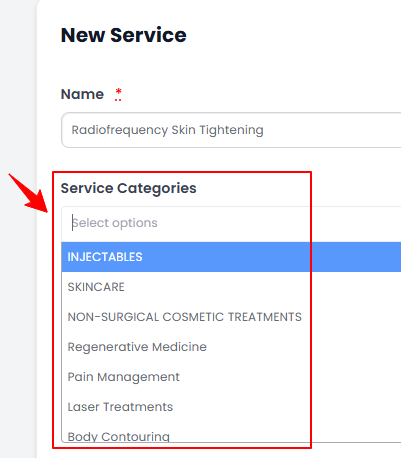 NoteYou can select multiple service categories for a single service.
 -
After selecting the relevant service categories for the service, click “Next.” At Step 3, click “Submit” to save the updates.
The service category has been successfully attached to the service!
You’re all set
That’s every step of “Manage Service Categories”. Up next: Add / View / Edit Service Bundle.