

Understanding Terminologies
- Website Page Titles
Website page titles are the headings or names assigned to each webpage that appear at the top of a browser window or tab. These titles describe the content of each page, helping users and search engines understand the purpose of the page. Typical page titles include Home, Services, About Us, Contact, and Promotions. Well-crafted page titles enhance user experience, improve SEO, and make navigation easier for visitors.
- Homepage Blocks
Homepage blocks are customizable sections on a website's homepage that organize and showcase key information in a visually appealing way. Each block typically highlights specific content areas, such as About Us, Featured Services, Patient Testimonials, Special Offers, or Gallery, making it easier for visitors to navigate and understand the offerings of a business and allowing for a well-structured, engaging, and user-friendly homepage experience.
Update Website Page Titles
-
You can update your website page titles through the “Website Content” accessible from two entry points:
-
Click “Apps” in the Top Menu Navigation to access the applications.

-
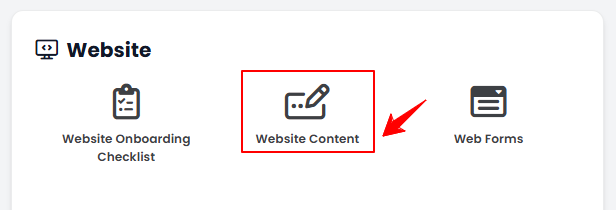
From the Website Panel, click on “Website Content.”
-
-
From the Left Navigation, open the “Website” dropdown menu, and select “Website Content.” Alternatively, you can type “Website Content” into the search bar in the Left Navigation.NoteClicking on “Website Content” will take you directly to General Information, the first step in editing the full website content.
-
-
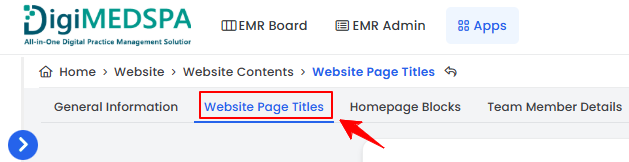
From the menu bar, select “Website Page Titles.”
-
Select the page titles you want to include on your website from the provided list. Once done, click “Update Website Page Titles” to proceed.
The website page titles have been updated successfully!
Update Homepage Blocks
-
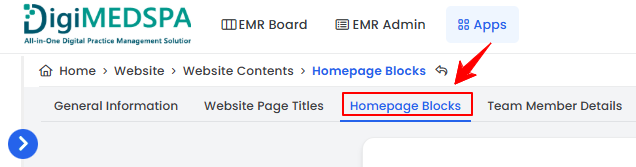
From the menu bar, select “Homepage Blocks.”
-
Select the homepage blocks you want to include on your website from the provided list. If you wish to add a custom block, click “Add New Homepage Block.”NoteClicking on “Website Content” will take you directly to General Information, the first step in editing the full website content.Note: New blocks are custom sections you can add to your website’s homepage to display unique content not covered by standard block options.
-
Enter the Block Name and select it to include on your website. Once completed, click “Update Settings” to save.
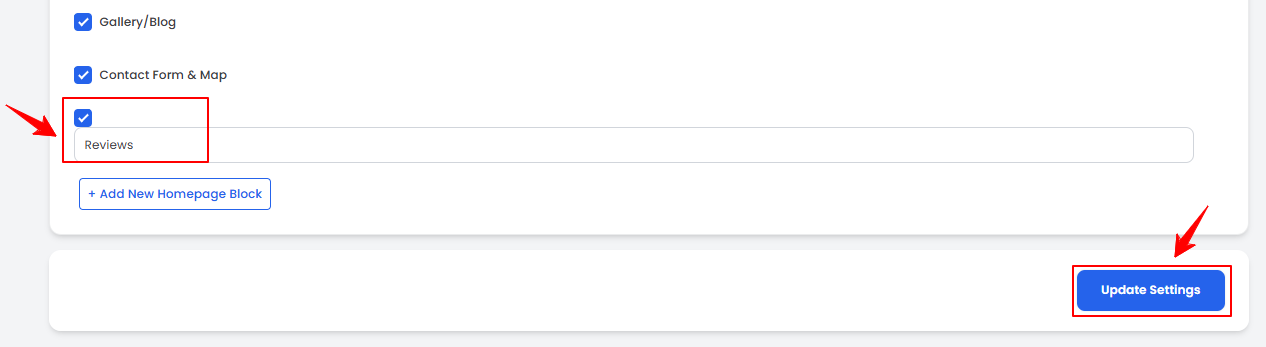 The homepage blocks have been updated successfully!
You’re all set
That’s every step of “Update Website Page Titles and Homepage Blocks”. Up next: Manage Providers and Team Member Details for Your Website.