

Understanding Terminologies
- Reviews
Reviews (or Patient Reviews) are testimonials or feedback from patients displayed on the website. These reviews reflect patients' experiences with the Med SPA’s services, often highlighting the quality of care, results, and overall satisfaction. Featuring authentic reviews builds trust with potential clients and enhances the SPA’s credibility.
- Images and Videos
Images and videos are visual elements showcasing the Med SPA's environment, treatments, staff, and results. These may include photos of the providers, before-and-after images of procedures, and informative videos. Images and videos help patients get a realistic preview of the services and atmosphere, making the website more engaging and informative.
Add Reviews
-
You can add reviews on your website through the “Website Content” accessible from two entry points:
-
Click “Apps” in the Top Menu Navigation to access the applications.

-
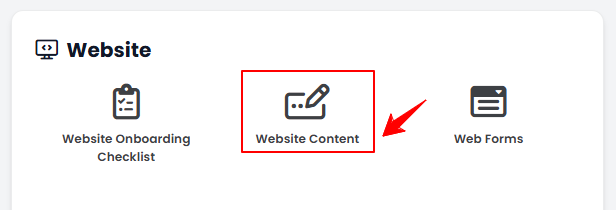
From the Website Panel, click on “Website Content.”
-
-
From the Left Navigation, open the “Website” dropdown menu, and select “Website Content.” Alternatively, you can type “Website Content” into the search bar in the Left Navigation.NoteClicking “Website Content” will take you directly to General Information, the first step in editing the full website content.
-
-
From the menu bar, click on “Reviews.”

-
To add a new review to your website, click on the “New Review'’ button in the top right corner of the screen.
-
Enter the Consumer Name for the review. Click “Choose File” to upload the consumer’s image (optional). Then add the Review Content, City, and State. After completing all fields, click “Create Review.”
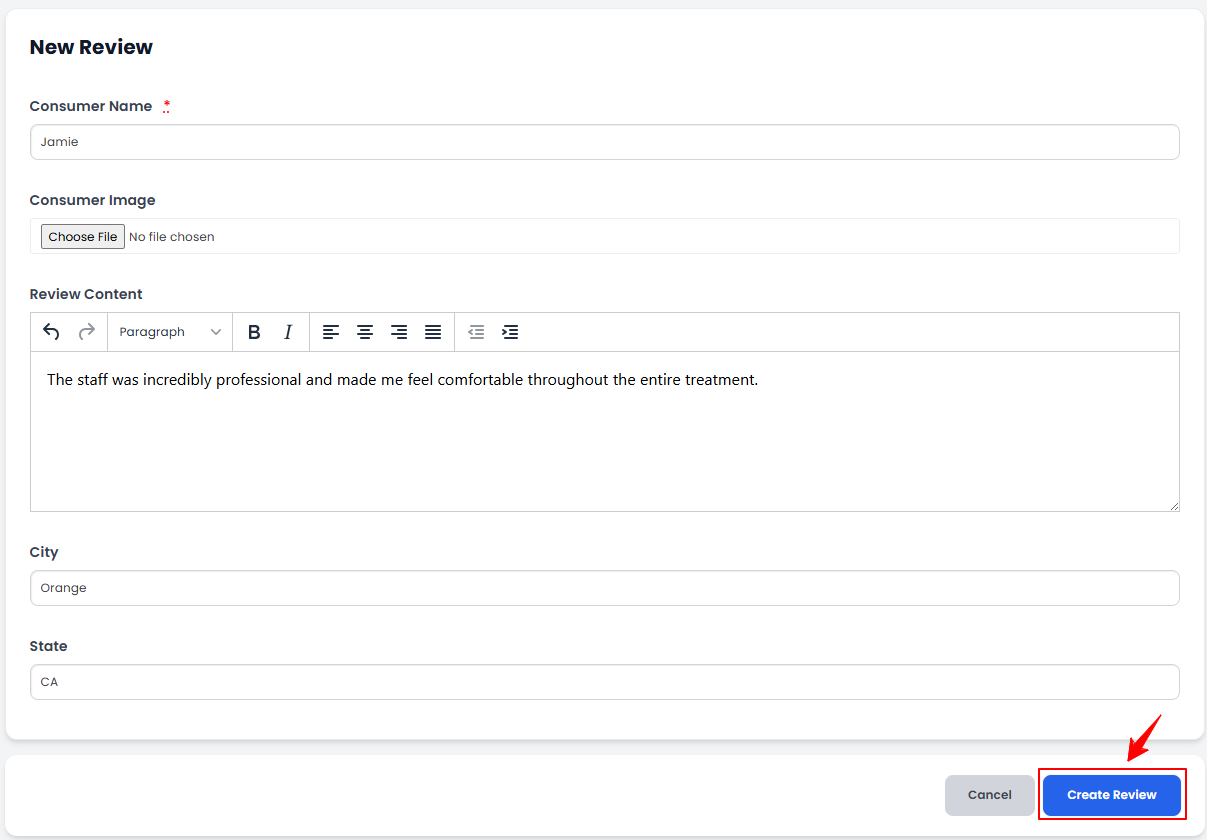 Note“City” and “State” indicate the location of the patient providing the review.
The new review for your website has been added successfully!
View Reviews
-
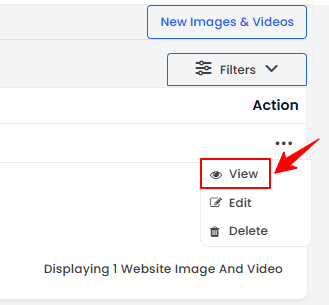
To view a review details, click anywhere on the review’s detail in the listing, or click the three dots in the action column next to the specific review and select '’View.’’
-
The Review View Screen will open, displaying all the information for the category.
Edit Review
-
There are two ways to edit an existing review:
-
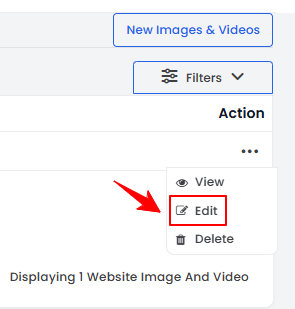
From the review listing, click on three dots under the action column for the specific review and click “Edit.”
-
From the Review View Screen, click “Edit Review”’ in the top right corner of the screen.
-
-
Make the desired changes. Once done, click “Update Review.”
Your review has been successfully edited!
Delete Review
-
There are two ways to delete an existing review:
-
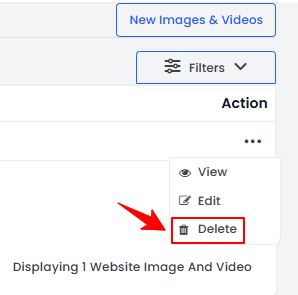
From the review listing, click on three dots under the action column for the specific review and click “Delete.”
-
From the Review View Screen, select “Delete Review”’ in the top right corner of the screen.
-
-
A pop-up confirmation message will appear on the screen. Select “OK” to delete the review.
The review for your website has been deleted successfully!
Add Images and Videos
-
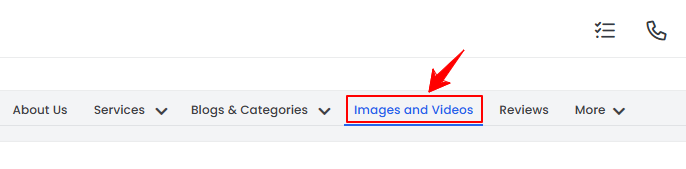
From the menu bar, click on “Images and Videos.”
-
To add new images and videos, click on the “New Image & Video‘’ button in the top right corner of the screen.
-
Enter the Title and Description for the images and videos you are adding to your website. Click “Choose File” to select an image or video from your computer. Once all the information has been entered, click “Create Image & Video.”
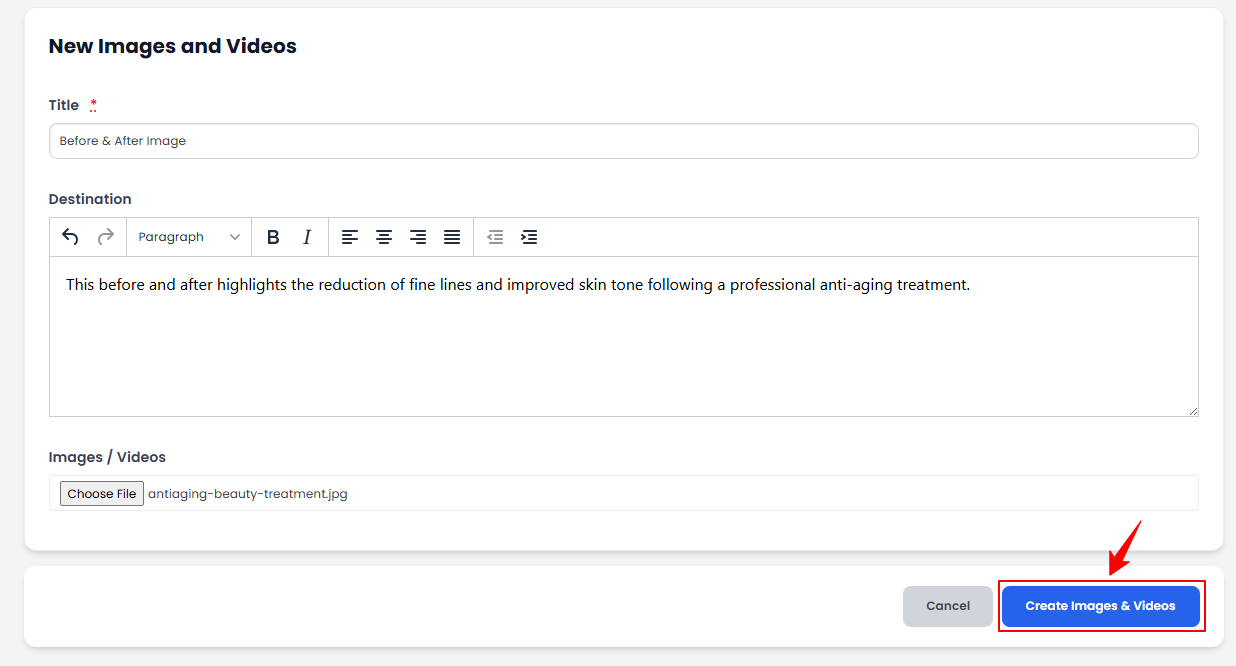 The image and video has been added successfully!
View Images and Videos
-
To view the details of images & videos, click anywhere on the image or video’s detail in the listing, or click the three dots in the action column next to the specific image or video and select '’View.’’
-
The Images & Videos View Screen will open, displaying all the information for the image or video.
Edit Images and Videos
-
There are two ways to edit existing images and videos:
-
From the images and videos listing, click on three dots under the action column for the specific image and video and click “Edit.”
-
From the Image and Video View Screen, hover over “Actions” and select “Edit Image & Video”’ in the top right corner of the screen.
-
-
Make the desired changes. Once done, click “Update Images & Videos.”
Your images and videos have been successfully edited!
Delete Images and Videos
-
There are two ways to delete existing images and videos:
-
From the images and videos listing, click on three dots under the action column for the specific image and video and click “Delete.”
-
From the Image and Video View Screen, hover over “Actions” and select “Delete Image & Video”’ in the top right corner of the screen.
-
-
A pop-up confirmation message will appear on the screen. Select “OK” to delete the image and video.
The image and video for your website has been deleted successfully!
You’re all set
That’s every step of “Add / Edit / View / Delete Reviews, Images and Videos for Your Website”.