

Understanding Terminologies
- Service Categories
Service categories is a website page for the classifications that group similar services offered by the Med SPA, such as Facial Treatments, Body Contouring, or Injectables. These categories help visitors navigate and understand the types of services available by organizing them into easy-to-browse sections, making the site more user-friendly.
- Service Content
Service content refers to the detailed descriptions for each service within a category. This includes the service name, a short description, and an in-depth explanation of what the treatment involves, its benefits, and any other relevant information. Service content helps patients make informed decisions and learn more about each treatment option through the website.
Add Service Categories
-
You can add your service categories through the “Website Content” accessible from two entry points:
-
Click “Apps” in the Top Menu Navigation to access the applications.

-
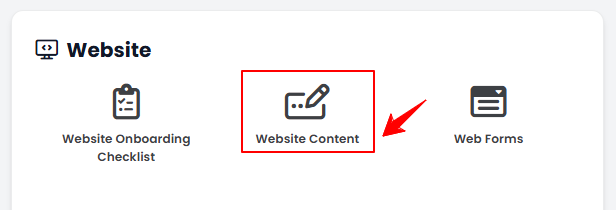
From the Website Panel, click on “Website Content.”
-
-
From the Left Navigation, open the “Website” dropdown menu, and select “Website Content.” Alternatively, you can type “Website Content” into the search bar in the Left Navigation.NoteClicking “Website Content” will take you directly to General Information, the first step in editing the full website content.
-
-
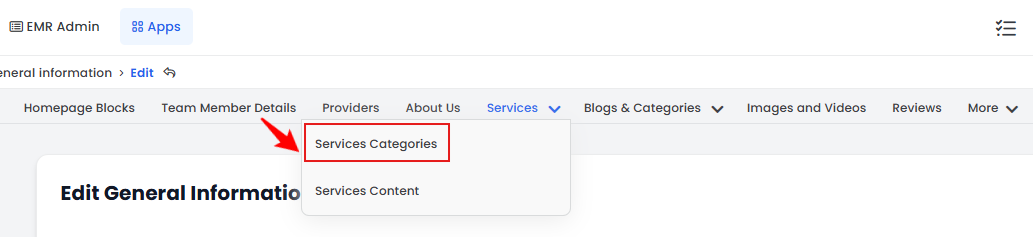
Hover over “Services” in the menu bar and select “Service Categories” from the dropdown menu.
-
To add a new service category to your website, click on the “New Service Category'’ button in the top right corner of the screen.
-
Enter the Name and Category Description for the service category you are adding to your website. To add an additional attachment for the service category, click “Add New Attachment.”
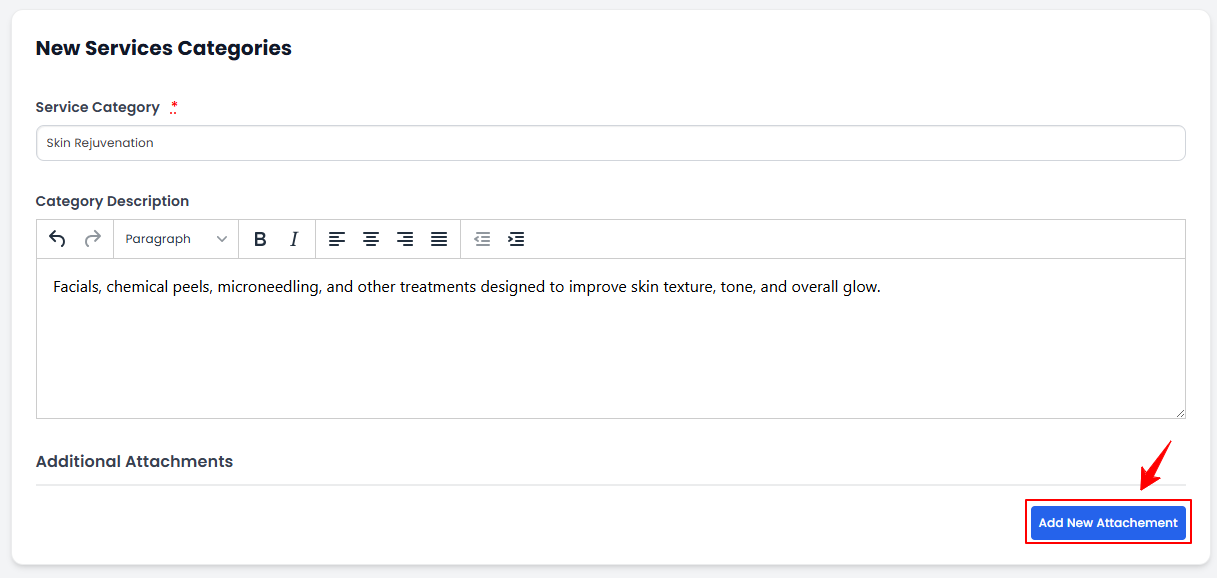 Note“Additional attachment” refers to an image associated with the service category you are adding.
 -
Click “Choose File” to upload a relevant image for the service category from your computer. Once all the information has been entered, click “Create Service Category.”NoteSelect the "Destroy" option to delete the selected image.
The new service category has been added successfully!
View Service Category
-
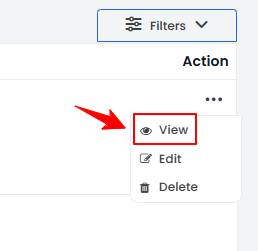
To view a service category details, click anywhere on the category’s detail in the listing, or click the three dots in the action column next to the specific category and select '’View.’’
-
The Service Category View Screen will open, displaying all the information for the category.
Edit Service Category
-
There are two ways to edit an existing service category details:
-
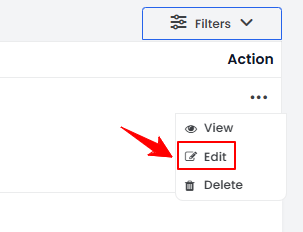
From the service category listing, click on three dots under the action column for the specific service category and click “Edit.”
-
From the Service Category Details View Screen, hover over “Actions” and select “Edit Service Category”’ in the top right corner of the screen.
-
-
Make the desired changes. Once done, click “Update Service Category.”
Your service category has been successfully edited!
Delete Service Category
-
There are two ways to delete an existing service category:
-
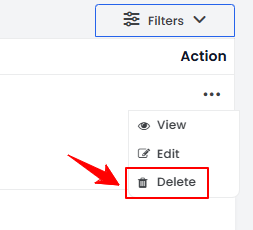
From the service category listing, click on three dots under the action column for the specific service category and click “Delete.”
-
From the Service Category Details View Screen, hover over “Actions” and select “Delete Service Category”’ in the top right corner of the screen.
-
-
A pop-up confirmation message will appear on the screen. Select “OK” to delete the service category.
The service category for your website has been deleted successfully!
Add Service Content
-
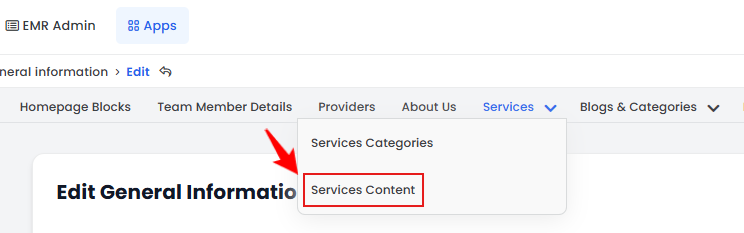
From the menu bar, hover over “Services” and select “Service Content.”
-
To add new service content to your website, click on the “New Service Content'’ button in the top right corner of the screen.
-
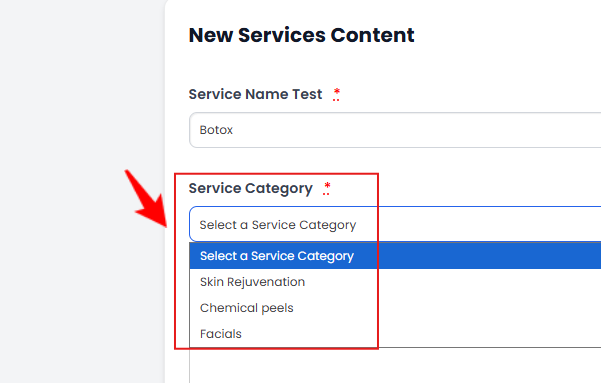
Enter the Name for the service content you are adding to your website. Then, select the “Service Category” for the content from the dropdown menu.
-
Enter the Short Description and Long Description for the service content. To add an additional attachment for the service content, click “Add New Attachment.”Note“Additional attachment” refers to an image associated with the service you are adding.
-
Click “Choose File” to upload a relevant image for the service from your computer. Once all the information has been entered, click “Create Service Content.”
The new service content has been added successfully!
View Service Content
-
To view a service content details, click anywhere on the service’s information in the listing, or click the three dots in the action column next to the specific service and select '’View.’’
-
The Service Content Details View Screen will open, displaying all the information for the service.
Edit Service Content
-
There are two ways to edit an existing service content:
-
From the service listing, click on three dots under the action column and select "Edit" for the specific service.
-
From the Service Content Details View Screen, hover over “Actions” and select “Edit Service Content”’ in the top right corner of the screen.
-
-
Make the necessary changes and click "Update Service Content" to save your updates.
The new service content has been edited successfully!
Delete Service Content
-
There are two ways to delete an existing service content:
-
From the service listing, click on three dots under the action column and select "Delete" for the specific service.
-
From the Service Content Details View Screen, hover over “Actions” and select “Delete Service Content”’ in the top right corner of the screen.
-
-
A pop-up confirmation message will appear on the screen. Select “OK” to delete the service content.
The service content for your website has been deleted successfully!
You’re all set
That’s every step of “Add / View / Edit / Delete Service Categories and Service Content for Your Website”. Up next: Manage Additional Pages and Website Settings for Your Website.