

Understanding Terminologies
- Stock Transfer
Stock transfer refers to the process of moving products from one location (e.g., a Med SPA branch or clinic) to another. Stock transfers are used to redistribute supplies, such as skincare products, injectables, or equipment, between locations to ensure each site has adequate inventory. This helps maintain balanced stock levels, preventing shortages at one location and overstocking at another.
Part 1 of 2
Receive a Stock Transfer
-
The user can receive stock transfers from another clinic location by accessing the Stock Transfers List Screen from two entry points.
-
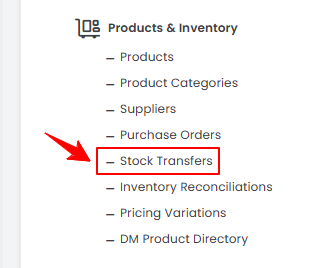
From the EMR Admin, click on “Stock Transfers” under “Products & Inventory.’’
-
From the Left Navigation, open the “EMR Admin” dropdown menu, select “Products & Inventory,” and then choose “Stock Transfers” from the subsequent dropdown menu. Alternatively, you can type “Stock Transfers” into the search bar in the Left Navigation.
-
-
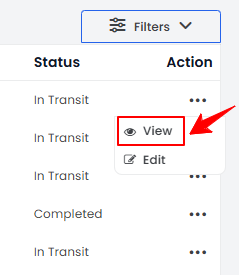
To view a stock transfer, click the three dots under the action column next to the specific stock transfer and select '’View” or simply click anywhere on the stock transfer’s data.
-
The Stock Transfer View Screen will open, displaying all the details of the stock transfer. Click “Receive All” next to the product details that have been received.
-
The Traceability (Service) option is preselected, and the From Batch ID and Stock fields are automatically populated from the stock transfer. Enter the To Batch ID, Expiration Date, Received Stock quantity, and Damaged Stock quantity (if applicable). If any items are damaged, add a reason for the damage, then click “Receive All.”
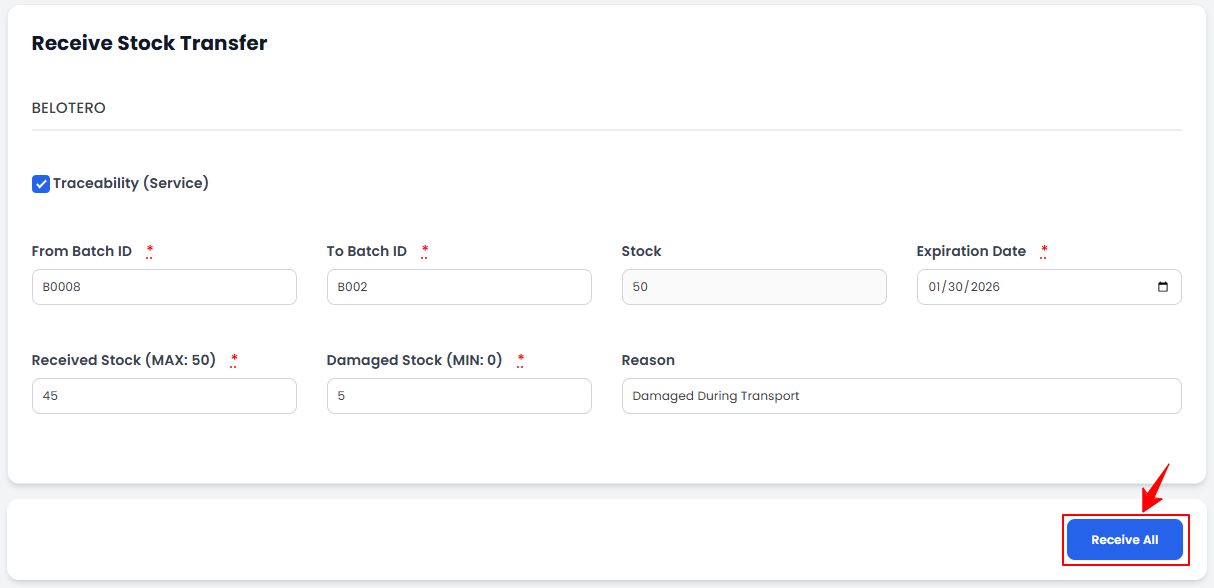 Note“Traceability” is the process of tracking products used in a service by batch ID, expiration date, and stock movement, ensuring accurate inventory control, compliance, and patient safety. The received stock value should not exceed the total stock quantity, and the damaged stock quantity must be at least 0.The stock transfer has been received successfully!
Part 2 of 2
Check the Status of Stock Transfer
-
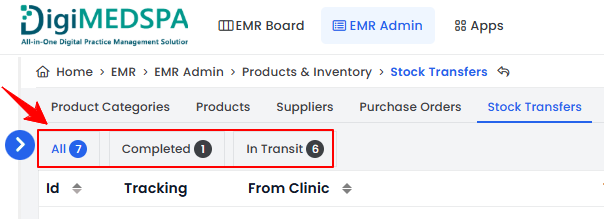
To check the status of your stock transfer, go to the stock transfer tab and review the status indicators in the top scopes bar for the latest updates.
-
Click on the “Completed” scope to view the list of all stock transfer orders that have been successfully received at the destination location.NoteOnce the stock transfer is received at the destination location, its status will update from "In Transit" to "Completed."
-
Click “In Transit” to view the list of stock transfer orders currently in progress, where items are still being transported between locations.NoteThe status of your stock transfer can also be viewed in the ‘’All’’ orders list. The ‘’Status’’ column shows whether a stock transfer is completed or in transit.
You’re all set
That’s every step of “How to Accept Stock Transfer from Another Clinic Location”. Up next: Add / View / Edit Supplier.