Check Sent SMS Campaigns
This user guide provides a quick reference for reviewing past SMS marketing campaigns.
Understanding Terminologies
Sent SMS Campaigns
Sent SMS campaigns are previously distributed SMS promoting services, special offers, or wellness tips to patients. Reviewing these campaigns enables Med SPAs to analyze engagement metrics, such as open and click-through rates, helping to enhance future outreach and improve patient retention.
Check Sent SMS Campaigns
- The user can check the sent SMS campaigns by accessing “SMS Marketing” in the Digital Marketing Panel from two entry points.
- Click “Apps” in the Top Menu Navigation to access the applications.


- Navigate to the Digital Marketing Panel and click on “SMS Marketing.”
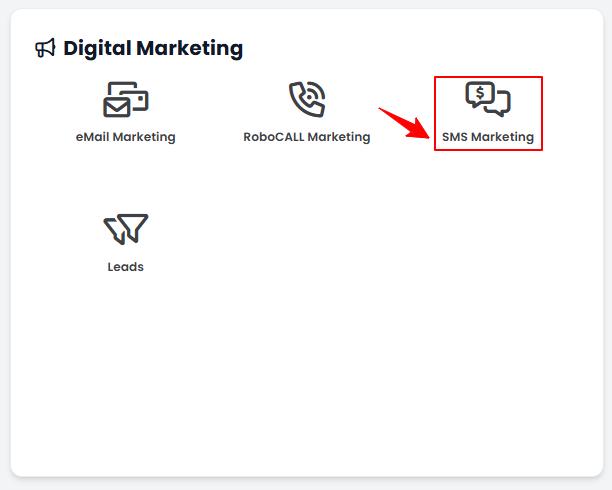
- Navigate to the Digital Marketing Panel and click on “SMS Marketing.”
- From the Left Navigation, click on the “Digital Marketing” dropdown menu, and select “SMS Marketing.’’ Alternatively, you can type “SMS Marketing” into the search bar in the Left Navigation.
- Click “Apps” in the Top Menu Navigation to access the applications.
- On the SMS Campaigns List Screen, click on ‘’Sent’’ tab.
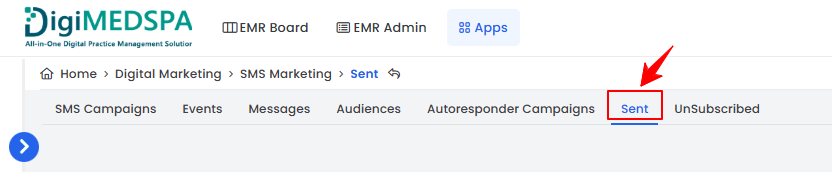
- The Sent SMS Campaigns Screen will display a list of all sent campaigns with their Receiver Type, Receiver Name, Sent Date, and Delivery Status.
Note: “Receiver Type” identifies the category of recipients (e.g., Patient, Lead, All Subscribers, Internal Staff). “Receiver Name” is the name of the individual or group who received the SMS. “Sent Date” is the exact date and time when the SMS campaign was sent out. “Delivery Status” indicates whether the SMS was successfully delivered, is pending, failed, or could not be delivered due to an error.