

Understanding Terminologies
- Patient Wallet
A patient wallet is a digital balance within the patient's profile in the DigiMEDSPA Portal, that stores funds, credits, or rewards for the patient. Patients can use it to pay for services, products, or memberships.
Viewing Patient Wallet in the Patient Profile
-
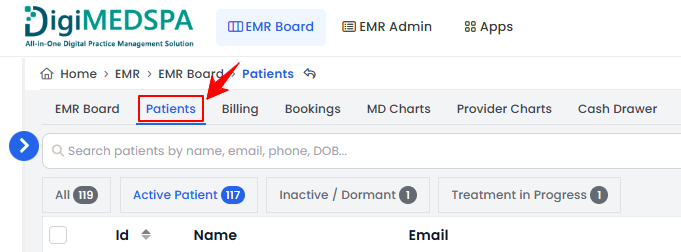
The user can view patient wallets by accessing the Patients List Screen from two entry points.
-
From the EMR Board Tabs, select “Patients.’’
-
From the Left Navigation, click on the “EMR Board” dropdown and select “Patients.’’ Alternatively, you can type “Patients” into the search bar in the Left Navigation.
-
-
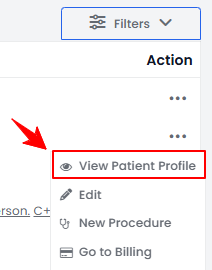
From the patient listing, click on three dots under the action column and select "View Patient Profile" for the specific patient.
-
On the Patient Information Screen, the user will find a detailed overview of the patient’s information. To view the patient wallet, click the ‘’Wallet’’ tab.

-
The patient wallet will open, displaying all wallet items, including credits and their amounts, along with the total credit amount. Click on “Add” to add credit to the wallet.
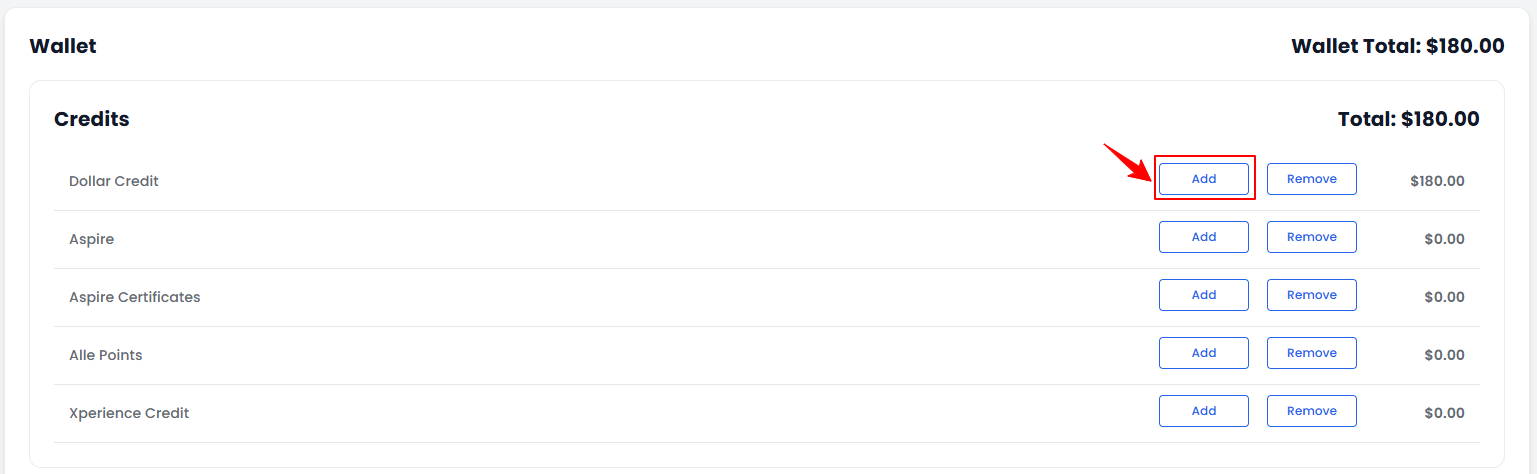 Note“Dollar Credit” is a prepaid balance in a patient’s wallet that can be used toward treatments or products. “Aspire” is a loyalty program offering rewards and benefits for purchases and engagement, with “Aspire Certifications” recognizing achievements or milestones within the program. “Alle Points” are reward points earned through the Alle loyalty program and can be redeemed for discounts or perks. “Xperience Credit” is earned through the Xperience program and can be applied toward services or products.
 -
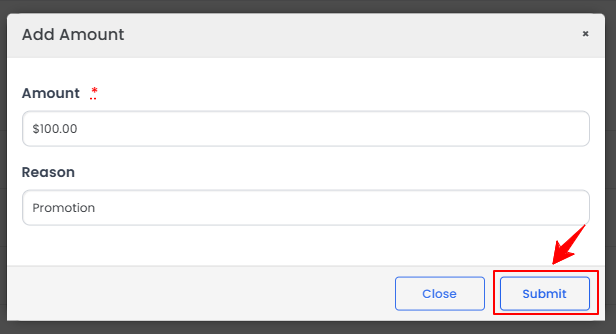
Enter the amount and the reason for adding the credit, then click “Save.”
-
To view the patient’s credit ledgers, click “View Credit Ledger.”NoteTo learn more about credit ledgers, refer to the article “View Credit Ledgers.”
-
To add an item to the wallet, click the “+Add Item” button.
-
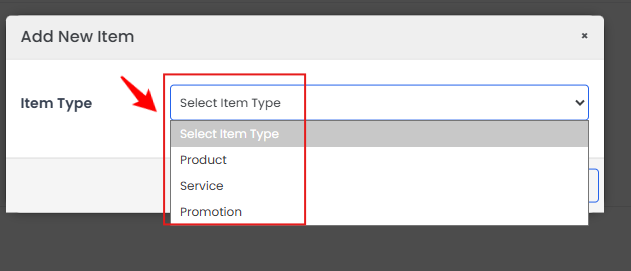
Select the Item Type from the dropdown menu.
-
Select the product, service, or promotion, enter the quantity, choose the location and booking, check “Charge” to add to the billing cart if needed, and click “Add Item.”
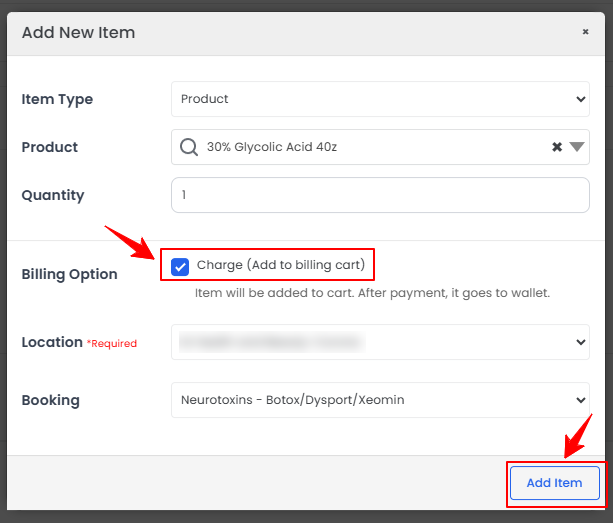 NoteIf the “Charge” option is not selected, you only need to enter the quantity and notes.
 -
Gift cards you have received are displayed in the Gift Cards section.
-
To view the wallet ledger, click the “View Wallet Ledger” button.NoteA “wallet ledger” is a detailed record of all transactions in a patient’s wallet, including credits added, debits spent, refunds, and adjustments, providing a complete history of wallet activity.
-
The patient wallet ledger list will open, displaying a detailed history of all past transactions.Note‘’Quantity’’ is the number of products or services associated with each transaction. ‘’Amount’’ is the total cost or value of a specific transaction. ‘’Line Item Type’’ is the classification of a transaction, such as a Credit (added funds) or Wallet Debit (deducted funds). ‘’Credit’’ is an amount added to the patient’s wallet, increasing the balance. ‘’Wallet Debit’’ is an amount deducted from the patient’s wallet for a purchase or service.
You’re all set
That’s every step of “How to Manage the Patient Wallet?”. Up next: How to Obtain Patient Consents to Download Medication History.