View Credit Ledgers
This user guide provides step-by-step instructions on accessing and reviewing credit ledger entries. It explains how to track dollar credits, view transaction details, check previous and updated balances, and ensure transparency in credit management.
Understanding Terminologies
Credit Ledgers
Credit ledgers are digital records that track reward transactions, including dollar credits, redemptions, and balance updates. They provide a transparent and detailed history of earned and used rewards, ensuring accurate management of patient loyalty programs.
View Credit Ledgers Through EMR Admin
- The user can view reward ledgers by accessing ‘’Credit Ledger’’ from two entry points.
- From the EMR Admin, click on ‘’Credit Ledger’’ under ‘’EMR Admin.’’

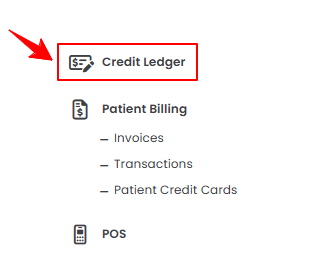
- From the Left Navigation, click on the “EMR Admin” dropdown and select “Credit Ledger.” Alternatively, you can type “Credit Ledger” into the search bar in the Left Navigation.
- From the EMR Admin, click on ‘’Credit Ledger’’ under ‘’EMR Admin.’’
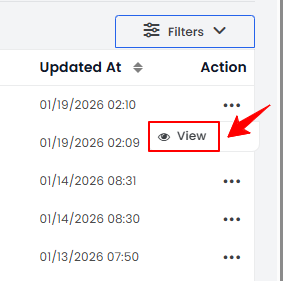
- To view a credit ledger’s details, click anywhere on the credit ledger’s data in the listing, or click the three dots under the action column next to the specific credit ledger and select '’View.’’
- The Credit Ledger View Screen will open, displaying all the details of the credit ledger, including Patient and User Name, Reward Type, Ledger Type, Amount, Previous Balance, and Reason.Note: “Reward Type” is the category of the reward, such as dollar credits, discounts, or promotional points. “Ledger Type” is the classification of the transaction, such as credit (added rewards) or debit (redeemed rewards). The “Amount” is the numerical value of the reward transaction, indicating how much was credited or debited. The “Previous Balance” is the reward balance before the current transaction was applied. “Reason” is the justification or description for the reward transaction, such as a promotional bonus, referral reward, or redemption.
View Credit Ledgers Through Patient Profile
- The user can view a patient’s credit ledger by accessing the Patients List Screen from two entry points:
- From the EMR Board Tabs, select “Patients.”
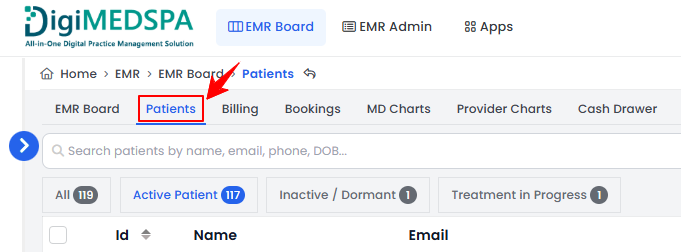
- From the Left Navigation, click on the “EMR Board” dropdown menu and select “Patients.” Alternatively, you can type “Patients” into the search bar in the Left Navigation.
- From the EMR Board Tabs, select “Patients.”
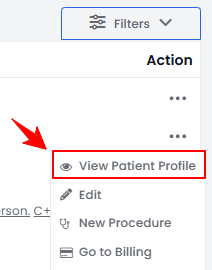
- To view a specific patient from the list, click the three dots under the action column and select "View Patient Profile," or simply click anywhere on the patient’s data.
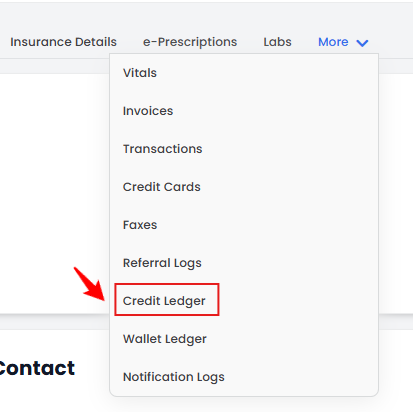
- On the Patient Information Screen, you can view a detailed overview of the patient’s information. To access the patient’s credit ledger, hover over the “More” dropdown menu and select “Credit Ledger.”
- The Credit Ledger View Screen will open, displaying all the details of the credit ledger, including Patient and User Name, Reward Type, Ledger Type, Amount, Previous Balance, and Reason.