

Understanding Terminologies
- Locations
Locations refer to the physical addresses where your Med SPA operates. This includes all branches or facilities where services are offered. Adding accurate location information in the EMR portal allows patients to find and book appointments at the correct facility.
- Business Hours
Business hours represent the general operating times of your Med SPA and define when your facility is open to the public. It is important to set these hours so that patients know when they can visit or book appointments. Note that each provider must also input their personal schedules for patient bookings within these business hours.
Part 1 of 3
Add a Med SPA Location
-
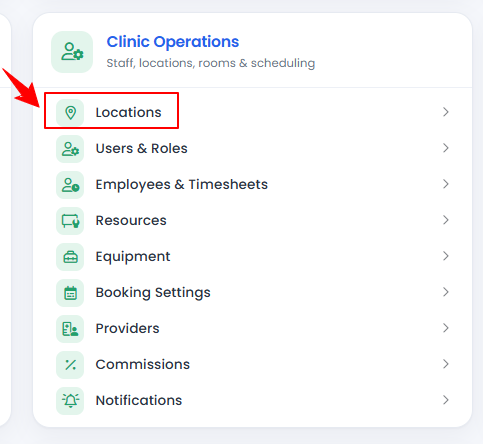
The user can add a location by accessing the Locations List Screen. From the “Admin” dashboard, click on “Locations” under “Clinic Operations,” or search locations in the top search bar.
-
To add a new Med SPA location, click "New Location" in the top right corner of the screen.
-
Fill in your Med SPA's location information including Name, Address, City, State, Zip Code, Map URL, Phone Number, Fax Number, Tax ID, and Product Tax.NoteA “Tax ID” is a unique number assigned by a government tax authority to identify an individual or business for tax reporting and tax-related purposes. “Product Tax” is the tax percentage you want to apply to products for this location.
-
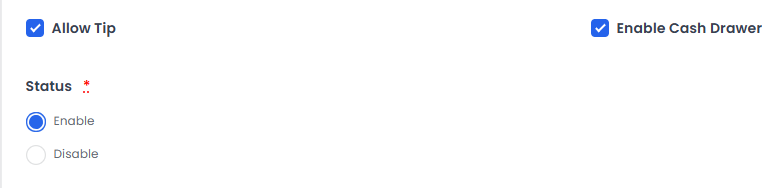
If your Med SPA accepts tips, enable the Allow Tip option. You can also enable the Cash Drawer option if you want to activate the cash drawer for this location. Finally, set the location status by choosing Enable to turn the location on or Disable to turn it off.
-
Next, add your business hours by selecting the day and adding the open and close hours. Click "Create Location" to save the information you have entered and set up your Med SPA(s).
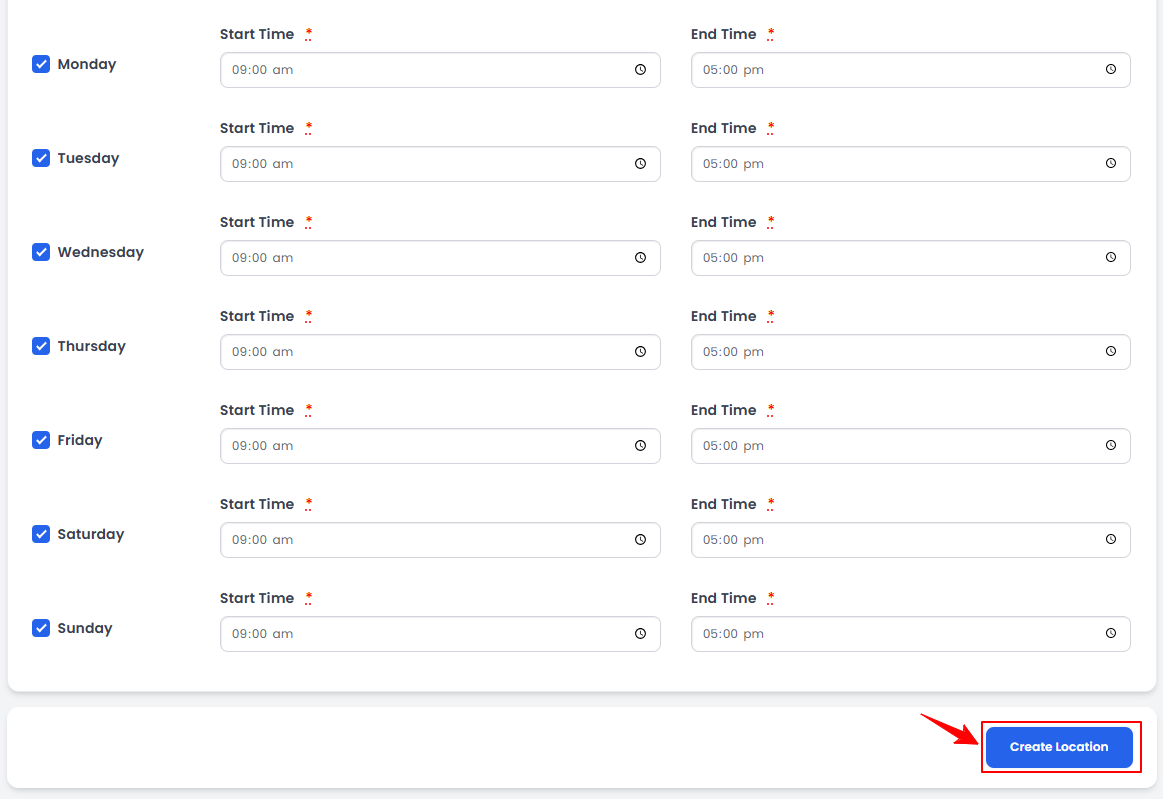 NoteThese are general operating hours for your Med SPA. Providers are required to input their schedules in order to open appointment times for patients to book.The location and business hours have been successfully set up!
Part 2 of 3
View a Med SPA Location
-
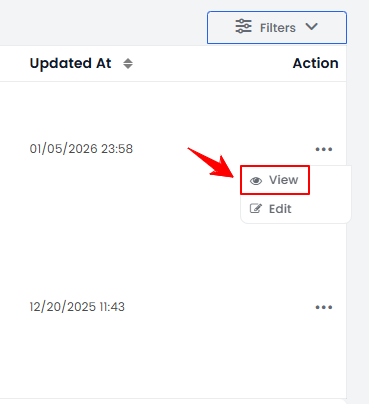
To view a Med SPA, click the three dots under the action column next to the specific location and select '’View” or simply click anywhere on the location’s data.
-
The Locations View Screen will open, displaying all the details of the product.
Part 3 of 3
Edit Med SPA Location Information
-
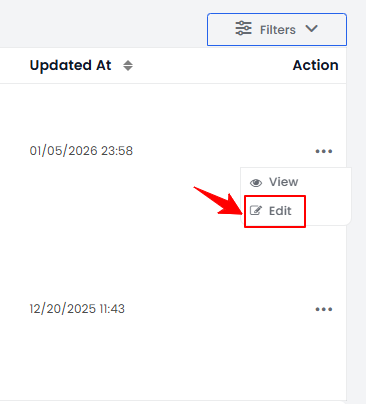
From added locations, click on three dots under the action column and select "Edit" for the specific location.
-
From here, edit the information you would like to change and click "Update Location" to save the new information.NoteYou can select an enabled Med SPA location when creating a service, booking, procedure, and more in the portal. To enable or disable a location, refer to our How to “Disable a Med SPA Location” article.
The location and business hours have been successfully updated!
You’re all set
That’s every step of “Setup Locations and Business Hours”. Up next: How to Disable a Med SPA Location?.