Login
Login DigiMEDSPA EMR
 DigiMEDSPA CONNECT ™
Manage Treatment Plans
This user guide provides instructions on viewing and editing a patient's treatment plans, including session information, payment details, progress tracking, and updates.
Understanding Terminologies
Treatment Plan
A treatment plan is a structured outline of a patient's medical or aesthetic care, detailing recommended procedures, session types, timelines, and expected outcomes. It serves as a guide for both providers and patients to track progress, adjust treatments as needed, and ensure optimal results.
Access this link: https://digimedspa.com/ap2/treatmentplantemplates
View Treatment Plans
- The user can view treatment plans by accessing Treatment Plans List Screen via three entry points
- From the EMR Board Tabs, select “Treatment Sessions.’’

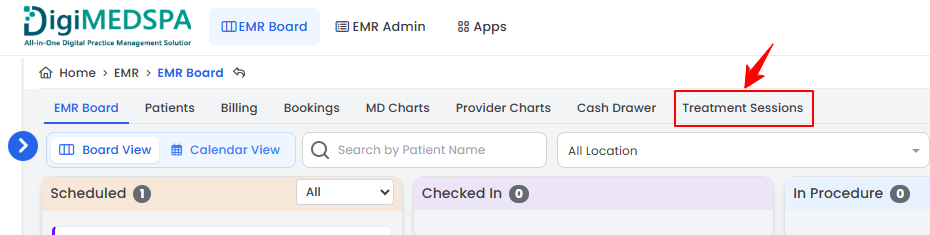
- From the Treatment Sessions List Screen, click on ‘’Treatment Plans’’ tab.
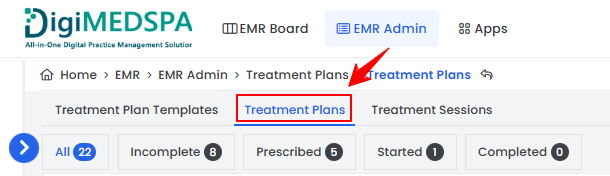
- From the Treatment Sessions List Screen, click on ‘’Treatment Plans’’ tab.
- From the EMR Admin, click on “Treatment Plans” under “Treatment Plans.’’
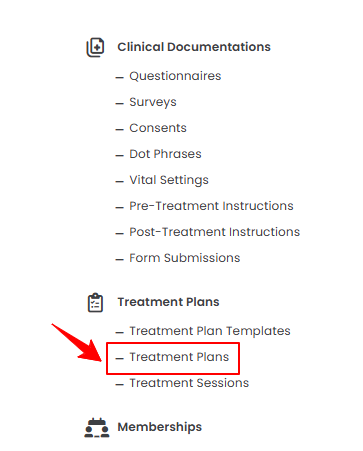
- From the Left Navigation, open the “EMR Admin” dropdown menu, select “Treatment Plans,” and then choose “Treatment Plans” from the subsequent dropdown menu. Alternatively, you can type “Treatment Plans” into the search bar in the Left Navigation.
- From the EMR Board Tabs, select “Treatment Sessions.’’
- To view a specific treatment plan, click anywhere on its data or click on the three dots under the action column and select "View."
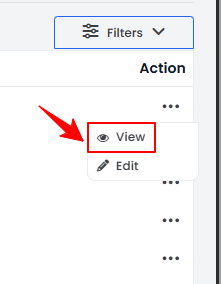
- The Treatment Plan View Screen will open in the patient profile, displaying both the Treatment Plan and Session Details.
Edit Treatment Plans
- The user can edit a treatment plan from two points.
- From the treatment plans list, click on the three dots under the action column and select ‘’Edit’’ for the specific plan you want to update.
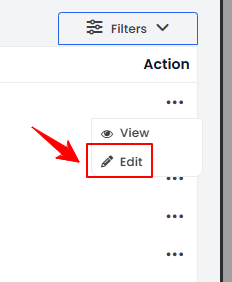
- On the Treatment Plan View Screen, click on the ‘’Edit Treatment Plan’’ button in the top right corner of the screen.Note: The user cannot edit the completed treatment plans.
- From the treatment plans list, click on the three dots under the action column and select ‘’Edit’’ for the specific plan you want to update.
- Go to the step where changes are required. After making the desired updates, click ‘’Finish.”
The treatment plan has been edited successfully!
Check the Status of Treatment Plans
- To check the status of a treatment plan, review the status indicators in the top scopes bar for the current updates.
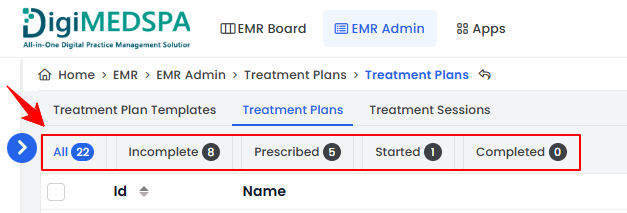
- Click the ‘’Incomplete” scope to view the list of incomplete treatment plans.Note: “Incomplete Plans” are treatment plans that have not been prescribed to the patient and have not started yet.
- Click on ‘’Prescribed” scope to view the list of prescribed treatment plans.Note: “Prescribed Plans” are treatment plans that have been prescribed to the patient but have not started yet.
- Click on ‘’Started’’ scope to view the list of treatment plans which have been started.Note: Plans with a "Started" status are those that are still in progress, with at least one session, procedure, or billing pending.
- Click on ‘’Completed’’ scope to view the list of completed treatment plans.Note: “Completed Plans” are those in which all sessions, procedures, and billing have been completed.
- The status of treatment plans can also be viewed in the “All” list. The “Status” column shows whether a treatment plan is Complete, Incomplete, Started, or Prescribed currently.