

Understanding Terminologies
- Active
An active patient is currently receiving or eligible to receive services. Active patients appear in booking, scheduling, and clinical workflows.
- Inactive
An inactive patient is no longer receiving services or is temporarily unavailable. Inactive patients are hidden from active workflows but their records are retained for history and reference.
Part 1 of 3
Mark a New Patient Active/ Inactive
-
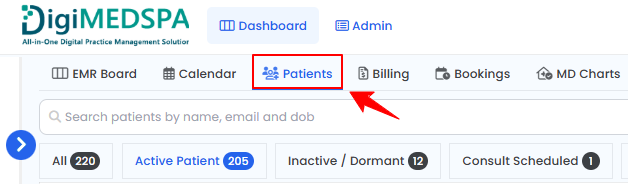
The user can mark a new patient Active/ Inactive by accessing the Patients List Screen. From the EMR Board Tabs, select “Patients.”
-
On the Patients List Screen, click the "New Patient" button in the top right corner of the screen.
-
The New Patient form will open for entering patient information. In this form, selecting the patient’s “Status” is a required field. Choose “Active Patient” or “Inactive/Dormant” from the dropdown menu. After completing all required fields, click “Create Patient” to finish.
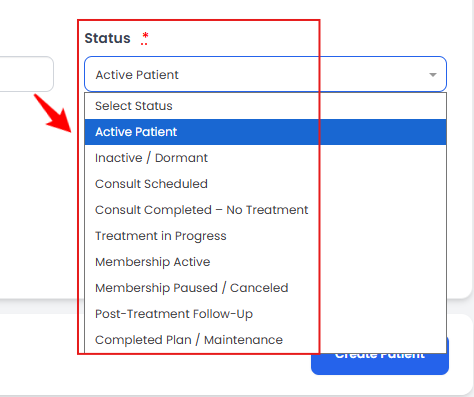 NoteYou may also select a different patient status from the given options in the dropdown menu.
The patient has been successfully marked active/ inactive in the portal!
Part 2 of 3
Mark an Existing Patient Active/ Inactive
-
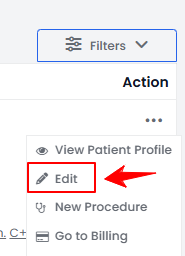
From the patient list, click on three dots under the action column and select "Edit" for the specific patient.
-
From the Edit Patient Form, update the patient’s “Status” as needed, then click “Update Patient” to save your changes.
-
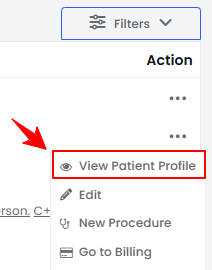
A patient can also be marked active/ inactive through the patient profile. Click anywhere on the patient's data in the patient listing, or click the three dots under the action column next to the specific patient and select “View Patient Profile.”
-
On the Patient Information Screen, click the "Edit Patient" button in the top right corner of the screen.
-
And finally, select “Edit Patient” under the Quick Actions menu on the Patient Information Screen.
-
-
The patient information form will open in edit mode. Select the patient’s “Status” from the dropdown, then click “Update Patient” to save your changes.
The existing patient has been marked active/ inactive successfully!
Part 3 of 3
Check Status for the Patient
-
From the Patients List Screen, you can use the two scope bars, ”Active Patient” and “Inactive/Dormant” to filter the patient list. Click a scope bar to view all patients with that status, making it easy to manage and navigate between active and inactive patient records.
 NoteScope bars appear only for statuses that have been assigned to patients. Statuses with no assigned patients are not shown in the scope bars.
You’re all set
That’s every step of “How to Mark a Patient Active/ Inactive”. Up next: How to Record Patient Vitals Using Quick Vitals Entry?.