Login
Login DigiMEDSPA EMR
 DigiMEDSPA CONNECT ™
How to Create a Provider Note During Procedure Charting?
This user guide provides instructions for creating and documenting provider notes during procedure charting.
Understanding Terminologies
Provider Notes
Provider notes are written observations, comments, or details recorded during a procedure to document important patient treatment information.
Procedure Charting
Procedure charting is systematically recording details of a medical or aesthetic procedure, including observations, treatment steps, and patient responses, for accurate documentation and future reference.
Access this link: https://digimedspa.com/ap2/procedures
Create Provider Notes During Procedure Charting
- The user can create a provider note during charting of a procedure. A procedure can be created from three entry points.
- From the EMR Board select a booking that is in the ‘’Checked In’’ step then press the ‘’Start Procedure’’ button to move that booking to the ‘’In Procedure’’ phase.

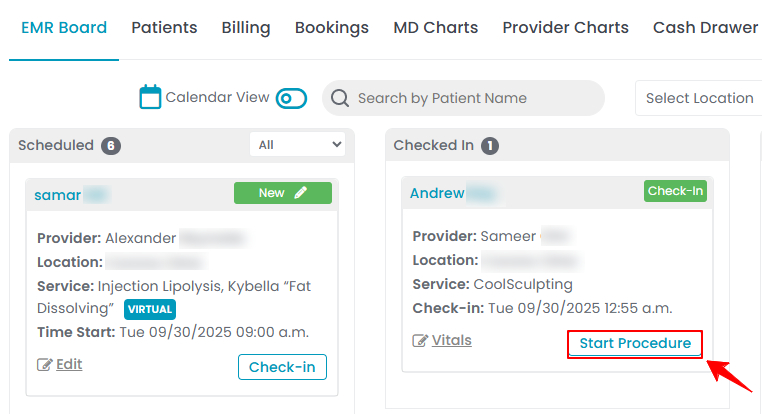
- Here, the user can choose to create either a “Multi Page View” procedure or a “Single Page View” procedure. Click on the “Single Page View” option.Note: For full instructions on creating a procedure using the multi page view, refer to the user guide “Create a Procedure Through Multi Page View.” Complete the first seven steps of the workflow, then continue to the marking screen to enter the provider note. If patient information and booking details are already entered, the user will go directly to Step 3 of creating a procedure through the multi page view.
- From the EMR Board tabs, click on “Patients.”
- From the patient list, click on three dots under the action column and select "Express Procedure" for the specific patient.
- Alternatively, you can click “View Patient Profile” from the three dots in the Action column. Within the patient profile, every page includes a “New Procedure” button in the Quick Actions, located at the bottom left under the patient’s information, then choose “Single Page View.”
- From the EMR Board tabs, click on “Bookings.”
- From the list of all bookings, click on three dots under the action column and select "New Procedure" for the specific booking, then choose “Single Page View.”Note: If patient information and booking details have already been entered, they will automatically appear in the procedure form.
- From the EMR Board select a booking that is in the ‘’Checked In’’ step then press the ‘’Start Procedure’’ button to move that booking to the ‘’In Procedure’’ phase.
- Complete all the required information, then proceed to the marking screen.Note: For complete instructions on creating a procedure through the single page view, refer to ‘’Create a Procedure Through Single Page View” user guide.
- The user can add notes to a procedure by navigating to the '’Provider Note'’ tab. Enter the note you want to add in the given space and click “Save.”
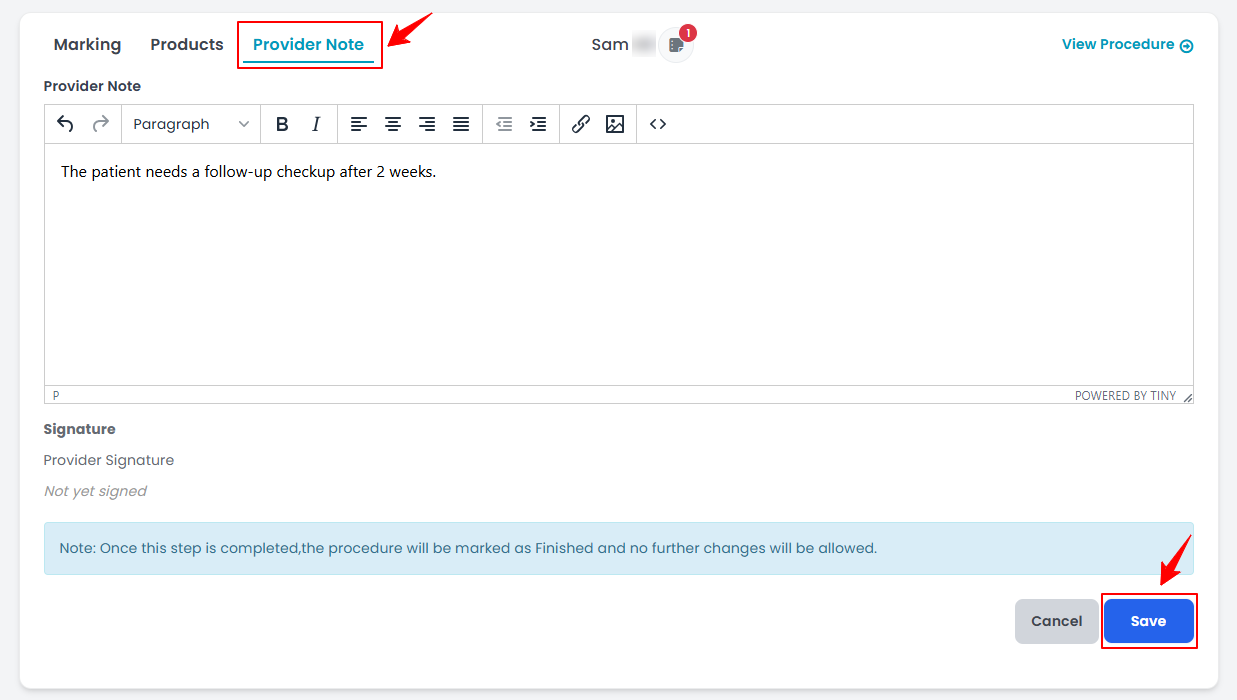 Note: Customize the formatting of the note text using the options under the Provider Note window. Adjust the font style, size, color, and background or insert images to create the exact look you want.
 - To access “dot phrases,’’ type a dot (.) in notes. These pre-created phrases will appear in a dropdown menu, allowing you to quickly select and insert repetitive notes instead of typing them manually.
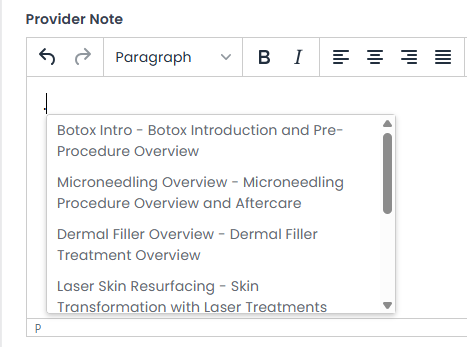 Note: To use Dot Phrases, users must first create and save these repetitive phrases in the Dot Phrases List Screen. Once saved, you can easily insert them by typing a dot wherever needed. dot phrases can be created and managed within Clinical Documentation in the portal. For step-by-step instructions, refer to the “Manage Dot Phrases” tutorial.
 - The user can add notes to a procedure even after it has been created. To do so, navigate to the Procedure View Screen, click '’Add Provider Note,'’ enter the desired information, and then click '’Save'’ to confirm.
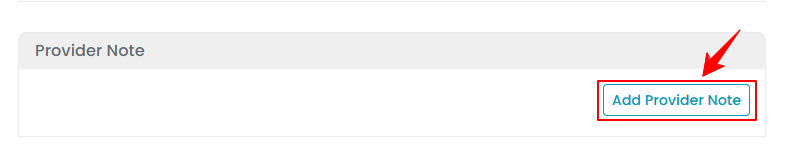
The provider note has been successfully added!